
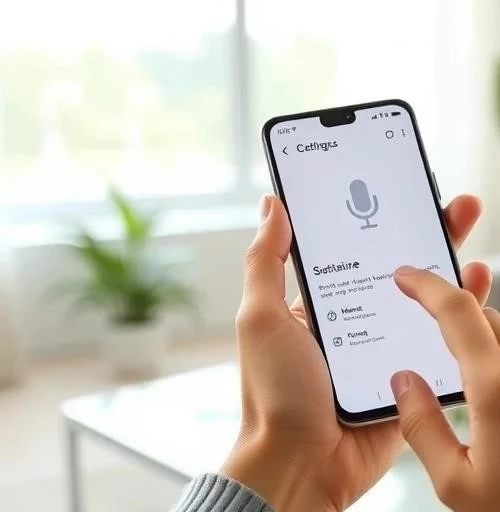
Google Assistant can let you make calls‚ set timers‚ send messages and control compatible smart-home devices by voice. On a Xiaomi phone‚ setup usually takes only a few minutes‚ but the exact menu names differ between MIUI‚ HyperOS‚ Android versions and regions. The most reliable approach is to check the Google app first‚ then make it the default digital assistant and confirm that Xiaomi’s power settings do not restrict it.
Prepare your phone
- Connect to the internet and sign in to your Google account.
- Open Google Play and update the Google app and Google Play services. If Google Play is unavailable on your device or in your region‚ some Assistant features may not work.
- Restart the phone if you have just installed or updated the apps.
Updates matter because voice recognition‚ account settings and Assistant features depend on Google’s software. If an app is missing‚ check whether Google services are supported on your particular Xiaomi model before installing anything from an unofficial website.
Turn on Google Assistant
Open the Google app‚ tap your profile picture‚ and choose Settings. Look for Google Assistant or an Assistant-related setup option‚ then follow the on-screen prompts. Depending on your software version‚ the entry may instead appear under Settings > Google > All services > Search‚ Assistant & Voice. Menu labels can vary‚ so use Settings search for “Assistant” if you cannot find the option.
During setup‚ choose your preferred language and‚ if offered‚ train Voice Match by repeating the sample phrases. This helps the phone recognize your voice‚ although it is not a guarantee that only you can activate voice features. Review the privacy and lock-screen choices rather than accepting them automatically.
Set Google as the default assistant
On many Xiaomi phones‚ open Settings > Apps > Default apps > Digital assistant app‚ then select Google. On some versions the route is Settings > Apps > Manage apps > three-dot menu > Default apps. You can also search Settings for “default assistant” or “digital assistant.” If Google does not appear‚ confirm that the Google app is installed and updated‚ then restart the phone.
Choosing Google as the default is important: installing the app alone does not necessarily assign it to the system’s assistant shortcut. If the phone offers Gemini instead of classic Assistant‚ follow the Google app’s setup prompts. Available assistant experiences depend on Google’s current rollout‚ your account‚ device‚ language and region.
Choose how to launch it
Say “Hey Google” or “OK Google” if voice activation is enabled. You may also be able to launch the assistant by holding the power button or using a corner swipe. These gestures differ by model and software version. Check Settings > Additional settings > Gesture shortcuts‚ or search Settings for “launch digital assistant.” If the power button opens the power menu‚ choose another supported shortcut instead of assuming the setup failed.
Check permissions and Xiaomi battery controls
For voice requests‚ allow microphone access when prompted. To make calls or use other personal features‚ Google may request additional permissions; grant only those you need. If “Hey Google” works inconsistently‚ open Settings > Apps > Manage apps > Google > Battery saver and select an option such as No restrictions‚ if available. Some Xiaomi models also offer Autostart under the app’s settings. Menu names vary‚ and relaxing battery limits can increase power use‚ so change these settings only if background activation is unreliable.
Troubleshooting
- No response to “Hey Google”: Check that voice activation is enabled in Google’s settings‚ the correct language is selected‚ and microphone access is allowed. Test the microphone in another app.
- The wrong assistant opens: Revisit the Digital assistant app setting and select Google. Check gesture shortcuts separately; they may have their own assignment.
- Assistant stops working in the background: Update Google Play services‚ restart the phone‚ and review battery restrictions for the Google app.
- It works only when unlocked: Review lock-screen options. Some personal requests are intentionally unavailable while the phone is locked.
Finally‚ test a simple command such as “Set a timer for one minute.” If it works‚ setup is complete. If a menu or feature is missing‚ that does not necessarily indicate a fault: Xiaomi software and Google availability vary by model‚ region and account. Use the Settings search and on-screen prompts for your specific version‚ and avoid unofficial “fix” apps that request unnecessary access.

7 Comments. Оставить новый
This guide gives a sensible order of steps: prepare the phone, enable Assistant, and then set it as the default. That structure should help readers avoid changing settings before the necessary apps are ready.
The advice to update Google apps before troubleshooting is practical, since outdated services can make setup confusing. I also appreciate the reminder that menu names vary across Xiaomi software versions.
The privacy note is important. Voice Match can improve recognition, but it is useful to clarify that users should review lock-screen access and privacy choices instead of treating setup prompts as routine.
I like that the article cautions against downloading missing Google apps from unofficial websites. Checking whether Google services are supported on the specific phone is a safer first step.
This is a useful overview for Xiaomi owners who want to use Google Assistant. The explanation of updates, default-assistant settings, and Voice Match gives readers a good foundation for getting started.
The article is clear and focused on the main setup tasks. A brief note that some features may depend on language, region, or account settings would further prepare readers for differences in availability.
The suggestion to search Settings for “Assistant” is helpful because Xiaomi menus can differ by model and software version. It makes the instructions more adaptable than relying on one fixed menu path.