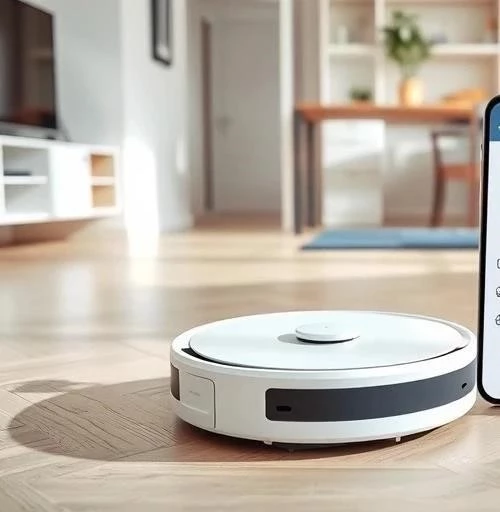
“Russifying” a Xiaomi 3C usually means setting the companion app to Russian and, if the robot supports it, installing an official Russian voice pack. These are separate things: changing the app language does not necessarily change the robot’s spoken prompts. The exact options depend on the device’s regional version, firmware and the Xiaomi Home app available in your country. Proceed with official settings first; unofficial firmware can disable the robot or compromise its security.
Confirm the exact model and region
Check the label on the robot or its box and open the device page in Xiaomi Home (also called Mi Home in some markets). Confirm that the model is actually Robot Vacuum-Mop 3C; similarly named Xiaomi models may use different firmware and voice packages. Note the firmware version shown in the device settings. If the unit was imported, its sales region may differ from the country selected in your app.
This matters because Xiaomi distributes features and voice packs by region. A Russian interface or pack may be available for one version and absent for another. Do not choose a different model’s package just because its name looks similar.
Set Xiaomi Home to Russian
- Open Xiaomi Home and go to Profile or Settings.
- Find Language and select Русский, if it is offered.
- Close and reopen the app. If needed, sign out and back in, then check whether the device page and available settings have changed.
The labels and menu locations vary between app versions and phone operating systems. On some phones, Xiaomi Home follows the system language rather than offering a separate app-language setting. In that case, set the phone’s preferred language to Russian, reopen the app, and check again. This changes the app’s menus only; it does not guarantee Russian speech from the vacuum.
Look for an official Russian voice pack
- Connect the robot to power, make sure it is online, and open its page in Xiaomi Home.
- Open the device menu, usually shown as three dots, and look under Voice settings, Voice pack, or a similarly named option.
- If Russian is listed, select it and let the download and installation finish. Keep the phone and robot connected, and do not switch off the robot during the process.
- Use the app’s test function, if available, or start a brief cleaning task to confirm that prompts are spoken in Russian.
Menu names can change with app updates, and some regional versions may not show a voice-pack menu at all. If Russian is absent, first update Xiaomi Home from the official app store, restart the app and check the device’s official firmware-update page. Install only updates offered there. An update may add or change options, but it is not a guarantee that Russian will be supported.
If Russian is not available
Check the product documentation or contact Xiaomi support with the model number, firmware version and the country where the robot was purchased. Ask specifically whether an official Russian voice pack is supported for that regional variant. This is safer than trying random files found in forums.
Changing the app’s region may sometimes expose different services, but it can also make a device unavailable in the app, affect account binding, or disrupt other Xiaomi smart-home devices. Do not unbind the vacuum or change regions as a first troubleshooting step. If you decide to test another region, record your current setting, understand that the result may vary, and be prepared to restore the original configuration. A factory reset usually does not add languages; it can instead erase Wi-Fi and map settings.
Why unofficial flashing is a poor first choice
Instructions online may describe modified firmware, custom voice packages or service-menu procedures. These methods are not equivalent to selecting a language in the official app. A package intended for a different hardware or regional version can cause boot failures, loss of mapping or network functions, and may make recovery difficult. Unverified files can also contain harmful software. Modification may affect warranty or support eligibility. Unless you can verify the source, exact model compatibility, recovery procedure and legal implications, do not flash the robot.
Troubleshooting checklist
- Russian is missing: confirm the exact model and region, update the official app, and check the supported languages with Xiaomi support.
- The app is Russian but the robot speaks another language: select a separate voice pack in the robot’s settings; app localization alone is not enough.
- A download fails: check Wi-Fi, keep the robot on its dock, reopen the app and retry once. Avoid interrupting an installation in progress.
- The device disappears after a region change: restore the previous region and check that you are signed into the same Xiaomi account before considering re-pairing.
- The robot still does not speak Russian: verify the selected pack and test again. Some alerts may remain in another language if they are not included in that pack.
Bottom line
The safest way to Russify a Xiaomi 3C is to set Xiaomi Home to Russian and install Russian speech only if the official device settings offer it for your exact variant. If the option is unavailable, confirm support with Xiaomi rather than forcing firmware from another model or region. The information supplied with this request does not provide Xiaomi-specific instructions, so the app and support guidance for your exact unit should take precedence.