
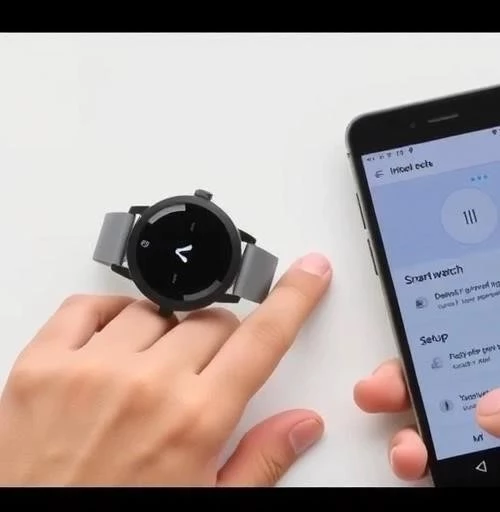
The Redmi Watch 2 Lite is ready to use after you charge it, pair it with your phone and adjust a few settings. The menus may look slightly different depending on your watch’s software version, but the setup process is much the same on Android and iPhone.
Charge and turn on the watch
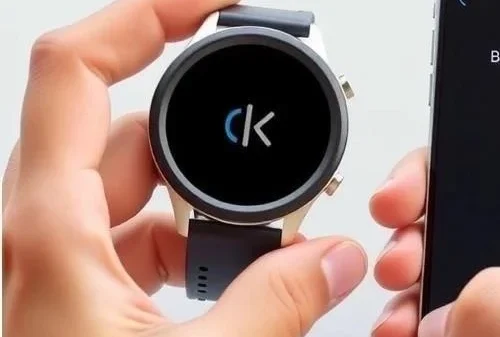
Connect the supplied magnetic charging cable to the contacts on the back of the watch, then plug it into a USB power source. Align the connector so it attaches securely; do not force it. Let the watch charge, especially if it has been stored for a long time. Press and hold the side button until the Xiaomi logo appears. Choose your preferred language when prompted.
Install the companion app
Install Mi Fitness from Google Play or the Apple App Store. The app may be called Xiaomi Wear in older guides or on some software versions. Sign in with a Xiaomi account, or follow the app’s instructions to continue without one if that option is available. Keep Bluetooth enabled on your phone and place it near the watch.
Pair the devices
- Open Mi Fitness, accept the requested terms, and allow Bluetooth access. Location permission may also be needed for nearby-device discovery or location-based features.
- Tap Device, then choose Add device or the plus icon. Select Redmi Watch 2 Lite from the list. If asked, scan the QR code shown on the watch.
- Check that the pairing code on the phone and watch matches, then confirm on both devices. Allow the watch to finish syncing. Avoid pairing it first from the phone’s Bluetooth settings; start in Mi Fitness instead.
If the watch does not appear, check that it is charged, close and reopen the app, and toggle Bluetooth off and on. If it was previously connected to another phone, remove it from that phone’s app and Bluetooth list, then reset the watch if necessary and try again.
Set up everyday options
In Mi Fitness, open the device page to configure notifications, alarms, weather, activity goals and health features. Enable only the phone-app notifications you want, and grant notification access when prompted. Set your preferred units, time format and wrist-wearing side. The watch normally gets its time and date from the phone after syncing, so check the phone’s clock and time zone if they look wrong.
Use the watch’s Settings menu to adjust brightness, screen timeout, vibration, raise-to-wake and do-not-disturb hours. A shorter timeout and fewer active features can help extend battery life. Choose a watch face in Mi Fitness and sync it to the watch; keep the devices close until the transfer finishes.
Update and check the connection
When setup is complete, check the device page in Mi Fitness for a firmware update. Keep the watch charged and connected to the phone during installation; do not restart it or close the app. For GPS workouts, take the watch outdoors and allow it time to acquire a signal. The phone app may need location access for route data.
If syncing or notifications stop working, make sure Bluetooth is on, the app can run in the background, and the watch is still connected in Mi Fitness. Restart both devices and check permissions and battery-saving restrictions. As a last resort, unpair and pair again, or use the watch’s factory-reset option. A reset erases watch data, so sync first.
Quick checklist
- Charge, power on and select a language.
- Install Mi Fitness and pair from inside the app.
- Allow the permissions needed for your chosen features.
- Set notifications, display preferences and watch face.
- Sync data and install updates with the watch charged.
Once these steps are done, the Redmi Watch 2 Lite is ready for daily use. For the most reliable results, keep Mi Fitness updated and sync the watch regularly.

3 Comments. Оставить новый
A well-organized overview of charging, pairing, and initial setup. The advice to check the pairing code on both devices adds a useful security and accuracy check.
The instructions are easy to follow, and the troubleshooting tips make the guide useful for first-time users. It’s also helpful that it notes app names and menus can vary by software version.
This is a clear, practical setup guide. The reminder to begin pairing in Mi Fitness rather than the phone’s Bluetooth settings is especially helpful for avoiding common connection problems.