
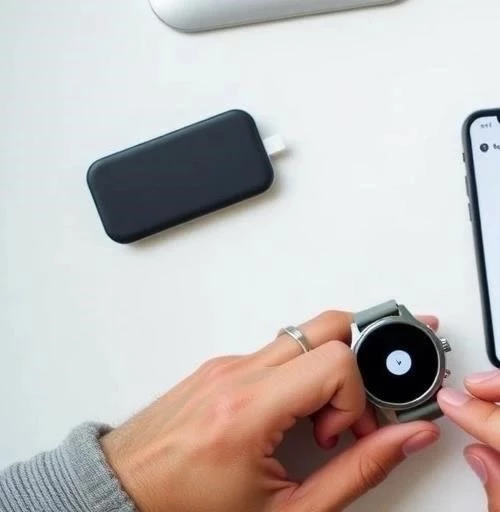
Your Watch6 is more than a wristwatch: it is a tiny command center that can show calls, guide workouts and remind you to pause. The first setup takes about 15–30 minutes. Keep the watch charged, your phone nearby, and Bluetooth switched on. The Watch6 works with compatible Android phones; it does not pair with an iPhone.
Wake it up and meet your phone
Press and hold the top side button until the Samsung logo appears. On your Android phone, install or open Galaxy Wearable from Google Play. Tap Start or Add new device, then choose Galaxy Watch6. Check that the code shown on the phone matches the one on the watch and confirm the pairing request on both screens;
If the app asks, allow nearby-device and Bluetooth access so it can find the watch. Follow the prompts to connect to Wi-Fi, accept the terms, and sign in to your Google or Samsung account when needed. Some services, such as Samsung Health features or backups, may require an account. Keep the devices close while the initial setup completes.
Make the watch yours
Choose which wrist you wear it on and whether the buttons face toward your hand or elbow. This helps the display wake correctly when you raise your arm. Pick a watch face in Galaxy Wearable, then customize its colors and complications—the small information windows for battery, weather, steps, or your next appointment. On the watch, press and hold the face to browse alternatives.
Open Settings on the watch for brightness, screen timeout, sound, vibration, and display options. A shorter screen timeout and lower brightness can stretch battery life; raise brightness if you often read the screen outdoors. Try gestures and the rotating bezel or touch controls to find the navigation style that feels natural.
Choose what reaches your wrist
In Galaxy Wearable, open Watch settings → Notifications. Select the phone apps allowed to send alerts. Start with calls, messages, calendar, and essentials; a watch that buzzes for every tiny update soon becomes a very persuasive nuisance. If alerts do not appear, check that notifications are enabled on the phone and that Do Not Disturb or sleep modes are not silencing them.
Review Connections to manage Bluetooth, Wi-Fi, and, on an LTE model with an eligible plan, mobile service. Set your preferred language and units, and check date and time settings. Most watches synchronize time from the paired phone, so correcting the phone usually corrects the watch too.
Set up health and safety thoughtfully
Open Samsung Health on the watch or phone and follow its prompts to configure activity tracking, sleep, and personal measurements. Wear the watch snugly, just above the wrist bone, for more reliable readings. Health features are wellness tools, not a diagnosis; availability can depend on your region, phone, and local rules. Never change medication or treatment based on a watch reading alone.
Explore emergency options in the watch and phone settings, including emergency contacts and SOS features where available. Add only contacts you trust, and learn how the feature works before you need it. You can also set a PIN or pattern under Security and privacy to protect personal information if the watch is lost.
Update, test, and keep it running
In Galaxy Wearable, open Watch settings → Watch software update and install any available update. Keep the watch on its charger if prompted, and leave the phone nearby. Updates can improve stability and add features, though menus may vary slightly by software version. Then test a notification, start a short walk in Samsung Health, and check that the watch reconnects after you briefly turn Bluetooth off and on.
For everyday charging, align the back of the watch with its wireless charger and use a suitable power adapter. If pairing stalls, restart both devices, update Galaxy Wearable, and try again. As a last resort, back up what you can and reset the watch from its settings; a reset erases its data and requires setup again.
Your first-minute checklist
- Pair through Galaxy Wearable and confirm the matching code.
- Choose a readable face, wrist orientation, and useful alerts.
- Review health permissions, privacy, and emergency contacts.
- Install updates, then test calls, notifications, and charging.
That is the trick: configure the Watch6 to be a quiet assistant, not a miniature boss. Start with the essentials, wear it for a day, and adjust what annoys you. The best setup is the one that disappears into your routine—until the moment you need it.

1 Comment. Оставить новый
I like how this turns setup into a small act of making the watch your own, not just pairing two devices. The reminder to choose which wrist you wear it on is a tiny detail with a surprisingly human touch—technology works best when it learns your habits.