
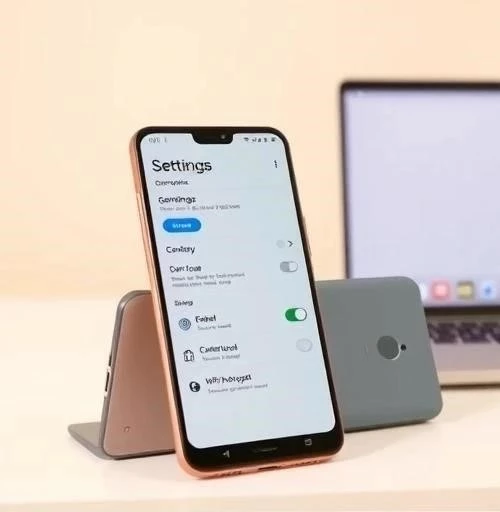
A Xiaomi Redmi 5 can share its mobile data connection with a laptop, tablet, or another phone. The simplest option is a Wi-Fi hotspot: the Redmi 5 acts like a small wireless router. This is useful when no Wi-Fi network is available, but remember that connected devices use your mobile-data allowance and may drain the phone’s battery faster.
Set up a Wi-Fi hotspot
- Turn on mobile data. Swipe down from the top of the screen and check that Mobile data is enabled, or open Settings and find the mobile-network controls.
- Open Settings and look for Portable hotspot. Depending on the MIUI version, it may be under Connection & sharing, More, or a similarly named menu.
- Tap Set up portable hotspot. Choose a network name (SSID) and set a password. Use WPA2 security if the option is shown, and choose a password that other people cannot easily guess.
- Return to the hotspot screen and switch on Portable hotspot. The Wi-Fi symbol or a notification should indicate that sharing is active.
- On the other device, open Wi-Fi settings, select the Redmi 5’s network name, and enter the password. Once connected, open a webpage to confirm that internet access works.
Setting a password before enabling the hotspot is important: an open network can let nearby people connect without permission, using your data and potentially exposing activity on the shared connection. If the phone offers a connected-device limit or an automatic shutoff option, configure it to suit your needs.
Other ways to share
USB tethering is often preferable for one computer: connect the Redmi 5 with a USB cable, then open the hotspot or tethering settings and enable USB tethering. It provides a wired connection and can charge the phone at the same time. The option may be unavailable until the computer recognizes the device.
Bluetooth tethering is another choice. Pair the Redmi 5 with the receiving device, enable Bluetooth tethering in the same settings area, and select the phone as the device’s internet connection. It can be convenient for basic use, although it is generally slower than Wi-Fi or USB.
If the connection does not work
- Confirm that mobile data works on the Redmi 5 itself and that your carrier plan allows tethering.
- Check the hotspot password and reconnect from the other device. Toggle the hotspot off and on if needed.
- Move the devices closer together, and restart them if the network is visible but has no internet.
- If the hotspot is missing, search Settings for “hotspot” or “tethering”; menu names differ between MIUI versions.
For routine use, Wi-Fi is the easiest method; USB is a practical alternative for a computer. Turn sharing off when finished, monitor data usage, and keep the Redmi 5 charged during long sessions. These steps help prevent unwanted connections, unexpected charges, and battery drain.