
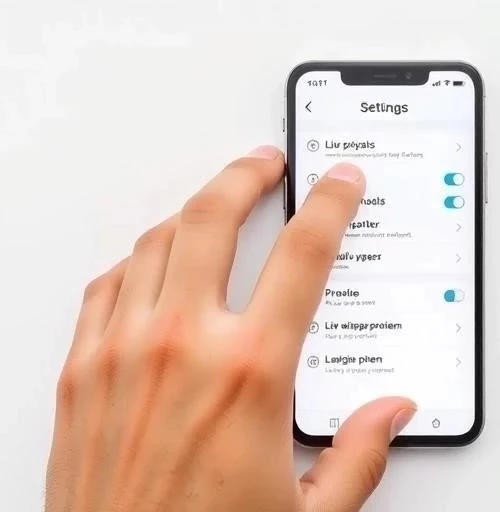
A moving wallpaper can make your Xiaomi feel like a tiny aquarium, a miniature planetarium, or a very enthusiastic screensaver. But if it drains attention, uses extra battery, or simply no longer suits your mood, you can send it offstage. The exact labels vary between MIUI, HyperOS, and phone models, but these methods cover the usual routes.
First, identify what is moving
“Live wallpaper” can mean several things on Xiaomi: an animated background on the Home screen, a separate one on the Lock screen, a wallpaper carousel that changes pictures, or a theme with its own animated effects. The distinction matters. Replacing a wallpaper may stop the animation, while switching off the carousel may be the fix for changing Lock screen images.
Method 1: Replace it from the Home screen
- Touch and hold an empty area of the Home screen. On some devices, you can pinch inward with two fingers instead.
- Tap Wallpaper or Wallpapers. Depending on your version, this may open the Themes app.
- Choose a still image from the built-in gallery, a downloaded picture, or your own photos.
- Tap Apply, then choose Home screen, Lock screen, or Both.
If you want the animation gone everywhere, choose Both. If it only bothers you behind your app icons, apply the new image to the Home screen alone and leave the Lock screen unchanged. Give the phone a moment to refresh; the old animation should disappear without needing a restart.
Method 2: Use Settings
When the Home screen shortcut is hard to find, open Settings and look for Wallpaper, Personalization, or Themes. Open the current wallpaper, select a still alternative, and apply it to the desired screen. Menu names differ by software version and region, so the Settings search bar is your map: type “wallpaper” and open the matching result;
You can also open the Themes app, tap the profile or account icon, and look for Wallpapers or My wallpapers. Select a static option and apply it. If a theme appears to keep restoring the animation, switch to the default theme first, then set the still wallpaper again.
Method 3: Stop the Lock screen carousel
If new pictures keep appearing when you wake the phone, the culprit may be Wallpaper Carousel rather than a live wallpaper. Open Settings and search for Wallpaper Carousel, Glance, or Lock screen magazine. Open the relevant setting and turn it off. On some versions, the option is under Lock screen. You may also find a switch directly on the Lock screen settings page.
Turning off the carousel stops the rotating selection; it does not necessarily change the image already set. If that image is animated or you would rather see something else, choose a static Lock screen wallpaper afterward.
If the animation keeps coming back
Try these checks in order:
- Check both screens. A live image may still be assigned to the Lock screen even after you changed the Home screen, or the other way around.
- Change the theme; Apply the default Xiaomi theme, then set a static image separately. Some themes bundle wallpapers and visual effects together.
- Inspect installed wallpaper apps. If you installed an animated-wallpaper app, open it and choose a static wallpaper or its “none” option. You can also go to Settings > Apps > Manage apps, select that app, and uninstall it if you no longer need it.
- Restart once. This can refresh a screen that still displays a cached preview, but it is usually unnecessary after a successful change.
Can you uninstall Xiaomi’s live wallpaper app?
Often, the easiest and safest solution is simply to replace the animated image. Some wallpaper components are built into the system or bundled with Themes, and their names and availability vary by device. Avoid removing unfamiliar system packages with third-party debloating tools: disabling the wrong component can break wallpaper selection, themes, or updates. If an unwanted app can be uninstalled through the normal Apps screen, use that route. Otherwise, turn off its feature or leave the component installed.
Battery and motion: a small extra trick
Static wallpapers are the most direct way to remove background motion. If you still see animations elsewhere—transitions, icons, or system effects—search Settings for Remove animations or check Accessibility. That option affects more than wallpaper, so use it only if you want a generally calmer interface; A still background may also reduce display activity, though the difference in battery life depends on the screen, brightness, and how the phone is used.
Quick recap
For a Home screen animation, long-press the Home screen, open Wallpaper, and apply a still image. For a moving Lock screen picture, change the Lock screen wallpaper. For pictures that keep changing, disable Wallpaper Carousel or Glance. If a third-party app or theme brings the motion back, switch to the default theme or remove that app through Settings. In short: identify which layer is moving, replace or disable that layer, and keep system packages out of the crossfire.

7 Comments. Оставить новый
The Home screen and Lock screen instructions are clear enough to prevent the classic tech-support surprise: fixing one screen and accidentally redecorating the other.
A calm, useful guide—no factory reset, no dramatic button sequence, just a still picture and a few taps. The phone can stop performing modern dance in the background.
A nice reminder that “animated wallpaper” can mean several different things. That quick bit of sorting turns what could be a guessing game into a straightforward fix.
I like that this gives two routes instead of assuming every Xiaomi phone has the same menus. “Search wallpaper” is refreshingly simple advice in a world of settings mazes.
The note about software versions and regions is a small detail that saves a lot of frustration. It treats changing menu labels as normal rather than making the reader feel lost.
The best part is the reminder to diagnose the kind of “moving” before changing anything. Xiaomi wallpaper settings can feel like a hallway of identical doors, and this makes the right one easier to find.
A practical little escape hatch for anyone whose Lock screen has become a slideshow with commitment issues. The distinction between live wallpaper and Wallpaper Carousel is especially useful.