
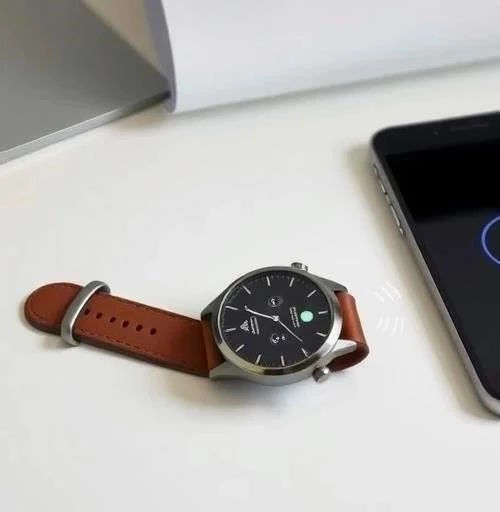
Apple Watch does not usually maintain a separate contact list that you manage by hand. It displays contacts available through the paired iPhone, so the most reliable fix is to check the iPhone’s contact accounts and connection with the watch. Once those are correct, changes generally appear automatically.
Check contacts on your iPhone
Open the Contacts app on your iPhone and confirm the missing person is there. If the contact is absent, add it or check which account stores it. Contacts may come from iCloud, Google, Exchange, or another account; having an account on the phone does not necessarily mean its Contacts option is enabled.
To check, go to Settings > Apps > Contacts > Contacts Accounts (on some iOS versions, open Settings > Contacts). Select the relevant account and turn on Contacts. For iCloud contacts, tap your name in Settings, open iCloud, choose See All if shown, and make sure Contacts is on. Keep the iPhone connected to the internet while changes sync.
Check the Apple Watch connection
Keep the watch near its paired iPhone, with Bluetooth enabled and both devices powered on. Wi-Fi can also help when they are not communicating directly over Bluetooth. Open the Watch app on the iPhone and confirm that it shows your watch as connected. Then open the Contacts app on the watch and allow a little time for the list to update; large contact lists or a weak connection may take longer.
If contacts still do not appear
- Restart both the iPhone and Apple Watch, then check Contacts again.
- Install available iOS and watchOS updates. Keep the devices close together and connected to power during a major sync or update.
- Confirm that the iPhone is signed in to the Apple Account you expect and that the correct contact account is enabled. If contacts are duplicated or missing, review the account’s list on the iPhone before changing anything.
- In the Watch app, open My Watch > General > Reset. If Reset Sync Data is available, use it to prompt a fresh contacts sync. This does not normally erase the watch, but menu options can vary by software version.
Important notes
There is no standard option to choose an independent set of contacts for the watch: it relies on contact data made available by the iPhone and its accounts. Avoid unpairing the watch as a first step; it is more disruptive and rarely needed for a simple contacts delay. If only one person is missing, verify that contact’s account and details on the iPhone. If the whole list is missing after these checks, contact Apple Support.
7 Comments. Оставить новый
The suggested sequence makes sense: confirm the contact exists on the iPhone, check the relevant account, and then troubleshoot communication between the devices. This helps narrow down where the problem may be.
Overall, the article is organized in a useful troubleshooting order and explains why each check matters. The guidance would be especially helpful to someone who is unsure whether the missing contact is an iPhone issue or a watch-sync issue.
It is helpful that the article recommends restarting and updating both devices before attempting a reset. Those steps are relatively simple and may resolve temporary syncing problems without changing contact data.
The connection advice is useful because it checks the basics before moving on to troubleshooting. Keeping the devices nearby and verifying their status in the Watch app gives readers a straightforward way to identify a sync issue.
I appreciate the account-by-account guidance. Contacts can be stored in iCloud or another service, and checking whether contact syncing is enabled is a practical step before trying more disruptive fixes.
The article gives a clear starting point by explaining that the Apple Watch relies on contacts available through the paired iPhone. That distinction helps readers avoid searching for a separate contact-management setting on the watch.
The warning to review contact accounts before making changes is sensible. People may have contacts spread across several services, so checking the source first can help prevent confusion or accidental changes.