
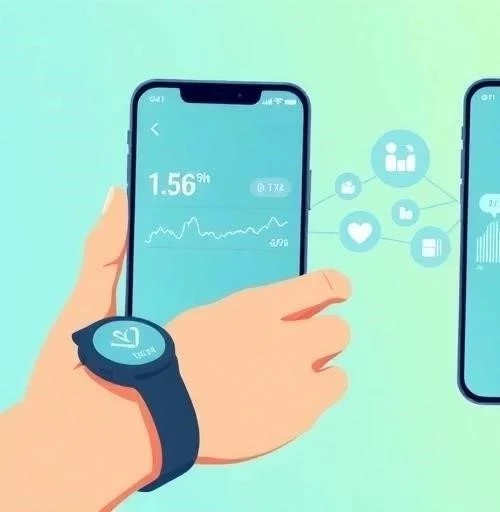
Your Huawei watch may know every step you take, while Google Fit keeps a broader picture of your activity. Getting the two to share information can feel like introducing people who speak different languages: sometimes Huawei Health offers a direct connection, but on many Android phones a third-party bridge is needed. The good news is that, with the right route and permissions, you can usually move supported health and workout data between them.
Important: Menus, available data types, and app compatibility can vary by phone model, Android version, Huawei Health release, and country. The steps below describe common options, not a guarantee that every field will transfer on every device. Check the permission screens carefully and use official app stores or trusted developer sources.
First, check for Huawei Health’s built-in connection
Start with the simplest route. Update Huawei Health and Google Fit, open Huawei Health, and look for a data-sharing option. In many versions, the path is something like:
- Open Huawei Health and tap Me or Profile.
- Open Privacy management, Data sharing and authorization, or a similarly named menu.
- Look for Google Fit, review the requested access, and authorize the connection if it is offered.
- Return to Huawei Health and start a manual sync or pull down on the main screen to refresh.
The exact labels may differ, and some versions or regions may not show Google Fit at all. If you cannot find the option, don’t spend the evening tapping every menu like a digital archaeologist. Move on to a sync app instead.
Option A: Use Health Sync
Health Sync is a commonly used bridge for sending data between fitness services. It is a separate app, not a hidden Huawei feature. Before installing it, confirm that the current version supports your Huawei Health setup and Google Fit account. Depending on your phone and region, you may find it in Google Play or another supported store.
- Prepare both accounts. Sign in to Huawei Health and Google Fit on the same Android phone. Confirm that your watch or band is already recording activity in Huawei Health.
- Install and open Health Sync. Follow its setup screens. Choose Huawei Health as the source and Google Fit as the destination. If the app offers different direction choices, select the one that matches your goal.
- Connect Huawei Health. Complete the sign-in or authorization steps requested by the app. Some setups may direct you to Huawei Health’s privacy or data-sharing menu to approve access.
- Connect Google Fit. Select the Google account you actually use in Fit. Review the permissions before granting them; access should match the data you want to transfer.
- Select data types. Enable only the categories you need, such as steps, workouts, heart rate, or sleep, if those categories are offered. Support can differ by data type.
- Run the initial sync. Allow the apps to complete setup, then check Google Fit. Some services offer a short trial or paid features, so read the app’s current terms before relying on it.
Health Sync may work in the background after setup, but “automatic” does not always mean “instant.” Battery-saving rules, network access, app updates, or revoked permissions can delay transfers. Open the sync app occasionally to see whether it reports errors.
Option B: Try another bridge
Apps such as SyncMyTracks may offer another way to transfer information between fitness platforms. Their supported services, features, and pricing can change, so check the current listing and setup instructions before installing. Avoid running multiple bridge apps at once unless you understand how they handle duplicate entries: two enthusiastic messengers can deliver the same workout twice.
Check that the bridge is working
- Record a short test walk or wait for a fresh step count in Huawei Health.
- Open the sync app and check its status, selected accounts, and enabled data categories.
- Open Google Fit and look for the transferred activity. A delay can be normal; refresh both apps and give the service time to run.
- Compare the time and totals, not just the daily headline number. Apps may calculate steps, calories, or active minutes differently.
Do not assume historical information will all appear at once. Some bridges transfer only data from the date you connected them; others may provide a one-time import or a selectable date range. Check the app’s explanation before initiating a large backfill.
When synchronization gets stuck
Nothing appears in Google Fit
Make sure you authorized the correct Google account and allowed the relevant data permissions. In Google Fit, check that the account is active and that the app can access activity data. Then reopen the bridge and run a manual sync. If access was denied during setup, revisit the connection flow and approve only the permissions you are comfortable granting.
Data appears late or stops updating
Check that Huawei Health and the bridge can use background data. On some Android phones, battery optimization may pause them; allow background activity where appropriate. Keep the apps updated, open them after a phone restart, and verify that you have an internet connection. Menu names for battery controls vary by manufacturer.
Counts or workouts are duplicated
Pause other sync services and check whether Google Fit is receiving the same source through more than one route. Review connected apps and data sources in the relevant settings. Avoid deleting entries until you know which service created them; a duplicate may be difficult to distinguish from an original record.
Privacy and practical limits
Health information is personal information. Before connecting accounts, review the bridge app’s developer, privacy policy, requested permissions, and data-handling terms. Grant access only to categories you intend to share, and disconnect the service if you stop using it. A sync bridge can transmit only what Huawei Health makes available to it; it cannot promise that every watch metric will become a matching Google Fit record.
Also remember that a sync is a copy, not a perfect translation. Huawei Health and Google Fit may use different definitions, units, or rules for workouts and daily activity. A small difference in totals does not automatically mean your watch is broken.
The short version
Look first in Huawei Health under Me/Profile → Privacy management → Data sharing and authorization for a direct Google Fit connection. If it is unavailable, set up a trusted bridge such as Health Sync, choose Huawei Health as the source and Google Fit as the destination, grant the specific permissions you need, and test with a fresh activity. Once the first walk arrives safely, your watch and your fitness dashboard are finally telling the same story—if not always in precisely the same words.
8 Comments. Оставить новый
This reads like a map drawn by someone who knows the trail can change overnight. The fallback suggestion is especially useful when the built-in path disappears.
Practical, calm, and mercifully free of “this works for everyone” promises. It leaves room for the strange little differences between phones, regions, and app versions.
The “digital archaeologist” line made me laugh—and perfectly captures the maze of shifting app menus. Helpful advice, delivered without pretending every phone behaves the same.
The best tech advice often begins with “check what your version actually supports.” This article does that, and saves readers from chasing a menu that may never appear.
I like the idea of two fitness apps speaking different languages. The article acts as a patient interpreter, while reminding us that some details may get lost in translation.
The privacy reminder is the quiet hero here. Health data deserves a careful handshake, not a hurried tap on every permission prompt.
A refreshingly honest guide: it gives the simple route first, then admits when that route may not exist. That small dose of realism is worth more than a dozen confident screenshots.
A tidy guide for untangling a very modern knot. I especially appreciate that it distinguishes a third-party bridge from an official Huawei feature.