
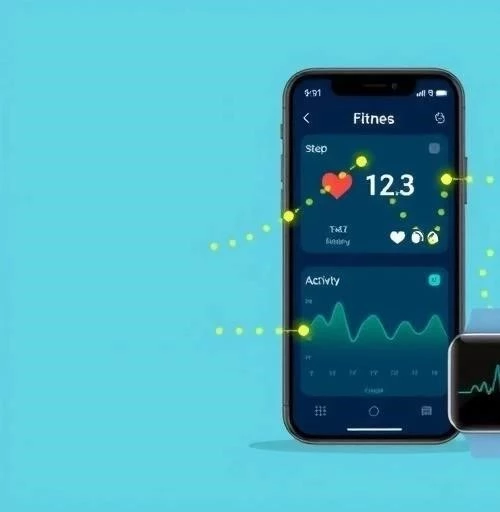
Google Fit and Huawei Health can both record steps, workouts, heart rate, and other wellness information, but they do not always exchange that information automatically. The important point is that there is no universal, direct connection that works on every phone and app version. The available route depends on your Android device, the services installed on it, your country, and the permissions each app provides. Before changing settings, decide which app should be the source of truth and which data you actually need to transfer.
First, understand the possible connection routes
On many Android phones, the most practical bridge is Health Connect, Google’s system for sharing health and fitness data between compatible apps. If both Google Fit and your version of Huawei Health can read or write the relevant data through Health Connect, you may be able to connect them there. Support varies: an app may offer access for steps but not workouts, or may not show Health Connect options at all.
A second possibility is a reputable third-party synchronization app, such as Health Sync, if it currently supports both services on your specific phone. Such apps can transfer selected categories between platforms, but their features, permissions, and reliability can change. A third-party bridge is not the same as official, direct synchronization, and should be used only after checking the app’s current compatibility and privacy information.
There is also an important limitation for Huawei phones. Many newer Huawei devices do not include Google Mobile Services, which Google Fit normally relies on. Installing Google Fit from an unofficial source does not necessarily provide the Google services or account integration it needs. If Google Fit cannot run properly on your phone, syncing it with Huawei Health will not solve that underlying problem.
Method 1: Check for Health Connect support
- Update the apps. Install the latest official versions of Google Fit, Huawei Health, Health Connect, and HMS Core where applicable. Use Google Play on a Google-enabled phone and Huawei’s official AppGallery or the official Huawei distribution method supported in your region. Avoid modified APK files.
- Open Health Connect. On many Android versions it is available in Settings under Security and privacy, Health Connect, or Apps. It may also be installed as a separate app. Menu names differ by Android version and manufacturer.
- Review app access. In Health Connect, open app permissions and look for Google Fit and Huawei Health. If an app is missing, it may not support the connection on your device or with its current version. Do not assume that installing Health Connect alone creates a link.
- Grant only the data permissions you need. For example, enable steps, exercise sessions, or heart rate only if you want that information shared. Reading data and writing data are separate permissions. An app may need permission to write a category before the other app can read it.
- Check each app’s own settings. Look for a Health Connect, connected apps, data sharing, or permissions section inside Google Fit and Huawei Health. Enable the connection there if offered, then return to Health Connect to confirm the permissions.
- Test with new activity. Record a short walk or allow a few minutes of ordinary step tracking. Then check the receiving app and its data source details. Initial transfers may take time, and historical records are not always imported.
If one app offers no Health Connect setting, or the expected data type is unavailable, this route cannot transfer that category through the standard interface. Check the apps’ help pages and release notes for your region rather than repeatedly changing unrelated phone settings.
Method 2: Use a third-party sync app
If Health Connect is not available as a bridge, look for a synchronization app that explicitly lists both Huawei Health and Google Fit as supported services. Compatibility should be confirmed inside the app’s current setup instructions; a listing for Huawei Health alone does not prove it can send data to Google Fit. Read recent reviews, the developer’s privacy policy, and the permissions requested before connecting either account.
- Install the app from a trusted store and select Huawei Health as the source and Google Fit as the destination, or choose the reverse direction if that is what you need.
- Follow the official authorization steps. Some bridges require Huawei Health to be installed, an active Huawei ID, or additional access settings. Do not share your account password with an unknown service.
- Choose data types and direction carefully. Enable only the information you intend to transfer, then start with a small test rather than an all-history import.
- Keep the phone online and allow background activity if the bridge requires it. Battery-saving restrictions can delay or stop transfers.
- Check both apps for the test record and confirm which app is listed as its source. If it appears twice, stop synchronization before allowing further transfers.
Third-party tools may require a one-time purchase or subscription, may sync only at intervals, and may not transfer every field. A workout can appear without its route, heart-rate detail, or calories. Some apps copy records rather than continuously mirroring them, so edits and deletions may not travel back. These are normal limitations of cross-platform services, not necessarily a fault with your watch.
Choose one direction and avoid duplicate records
Syncing is not automatically two-way. If Huawei Health writes a step total to a bridge and Google Fit then sends a similar record back, the same activity can be counted twice. A safer setup is usually one-way: decide which app records the original data and which app receives it. For example, if a Huawei watch is your main tracker, make Huawei Health the source and send selected records outward. If Google Fit is your preferred history, configure the opposite direction only where supported.
Do not enable every available category just because the option is present. Step totals, workouts, and calories can be calculated differently by each platform. Comparing numbers across apps may therefore be misleading even when synchronization works correctly. Keep the original app as your authoritative record, especially if you use the information for training or personal health tracking.
Common problems and practical fixes
- The other app is not listed. Update the apps and check compatibility for your device and country. The service may not support Health Connect, or a Google service required by Google Fit may be unavailable.
- Permissions appear enabled but nothing transfers. Reopen each app and verify both read and write permissions for the exact data type. Then record a new test activity; older history may not be eligible for transfer.
- Sync works only while the app is open. Allow background activity, remove restrictive battery optimization for the sync app, and check that background data is enabled. These changes can increase battery use.
- Records are duplicated. Turn off one direction or disable the overlapping data category in one app. Wait for the next sync and inspect the results before turning other categories back on.
- Google Fit cannot sign in or open on a Huawei phone. Confirm that the device has supported Google Mobile Services. If it does not, a bridge cannot substitute for missing Google infrastructure; use a compatible Android phone or another service supported by your Huawei device.
- Data stops after an update. Recheck permissions and account authorization. Updates can reset access, change menus, or alter which data types are supported.
Privacy and reliability
Health and activity records are sensitive. A sync bridge may be able to access more than the one workout you intend to move, so review its requested permissions and data-retention policy. Prefer official integrations where available, use a strong account password, and revoke access if you stop using the service. Do not install apps from random download sites or grant accessibility or account permissions that the stated function does not require.
Also remember that Google Fit’s connection options and APIs have been changing as Google promotes Health Connect. A method described in an older tutorial may no longer work, and availability can differ by app version. Check current in-app settings and official help documentation before relying on a particular workflow. Keep the original records in Huawei Health or Google Fit until you have verified that the transfer is complete.
Bottom line
To sync Google Fit and Huawei Health, first check whether both apps on your Android phone support sharing through Health Connect. If they do, grant narrowly scoped read and write permissions and test one new activity. If they do not, use a trusted third-party bridge only after confirming current compatibility, or accept that direct transfer may not be available on your device. Set a single direction, watch for duplicates, and treat one app as the primary record. This cautious approach is more dependable than assuming the two services synchronize automatically.


7 Comments. Оставить новый
The note about newer Huawei devices lacking Google Mobile Services addresses a common source of confusion. It correctly points out that a sync bridge cannot fix an app that cannot run properly in the first place.
The article appropriately treats third-party sync tools with caution rather than presenting them as guaranteed solutions. Checking current support on the specific phone is an important qualification.
Starting by asking which app should be the source of truth is sensible advice. It can prevent duplicate records and make it easier to choose which data actually needs to be transferred.
I appreciate the distinction between an official connection and a third-party synchronization app. The reminder to check compatibility and privacy details is especially useful for health data.
The Health Connect explanation is clear and practical. It would be helpful to emphasize that readers should verify permissions for each category, since access to steps does not necessarily mean access to workouts.
The article does a good job of clarifying that syncing depends on the phone, app versions, and supported data types. That context helps set realistic expectations before readers start changing settings.
This is a balanced overview because it avoids promising a universal direct connection. A brief checklist for confirming that data has transferred successfully would make the guidance even more actionable.