
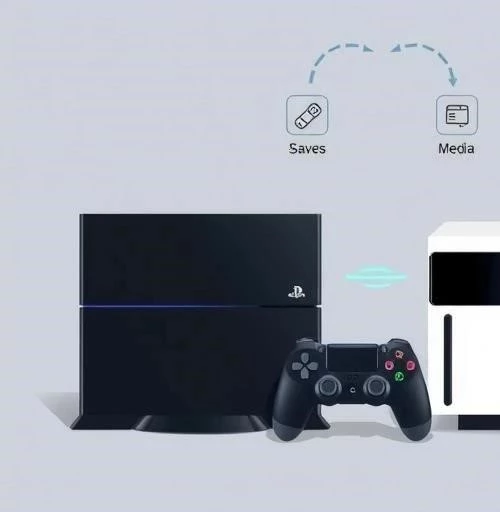
Moving from a PlayStation 4 (PS4) to a PlayStation 5 (PS5) can involve more than copying game files. You may want to bring over installed games, saved progress, screenshots, video clips, and selected settings. The consoles provide several ways to do this: a direct network transfer, PlayStation Plus cloud storage, or USB and external storage. The best method depends on what you need to move and how reliable or fast your network connection is.
Before starting, decide which items matter most. A network transfer can move several types of data in one operation. Cloud storage is useful for save files, while a USB drive can move saves or captures without an internet connection. An external drive already used for PS4 games can often be connected to the PS5, so those games do not need to be downloaded again. These methods can also be combined.
What can be transferred?
Depending on the method and console software, you can transfer compatible PS4 games and apps, saved data, screenshots, video clips, and some console settings. PS4 games that are compatible with PS5 can generally be played on the newer console. Some titles may receive performance improvements, while others may have compatibility limitations. Check the publisher’s information or PlayStation’s compatibility guidance for a particular game.
Your purchases and digital licences are associated with your PlayStation Network (PSN) account, not simply with the console’s storage. Sign in on the PS5 using the same account used to buy the games. You may then download eligible purchases from your game library. A transfer does not change account ownership, and it does not copy another person’s licences to your account.
Saved progress is separate from the game itself. Copying or downloading a game does not necessarily bring its save files with it, so include saved data in the transfer plan. Trophies are associated with your PSN account; connect the PS4 to the internet and sync trophies before switching consoles if you have trophies that have not yet been uploaded.
Prepare both consoles
- Update the software. Connect both consoles to the internet and install available system software updates. Menu names and options can vary slightly with software versions, so follow the prompts displayed on your consoles.
- Check your PSN account. Confirm that you know the sign-in details for the account you use on the PS4. If you use two-step verification, have access to the required verification method.
- Connect the consoles to power and the internet. Keep them near each other and ensure they will not be switched off during copying. A wired Ethernet connection is generally more stable and may be faster than Wi-Fi.
- Check storage space. Make sure the PS5 has enough available space for the games and other items you plan to copy. You do not have to transfer every game at once.
- Keep the PS4 available. Do not reset, sell, or erase it until you have checked the PS5 and confirmed that essential saves and other data are present.
It is sensible to sync trophies and make a separate backup of particularly important saves before beginning. If your PS4 has more than one user, identify which users and accounts have the saves you want. Data belonging to different users is not automatically combined into a single account.
Method 1: Transfer data over a network
The built-in data transfer feature is a convenient option when both consoles are available. It can copy selected data directly from the PS4 to the PS5 over a local network. Both consoles should be connected to the same network, and you should sign in to the PS5 with the PSN account associated with the PS4 data you want to transfer. If several users have data on the old console, follow the prompts for each relevant account.
- Turn on the PS4 and sign in. Check that it is connected to the internet and running current system software.
- Turn on the PS5 and complete its initial setup far enough to connect it to the network and sign in to PSN. If you have already set up the PS5, you can usually start the transfer from its settings.
- On the PS5, open Settings > System > System Software > Data Transfer. Read the on-screen instructions and continue.
- When prompted, confirm that the PS4 is powered on and connected to the same network. The PS5 will search for it.
- Follow the instructions to identify the PS4. The PS4 may need to be placed in the appropriate state or a button may need to be held briefly when prompted. Use the instructions shown on screen rather than disconnecting cables or restarting either console.
- Select the users and categories of data you want to move. Review the selection and the available storage before confirming.
- Start the transfer and leave both consoles powered on. Wait until the PS5 reports that the operation is complete.
A wired connection can help reduce interruptions. If possible, connect each console to the router with an Ethernet cable. Some setups also allow a direct Ethernet connection between the consoles, but use the connection arrangement and prompts recommended by the PS5 transfer screen. Do not assume that connecting a cable alone has started the transfer; complete the setup on the console.
The time required depends on the amount of data, network speed, and connection quality. A large collection of games can take much longer than a group of save files. The PS5 may restart during the process, and the PS4 may make a sound when the transfer begins. These behaviors can be normal if they match the on-screen instructions. Do not unplug either console while copying is underway.
If the connection fails, check that both consoles are online and on the same local network, then try again. Restarting the router or consoles may help, but only do so after a failed or cancelled operation—not while a progress indicator shows that data is being copied. Temporarily pausing large downloads on other devices can also improve network performance.
Method 2: Download saves from PlayStation Plus cloud storage
If you have an active PlayStation Plus subscription and your PS4 saves were uploaded to cloud storage, you can download them on the PS5. This is particularly useful when you do not want to transfer full games or cannot keep both consoles connected at the same time. Cloud storage only helps with files that were uploaded; a save that exists only on the PS4 will not appear automatically.
- On the PS4, open the saved-data or application-data management settings and upload the desired saves to online storage. The precise menu wording can differ by software version;
- On the PS5, sign in to the same PSN account that uploaded the saves.
- Open Settings > Saved Data and Game/App Settings, then choose the PS4 saved-data options and cloud storage.
- Select the save files you need and download them to the PS5 console storage.
- Start the relevant game and check that the expected progress is available.
Some games manage saves through their own online services or use separate versions of a title on PS4 and PS5. In those cases, follow the game publisher’s instructions. A save from a PS4 version does not always transfer automatically into a distinct PS5 version. A game may provide an in-game import option, require an upload from the PS4 version, or support no cross-generation save transfer.
Method 3: Copy saves using a USB drive
A USB drive is an alternative for transferring PS4 save files if cloud storage is unavailable. Use a drive that the PS4 can read, and make sure important files already on it are backed up. Formatting a drive erases its contents, so do not format it unless you have copied anything you need elsewhere.
- Connect the USB drive to the PS4.
- Open Settings > Application Saved Data Management, then choose the option to copy saved data to a USB storage device.
- Select the game and save files you want to copy, then confirm.
- Safely remove the drive and connect it to the PS5.
- On the PS5, open Settings > Saved Data and Game/App Settings, choose the PS4 saved-data options, and select the USB drive to copy the files to console storage.
The PS5 needs to use the same user account that owns or can access the copied save. If the USB drive is not recognized, check that it is connected correctly and uses a supported file system. Do not delete the PS4’s original save until you have confirmed that the copy works.
Method 4: Use an external drive for PS4 games
If PS4 games are already installed on a USB extended-storage drive, you can connect that drive to the PS5 and access compatible PS4 games stored on it. This can save time and internal console storage. Connect the drive to a suitable USB port on the PS5 and follow any prompts. If the drive was previously configured as extended storage for the PS4, it generally does not need to be reformatted for this purpose.
Do not format the drive as USB extended storage on the PS5 if you are trying to preserve data on it: formatting erases its contents. Also, distinguish an extended-storage drive from a drive used for ordinary file backup. The console may offer different options depending on how the device was formatted and used.
Compatible PS4 games can generally be played from external USB storage. PS5 games may be stored on supported external storage for space management, but they normally need to be copied back to the PS5’s internal storage or supported expansion storage before they can be played. An external drive does not replace the transfer of save files, and some games may need updates or a fresh installation.
Move screenshots and video clips
Captures may be included in a network transfer when the relevant data is selected. If you want to move them separately, copy them to a USB drive using the PS4’s capture gallery and export or copy options. The available file-management choices can depend on the type of capture and the drive format. After connecting the drive to a computer or another compatible device, you can verify that the files are present before deciding whether to keep them on the console.
Do not assume that screenshots or clips will be included in a cloud save backup. Cloud storage for game saves and media storage are different. If particular captures are valuable, make a separate copy and check that it opens before deleting anything from the PS4.
What does not move automatically?
Some information is tied to an online account or to a particular game service rather than being a transferable console file. Check game-specific requirements for online progress, custom settings, downloadable content, and cross-generation upgrades. You may need to download purchased content again from your library, install updates, or sign in to a publisher account. A transfer does not guarantee that every PS4 title has a separate PS5 version or that every save is compatible with that version.
Accessories and system settings may also need attention. Pair controllers and other supported devices with the PS5 according to their instructions. Some PS4 peripherals work with PS5 games, while others are supported only for PS4 games or are not compatible. If you use PlayStation VR, check the current compatibility requirements for the headset, camera, and any required adapter before disconnecting the old setup.
Check the result before erasing the PS4
- Sign in to the correct PSN account on the PS5 and confirm that expected games appear in your library.
- Open several transferred or downloaded PS4 games and check that their save files are recognized.
- Confirm that important screenshots and clips are available, either on the console or on a separate backup drive.
- Check that the PS4 trophies you earned have synced with your account.
- Review storage space and download any missing games or updates.
If a save is missing, first confirm that you are using the correct PSN user and the correct version of the game. Then check whether the save is still on the PS4, in cloud storage, or on the USB drive. A transfer can be repeated for items that were not selected, but avoid overwriting a newer save with an older copy. When a game offers multiple save slots or cloud and local versions, compare dates and sizes before choosing which one to use.
Choosing the right method
Use network transfer when both consoles are available and you want to copy a broad selection of data in one process. Choose cloud storage for convenient save transfer when the files have been uploaded and your subscription provides access. Use USB for saves or captures when you prefer a local copy or do not rely on cloud storage. Reuse an external game drive to avoid downloading large PS4 games again, while keeping a separate backup of important saves and media.
For many users, a combination is the most practical approach: transfer selected data over the network, use cloud storage or USB to verify essential saves, and connect an existing extended-storage drive for PS4 games. Whichever method you choose, keep the original PS4 data until you have confirmed that the PS5 has what you need. This simple check reduces the risk of losing progress or personal files during the move.

3 Comments. Оставить новый
The article clearly distinguishes between moving game files and transferring saved progress, which is useful when planning a console change. Its comparison of network, cloud, and storage-device options helps readers identify a suitable approach.
The explanation of PSN purchases and digital licences adds an important account-related detail. Checking compatibility and syncing trophies before switching consoles are also practical steps.
The article is organized around the types of data users may want to move and the available transfer methods. It gives a helpful reminder that installing a game does not automatically transfer its save data.