
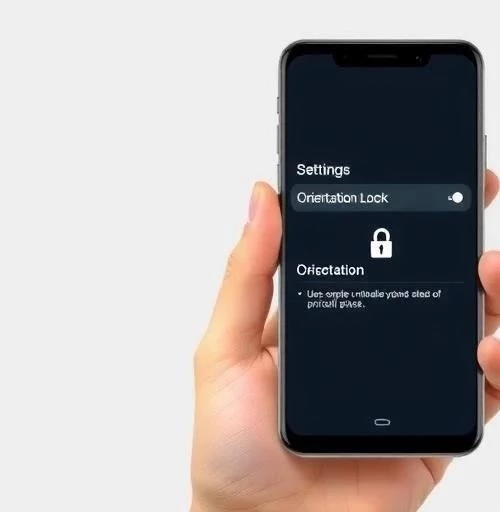
If your Xiaomi phone changes between portrait and landscape orientation when you tilt it, you can stop this by switching off automatic rotation. The setting is usually available in Quick Settings. The exact label and menu layout may differ between MIUI and HyperOS versions, but the steps are similar on most Xiaomi, Redmi, and POCO phones.
Turn off rotation from Quick Settings
- Unlock the phone and swipe down from the top of the screen to open the notification shade or Control Center.
- If only a small panel appears, swipe down again to show all available controls.
- Look for a button named Auto-rotate, Rotate, or Orientation. Its icon may look like a phone with circular arrows.
- Tap the button to turn automatic rotation off. Depending on the software version, the button may change to Portrait or Lock orientation.
When rotation is locked, the screen generally stays in portrait orientation even if you turn the phone sideways. If your phone is already in landscape mode when you disable rotation, it may remain that way until you return to portrait or change the setting again.
Use the Settings app
If the rotation button is not visible in Quick Settings, open Settings and look for the display controls. On many devices, the path is Settings > Display > Auto-rotate screen. Switch the option off. Menu names and locations can vary, so use the search field in Settings and search for “auto-rotate” or “rotation” if needed.
If the button is missing
Quick Settings panels can be customized. Open the full panel, tap the edit or pencil icon, and check whether the Auto-rotate tile is among the unused controls. Drag it into the visible area, then tap Done or the confirmation icon. On some versions, editing is opened through a three-dot menu instead.
When the screen still rotates
- Check the setting again. Make sure Auto-rotate is off; a highlighted tile may indicate that rotation is enabled, although tile colors differ by theme and software version.
- Consider the app. Some video players, games, camera screens, and other apps control orientation themselves. A full-screen video may rotate or offer its own orientation control even when automatic rotation is locked.
- Close and reopen the app. If the app does not respond to the changed setting, exit it and launch it again.
- Restart the phone. A restart can help if the setting appears correct but the display continues to change orientation unexpectedly.
- Check for updates. If the problem persists across multiple apps, install available system updates and test the setting again.
Turn rotation back on
To allow the display to follow the phone’s position again, open Quick Settings and tap Portrait, Lock orientation, or the corresponding rotation tile. If you used Settings, return to the Auto-rotate option and switch it on.
6 Comments. Оставить новый
The guidance is practical, and the note about differences between MIUI and HyperOS is useful.
The article clearly describes what may happen if rotation is turned off while the phone is in landscape mode.
The article is concise and appropriately notes that menu names and layouts can vary across devices.
The article provides clear steps for disabling automatic rotation through Quick Settings and the Settings app.
The instructions are easy to follow and cover both the quick control and the Settings menu.
The troubleshooting section explains how to find a missing rotation control in the Quick Settings panel.