
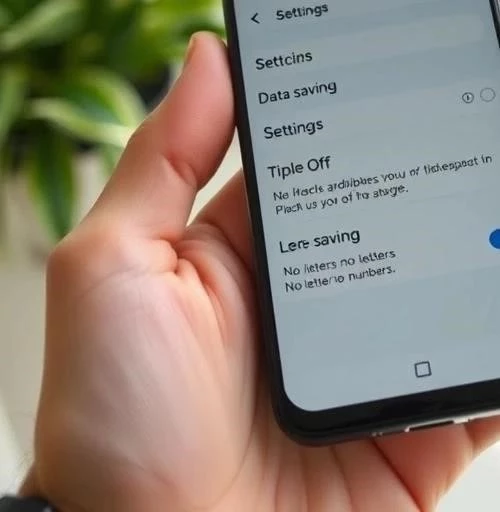
Data Saver is a quiet gatekeeper: it can stop apps from using mobile data in the background, delay notifications, and make a new phone feel oddly offline․ The exact menu names vary between MIUI and HyperOS, but the gate is usually easy to open․
Switch it off in Settings
- Open Settings․
- Tap SIM cards & mobile networks or Mobile networks․
- Look for Data usage, then Data Saver or Restrict data usage․
- Turn off the switch․ If prompted, confirm the change․
On some versions, the route is Settings → Connection & sharing → Data usage → Data Saver․ Xiaomi rearranges menus between models and software updates, so use the Settings search field and search for “Data Saver” if you cannot spot it․ Search is the map; the menu is the terrain․
If one app is still offline
Turning off the main saver may not remove an app’s individual data limits․ Open Settings → Apps → Manage apps, choose the app, and check Data usage or Restrict data usage․ Allow mobile data and background data if you want it to sync when you are not using it․ Repeat for messaging, email, or navigation apps that need to stay current․
You can also check Xiaomi’s Security app: open Data usage and review any restrictions or data plans there․ Labels differ by version․ Avoid changing limits for every app unless you mean to; streaming and social apps may use more data once unrestricted․
Still seeing the little data-saving icon?
- Pull down Control Center and look for a Data Saver tile; tap it to switch the feature off․
- Restart the phone if the switch is off but an app still behaves as restricted․
- Check whether your carrier, a VPN, or a third-party firewall has its own data controls․
- For Wi-Fi, open the connected network’s settings and inspect any separate network or metered-connection limit․
Good to know: disabling Data Saver does not turn off your mobile-data allowance․ It simply lets apps use data more freely, including in the background․ If you have a limited plan, keep an eye on usage in Settings → Data usage․ Think of the switch as opening the tap—not enlarging the tank․

8 Comments. Оставить новый
Useful advice, especially the reminder to check VPNs, carrier controls, and firewalls. Sometimes the obvious switch is off, while another tiny gate is still closed.
“Search is the map; the menu is the terrain” is a lovely way to describe phone settings. This guide makes a frustrating hunt feel a little more navigable.
The article gets an important detail right: turning off one master switch may not free every app. Those separate little permissions can hide like doors inside doors.
I like that the article doesn’t pretend every Xiaomi phone has the same menus. Real-world instructions should leave room for software updates to move the furniture.
The menu paths feel like a pocket-sized field guide to Xiaomi’s shifting landscape. The reminder that labels change by version is especially useful.
I appreciate the gentle warning about data limits. A phone can be liberated from restrictions and still send your monthly allowance sprinting away.
Nice troubleshooting sequence: check the app, the Security app, the Control Center, then the other possible gatekeepers. It treats connectivity like a mystery worth solving.
A clear, practical guide with a good balance of freedom and caution. Background data can be convenient, but it helps to know which apps are quietly using it.