
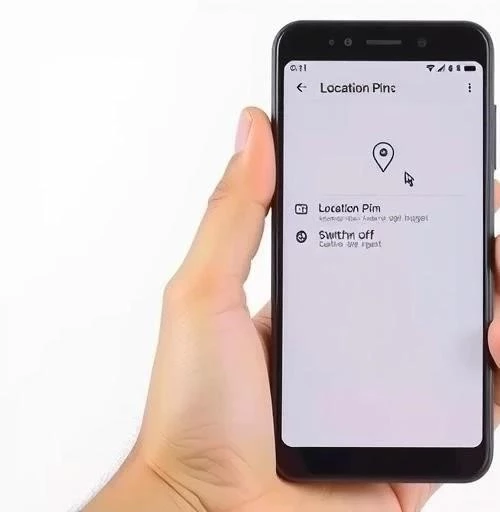
You can stop a Xiaomi phone from using GPS by switching off the system-wide Location setting. The control may be labelled “Location” rather than “GPS,” because Android manages GPS together with other location methods, such as nearby Wi-Fi networks and mobile networks. Menu names and screen layouts vary slightly between MIUI and HyperOS versions.
Quick method: use Quick Settings
- Unlock the phone and swipe down from the top of the screen. On some models, swipe down from the upper-right corner to open Control Center; swipe from the upper-left to open notifications.
- Find the Location tile. You may need to swipe down again or move through the available tiles.
- Tap the tile to turn Location off. The tile should change appearance to show that the setting is disabled.
If the tile is missing, open the expanded Quick Settings panel, tap the edit or pencil icon, and add the Location tile. You can also use the Settings method below.
Turn off Location in Settings
- Open Settings.
- Choose Location. Depending on the software version, it may be under Privacy protection, Privacy, or Additional settings. If you cannot find it, use the Settings search field and search for “Location.”
- Switch off Location access or Use location.
This disables location access for most apps and services; It does not remove location data that an app has already collected, and it does not necessarily erase location history stored in your account. To manage saved history, review the privacy and account settings for the relevant service.
Restrict location for one app
If you want maps or another app to keep working while limiting other apps, leave Location on and change individual permissions instead:
- Go to Settings > Apps > Manage apps, then select the app. Alternatively, open Privacy protection > Location or App permissions; the path depends on your version.
- Tap App permissions or Location.
- Select Allow only while using the app, Ask every time, or Don’t allow, as available.
- If offered, turn off Precise location to share an approximate position instead.
Permission choices differ by app and Android version. An app denied location permission may not provide navigation, local search, delivery tracking, or other location-based features.
Check related options
In the Location settings, look for options such as Location services, Google Location Accuracy, Wi-Fi scanning, or Bluetooth scanning. Disabling scanning can reduce network-assisted location detection, but it is not a replacement for turning off Location access. Names and availability vary by device.
Also check apps that use location in the background. In their permission screens, select an option that allows access only while the app is in use, or deny access if it is not needed. Review permissions after installing apps or major system updates, since settings may change.
How to confirm it is off
Reopen Quick Settings or Settings > Location and check that Location access is disabled. The location indicator may disappear, though indicator behavior can vary. Turning Location back on is done from the same tile or menu. If a tile does not respond, restart the phone and check Settings directly.
Important limitations
Turning off Location can affect navigation, weather updates, camera geotags, device-finding features, and emergency or safety functions. Some services may still estimate a general area from an internet connection or other information; disabling GPS does not make a phone anonymous or prevent all forms of tracking. Mobile network and emergency systems may handle location separately, depending on the region and circumstances.
If your goal is to reduce battery use, first check which apps are using location and restrict unnecessary background access. Disabling Location may also reduce the accuracy of useful services. For a temporary change, turn it off when needed and re-enable it when you want to use navigation or another location-based feature.
1 Comment. Оставить новый
The article clearly explains how to disable location access system-wide or restrict it for individual apps, while noting that menu paths vary by software version.