
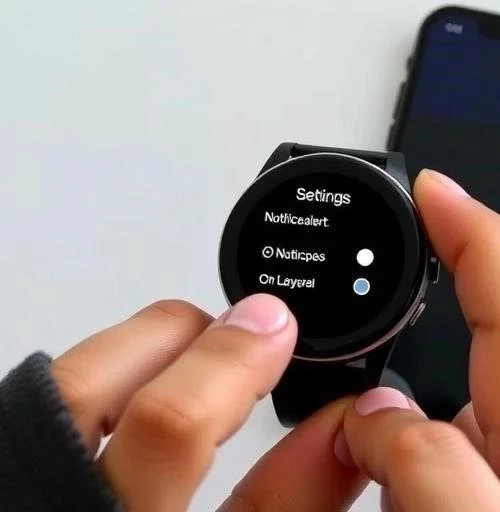
Your Apple Watch is a tiny town crier: useful when it announces the one message you need, less charming when it reports every sale, game, and group chat․ You do not have to silence the whole town․ You can quiet one app, pause alerts for a while, or close the gates entirely․ Choose the level of peace you want․
Stop notifications from selected apps
This is usually the best fix: keep calls and important messages, but dismiss the digital confetti from everything else․ The Watch app on your iPhone gives you the most control․
- Open the Watch app on your iPhone․
- Tap My Watch, then Notifications․
- Scroll to the app you want to quiet․ Tap it, then choose Notifications Off if that option appears․
- For apps that mirror iPhone alerts, switch off the app under Mirror iPhone Alerts From․
Some Apple apps have their own settings rather than a simple on/off switch․ Open the app’s notification page and select the alerts you want to keep, or choose Notifications Off․ Options vary by app and software version․ Turning off watch alerts does not necessarily turn off notifications on your iPhone: it simply stops that app from tapping your wrist․
Make an app quieter, not invisible
If you still want to see an alert when you check your watch, but do not want a sound or a wrist tap, open Watch on iPhone, go to My Watch > Notifications, and look for that app’s alert style․ Depending on the app, you may be able to choose quiet delivery, disable sounds, or adjust what appears․ You can also turn off Notification Indicator if you do not want the red dot on the watch face․ That hides the visual cue; it does not stop notifications themselves․
To keep private messages from appearing at a glance, check Show Notifications on Wrist Down and Tap to Show Full Notification in the notification settings․ These options affect previews and visibility, not whether the alert arrives․
Pause everything for a little while
For a meeting, a movie, or an unusually determined nap, use a temporary quiet mode instead of changing every app one by one․
- Silent Mode: Press the side button to open Control Center (on some older watchOS versions, swipe up from the watch face), then tap the bell․ Sounds are muted, but haptic taps and alerts may still appear;
- Focus or Do Not Disturb: Open Control Center, tap the Focus crescent icon, and choose a mode․ Focus filters alerts according to its allowed people and apps․ If it is shared across devices, the setting may also affect your iPhone or other Apple devices․
- Theater Mode: In Control Center, tap the theater masks․ This keeps the display dark when you raise your wrist and silences sounds; tap the screen or a button to wake it․ It is useful in a cinema, but it is not the same as blocking every notification․
To control what a Focus allows, open Settings > Focus on iPhone, select a mode, and review its permitted people and apps․ Focus schedules can turn on automatically, so check its schedule if alerts seem to disappear at the same time each day․
Turn off notifications on the watch itself
On Apple Watch, open Settings > Notifications․ Depending on your watchOS version, you can adjust notification indicators, previews, and app alerts there․ For the fullest app-by-app control, use the Watch app on your paired iPhone; its settings are easier to navigate and expose more options․
If alerts keep coming back
- Check whether the app is enabled under My Watch > Notifications, and whether it mirrors iPhone alerts․
- Check Focus settings on both devices․ A Focus may allow certain apps, people, or time-sensitive alerts through․
- Remember that Apple Watch notifications are generally delivered to either the unlocked iPhone or the watch, not both at once․ If your iPhone is unlocked and in use, an alert may appear there instead․
- If a setting looks different, update watchOS and iOS when convenient; menu names can vary slightly by version․
Quick rule: choose per-app notification settings for lasting calm, Focus for a temporary boundary, and Silent Mode when you only want to remove sound․ Your watch should be a helpful doorway, not a revolving door․



4 Comments. Оставить новый
I appreciate that this offers degrees of quiet rather than an all-or-nothing escape. It treats notification settings like dimmer switches for modern life—and explains clearly which switches change the alert and which only change what you see.
This turns a fiddly settings hunt into a calm little map. The reminder that watch alerts and iPhone alerts are not always the same thing is the kind of detail that saves readers from an accidental digital disappearing act.
A practical guide with a welcome sense of humor: the “digital confetti” feels almost festive until it starts tapping your wrist. The privacy tips add a thoughtful layer beyond simply making the watch quieter.
The “tiny town crier” image makes notification overload instantly recognizable. I especially like the distinction between silencing an app and hiding its previews—small settings, surprisingly large pockets of peace.