
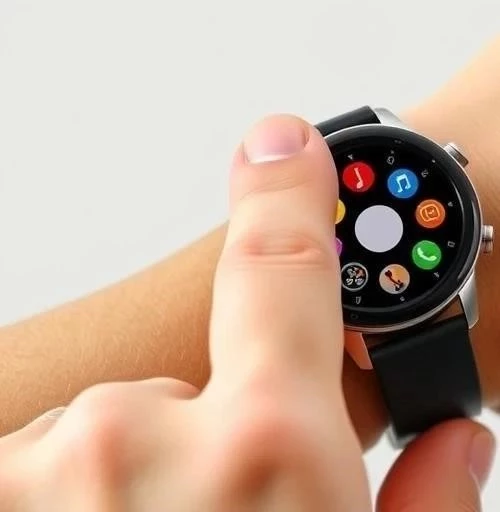
If everything on your Apple Watch looks unusually large, the Accessibility feature called Zoom is probably turned on. Zoom magnifies the watch display; it does not change the size of the watch face or permanently enlarge the screen. You can switch it off from the watch itself or from the paired iPhone. The steps below work on most recent versions of watchOS, although menu wording can vary slightly.
Turn Zoom off on Apple Watch
- Press the Digital Crown to open the app list, then tap Settings.
- Scroll down and select Accessibility.
- Tap Zoom.
- Switch Zoom off.
The display should return to its normal size immediately. If the screen is too magnified to find or tap Settings, use the gesture below to reduce the view first.
Use the two-finger gesture
Double-tap the display with two fingers to turn Zoom off or on. Make two quick taps together, keeping both fingers on the screen. This gesture is useful when the controls are difficult to reach, and it does not require opening Settings.
If you do not want to disable Zoom completely, you can move around the magnified screen by dragging with two fingers. To change the magnification, double-tap with two fingers and, on the second tap, hold and drag up or down. When the display is at a comfortable size, open Settings and switch Zoom off if you want to prevent it from activating again.
Switch it off from your iPhone
- Keep your Apple Watch near the iPhone that is paired with it.
- Open the Watch app on the iPhone.
- Tap My Watch, then choose Accessibility.
- Tap Zoom and turn the feature off.
This option is especially helpful if the enlarged watch display makes it hard to navigate the watch menus. Allow a moment for the setting to sync. If the switch is already off but the screen still appears large, check whether another display setting is responsible.
Check Display Zoom and text size
Zoom is different from larger text or display settings. If only words look big, go to Settings > Display & Brightness > Text Size and move the slider toward a smaller size. You can also review Bold Text there. On some watchOS versions, display options or their names may differ. These settings change how content is presented, while Accessibility Zoom magnifies the area of the screen.
Stop Zoom from turning on accidentally
Check whether Zoom is assigned to the Accessibility Shortcut. On the watch, open Settings > Accessibility > Accessibility Shortcut. If Zoom is selected, pressing the Digital Crown three times may toggle it. Deselect Zoom if you do not use the shortcut, or leave it selected if you want a quick way to enable and disable magnification. The available shortcut choices depend on your watchOS version.
If the screen remains enlarged
- Try the two-finger double-tap again, making sure both fingers touch the display at the same time.
- Turn Zoom off from the iPhone Watch app, then check that the watch is connected and allow settings to sync.
- Restart the watch normally and check the Zoom setting again. Avoid a force restart while watchOS is updating.
- If taps or gestures are not responding, check that the screen is clean and dry and that a case or screen protector is not interfering.
For a normal restart, hold the side button until the power controls appear, tap the power icon, and drag the slider. Turn the watch back on by holding the side button. If Zoom keeps switching on after you have disabled it and checked the shortcut, update watchOS and contact Apple Support for help.
Quick recap
The fastest fix is usually a two-finger double-tap. To disable magnification permanently, open Settings > Accessibility > Zoom on the watch, or use Watch app > My Watch > Accessibility > Zoom on the iPhone. If only text is too large, adjust Text Size instead. These checks will help restore a comfortable, readable screen without changing your watch face or other data.


3 Comments. Оставить новый
The distinction between Zoom and larger text is useful. The step-by-step instructions make troubleshooting straightforward.
A clear and practical guide. The two-finger gesture is especially helpful when the display is too magnified to navigate.
I appreciate that this explains both how to turn Zoom off on the watch and how to do it from the paired iPhone.