
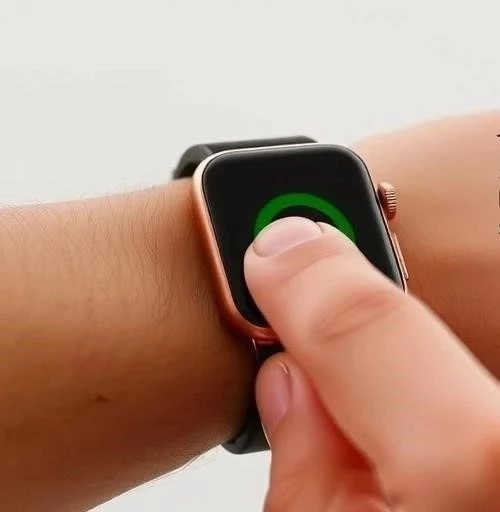
Your Apple Watch Series 6 wakes with a small, deliberate gesture—not by turning the Digital Crown. Find the flat side button beneath the crown, then press and hold it until the Apple logo appears. Let go, and give the watch a little time to start. The first boot after a long rest can take a minute or two.
The quick start
- Turn the watch face toward you and locate the side button below the Digital Crown.
- Press and hold the side button for a few seconds. A brief press may open the Dock instead; keep holding until the Apple logo appears.
- Release the button and wait for the watch face or setup screen.
The Digital Crown alone will not switch the watch on. Think of it as a tiny door handle for menus; the side button is the ignition;
If the screen stays dark
A black display often means the battery is completely empty, not that the watch is broken. Place the magnetic charging cable on a USB power adapter and plug it into a working outlet. Set the back of the watch against the charger: its magnet should pull the pieces into alignment. A charging symbol should appear, though a deeply drained battery may need several minutes before the screen responds.
Leave it charging for at least 30 minutes, then try holding the side button again. If nothing changes, check that the cable and adapter are firmly connected, try another outlet or compatible adapter, and make sure the charger and watch back are clean and dry. Remove any case that might prevent the charger from sitting flat. If you see a red lightning bolt, the watch needs power; keep it on the charger. A green bolt indicates that it is charging.
New watch? Pair it with your iPhone
When the watch starts for the first time, follow the animation and language prompts on its screen. Bring an unlocked iPhone nearby with Bluetooth and Wi‑Fi enabled, then open the Watch app and choose Start Pairing. Point the iPhone camera at the swirling pattern on the watch, or choose manual pairing if the camera cannot read it. Continue through the prompts to sign in, set a passcode, and choose settings. Keep both devices close together while setup finishes; the watch may restart during the process.
If the pairing animation does not appear, press and hold the Digital Crown while the watch is on the setup screen, then choose the reset option. This is for a watch still awaiting setup—not a shortcut for powering on a watch with a blank screen.
Still no Apple logo?
Try a forced restart only if the watch is unresponsive: hold the side button and Digital Crown together for about 10 seconds, then release when the Apple logo appears. Do not do this while a watchOS update is in progress. If the watch remains dark after charging and checking the connections, or repeatedly shows the Apple logo without starting, contact Apple Support or an authorized service provider. A battery or hardware fault may need professional attention.
In one sentence
Hold the side button until the Apple logo appears; if it does not, charge the watch first. That is the simple little ritual that brings the Series 6 back to life.

1 Comment. Оставить новый
I love the “tiny door handle” image—it turns a fiddly bit of watch troubleshooting into something you can remember when the screen goes dark. The calm, practical steps make the Series 6 feel less like a stubborn gadget and more like a little machine waiting for its spark.