
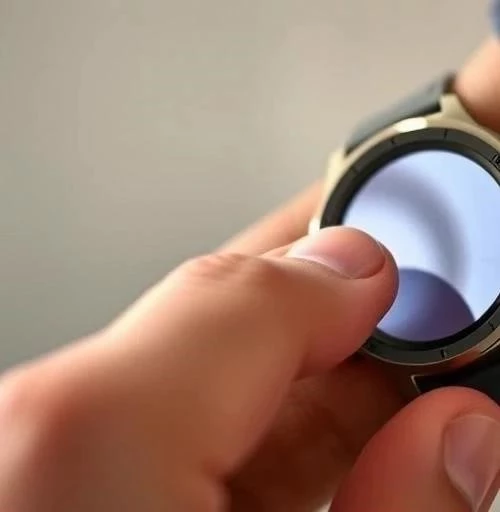
Turning on an Apple Watch Ultra is straightforward: press and hold its side button until the Apple logo appears․ The watch may take a short time to start․ If the logo does not appear, check the battery and charger before trying other steps․ The instructions below cover startup, first-time setup, and common problems․
Start the watch
- Locate the side button below the Digital Crown on the right side of the watch․
- Press and hold the side button․ Do not hold the Digital Crown by itself․
- Release the button when the Apple logo appears, then wait for the startup process to finish․
A watch with a depleted battery may not turn on immediately․ Connect it to its magnetic charging cable or a compatible Apple Watch charger, and plug the charger into a working power adapter․ Leave the watch charging for a while, then press and hold the side button again․ If a low-battery symbol appears, keep it on the charger until it has enough power to start․
Set up the watch for the first time
After startup, the watch displays prompts for setup․ Keep it near an iPhone with Bluetooth enabled and Wi-Fi or cellular connectivity available․ The iPhone should be signed in to an Apple Account․ If the iPhone shows a pairing prompt, follow the instructions on its screen․ Otherwise, open the Watch app, choose the option to add a watch, and select the option to set up a new Apple Watch․
When prompted, position the watch’s animation in the iPhone camera viewfinder․ If the camera cannot pair the devices, choose manual pairing and follow the displayed steps․ Continue through the prompts to choose wrist, passcode, settings, and features․ Setup may also include a software update; keep both devices near each other and leave the watch on its charger if requested․ Do not restart or remove the watch from the charger while an update is in progress unless the screen specifically instructs you to do so․
If the watch has already been paired with an iPhone, it should normally start without repeating setup․ If it instead displays a pairing screen or asks for an Apple Account previously used with it, follow the on-screen directions․ A second-hand watch may need to be removed from its previous owner’s account before it can be paired․
If the watch will not turn on
- Check the power source: Make sure the cable and adapter are connected firmly and the outlet works․ Align the watch with the charger so that it sits flat․ If available, try another compatible cable, adapter, or outlet․
- Allow time to charge: A fully drained battery can take several minutes to show a charging indicator․ Leave it connected for at least 30 minutes before trying again․ Check that the back of the watch and the charger are clean and dry․
- Try a normal restart: If the display is on and the watch responds, press and hold the side button until the power controls appear․ Follow the screen instructions to turn it off, wait briefly, then press and hold the side button to start it again․
- Check for screen issues: If the watch makes sounds or vibrates but the display stays blank, the problem may not be startup․ Charge it and seek Apple Support or an authorized service provider if the display remains unresponsive․
If the watch is frozen and does not respond to a normal restart, a force restart may help․ Press and hold the Digital Crown and side button together for about 10 seconds, then release both when the Apple logo appears․ Use this only when necessary; do not force-restart during a software update, as interrupting an update can cause problems․
Turning it off and on again
To power off a responsive Apple Watch Ultra, press and hold the side button until the power controls appear, then use the on-screen power-off control․ The exact appearance of the controls can vary with watchOS․ To turn the watch back on, press and hold the side button until the Apple logo appears․ If the watch is charging and seems unresponsive, remove it from the charger before attempting to switch it off․
If none of these steps works, leave the watch connected to a known-good charger and contact Apple Support or an authorized service provider․ Do not open the case or use an unapproved charger․ Hardware damage, a faulty battery, or a damaged charging accessory may require professional inspection․
1 Comment. Оставить новый
The instructions are clearly organized, with useful troubleshooting and setup details. The article appears to end mid-sentence, so the final section may be incomplete.