
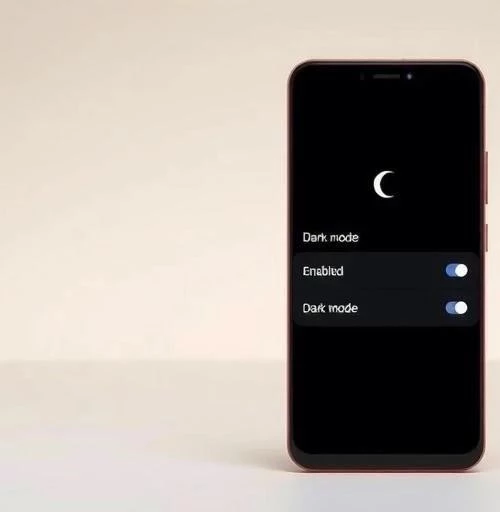
Your Redmi’s screen can trade its bright daytime outfit for a calmer midnight look in less time than it takes to find your charger․ Dark mode changes light backgrounds in supported system menus and apps to darker shades, making the interface feel more like a quiet night sky than a sheet of white paper․ The exact menu names can vary between Redmi models and software versions, but the main route is usually simple․
The quickest route: use Settings
- Open the Settings app․ Its icon usually looks like a gear․
- Tap Display & brightness․ On some versions, the section may be called Display or Display settings․
- Find Dark mode and switch it on․
The change should take effect almost immediately․ Menus, the notification shade, and other supported parts of the interface will swap their pale backgrounds for darker ones․ If you do not see the option right away, look through the Display section or use Settings search: tap the magnifying-glass icon, type Dark mode, and open the matching result․ This is often the fastest route when Xiaomi has rearranged the furniture in a software update․
Turn it on from the Control Center
For a one-tap switch, swipe down from the top-right edge of the screen to open the Control Center․ On some Redmi versions, swiping down from the top may open the notification shade instead; try the other side of the screen if needed․ Look for a tile named Dark mode or Dark theme, then tap it․
If the tile is missing, edit the Control Center shortcuts․ Tap the edit or pencil icon, find the Dark mode tile in the available shortcuts, and drag it into the active area․ The layout and icons differ across MIUI and HyperOS versions, so the Settings method remains the reliable fallback․ A shortcut is a convenient switch, not a separate setting: it changes the same system theme․
Choose when the phone goes dark
Dark mode does not have to be an all-night decision․ Many Redmi phones let you set a schedule from the Dark mode page in Display settings․ Turn on the scheduling option, then choose either a custom start and end time or a sunset-to-sunrise schedule, if offered․ For example, you can have the phone switch to dark mode in the evening and return to light mode in the morning․
Some versions also offer an option such as Turn on Dark mode automatically or Schedule․ If you cannot find it, check the Dark mode screen carefully or search Settings for “schedule․” Availability and wording can depend on your device, region, and software release․ If no schedule option appears, you can still switch modes manually from Settings or the Control Center․
Make dark mode feel right
On certain versions, the Dark mode menu includes extra controls․ You may be able to adjust brightness or contrast, change the appearance of wallpapers, or choose which apps follow the system theme․ Treat these as optional finishing touches: the basic dark switch works without them, and the controls are not present on every Redmi․
- Check individual apps․ An app may follow the phone’s system setting, provide its own theme switch, or stay light because it does not support dark mode․ Look in that app’s Settings for options such as Theme, Appearance, or Display․
- Use per-app settings if available․ If your Dark mode page lists app controls, you can often choose which supported apps should use the dark appearance․ Menu labels and available choices vary by software version․
- Review wallpapers and icons․ A dark interface can make a bright wallpaper or colorful icon set stand out more․ Changing the wallpaper is optional; it does not turn dark mode on or off․
What if an app stays bright?
That does not necessarily mean your Redmi’s setting failed․ System dark mode can recolor supported system screens, but apps decide how to handle their own appearance․ Open the bright app’s settings and look for a theme choice․ It may offer Light, Dark, and Use system setting․ Choose the system-following option if you want it to change along with the phone․
Some apps require a restart before a theme change becomes visible․ Close and reopen the app, or restart the phone if several interface elements seem stuck․ Also check for app and system updates: dark-theme support can be added or improved over time․ A webpage viewed in a browser may remain white unless the browser or the website has its own dark appearance setting․
Be cautious with “force dark” options
Some Redmi software versions include a control that applies dark styling to apps that do not fully support it․ It can be useful, but it may also produce odd colors, low-contrast text, or images that look wrong․ If an app becomes difficult to read after enabling such an option, turn it off for that app if individual controls are available, or disable the feature altogether․ A properly designed in-app dark theme is usually the tidier choice․
Dark mode and battery life
Dark mode may reduce power use on some phones with OLED or AMOLED displays, especially when much of the screen is truly black․ The benefit depends on the screen technology, brightness, what you are doing, and how each app draws its colors․ On an LCD screen, the backlight still illuminates the display, so dark mode may make little difference to battery life․ Choose it because you like the look or find it comfortable—not as a guaranteed battery-saving trick․
Quick fixes if you cannot find the switch
- Search Settings for Dark mode, Dark theme, or Display․
- Check whether the phone is running MIUI or HyperOS, and remember that menu names can vary between releases․
- Restart the phone if the setting is on but the interface has not refreshed․
- Check whether an app has its own theme setting or does not support dark mode․
- Install available system updates if menus behave unexpectedly, then check Display settings again․
Turn it off again
To return to the bright look, go back to Settings > Display & brightness > Dark mode and switch it off․ You can also tap the Control Center tile, if you added one․ If a schedule is active, adjust or disable the schedule too; otherwise, the phone may turn dark again at the next scheduled time․
In short: open Settings, find Display & brightness, and switch on Dark mode․ Use Settings search if the menu has moved, add a Control Center tile for faster access, and check app-specific settings when one app refuses to join the night shift․ Your Redmi is ready for its after-dark makeover․




2 Comments. Оставить новый
This makes dark mode feel less like a hidden switch and more like a pocket-sized nightfall. The Control Center tip is a clever shortcut, while the calm, clear directions keep the advice from turning into a technical scavenger hunt.
A helpful little lantern for anyone lost in Redmi’s settings maze. I especially like the reminder that software updates can move the furniture around—an honest, practical touch that keeps the guide useful beyond one phone version.