
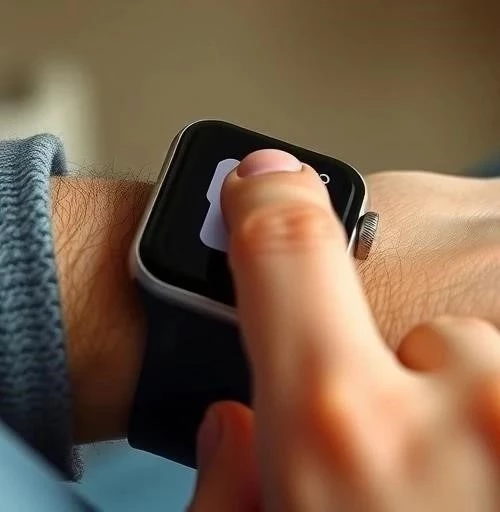
The Apple Watch Series 7 lets you read and reply to messages without taking out your iPhone․ Its larger display also makes typing on the watch’s built-in keyboard easier than on earlier models․ You can write a message with the keyboard, dictate it, scribble letters, or choose a suggested reply․ The exact options may depend on your language, region, and watchOS version․
Start a new message
- Press the Digital Crown to open the apps, then tap Messages․
- On the conversation list, tap the new-message button․ If it is not visible, scroll to the top of the list․
- Tap Add Contact and choose a person, or tap the contact field and enter or select a name or phone number․
- Tap Create Message or the message field, then choose how you want to enter your words․
- Review the recipient and message, then tap Send․
You can also reply directly to an incoming notification: raise your wrist, scroll through the alert if needed, tap Reply, and compose your response․ To answer an existing conversation, open it in Messages and tap the text-entry field․
Type with the on-screen keyboard
Tap the keyboard option to bring up the Series 7’s full QWERTY keyboard․ Tap letters to type, and use the available controls for capitalization, numbers, punctuation, and deleting characters․ Because the screen is small, type at a comfortable pace and check the text as you go․ If a word is corrected incorrectly, tap the suggested word or edit the message before sending․
You can also use QuickPath, where available: slide your finger from one letter to the next without lifting it between letters․ The watch uses the path to predict the word․ This can be quicker than tapping each character, especially for short replies․ Predictions and keyboard layouts vary with language settings․
Dictate, Scribble, or use a suggestion
- Dictation: Tap the microphone, speak clearly, and pause when you finish․ Check the recognized text for mistakes, then tap Send․ Dictation is useful when typing would be awkward, but names and punctuation may need correction․
- Scribble: Tap the Scribble option and draw one letter at a time in the writing area․ Add punctuation using the on-screen controls․ If the watch misreads a character, edit it or erase and write it again․
- Suggested replies: Tap a relevant phrase, such as “On my way,” to send it quickly․ You may also see contextual suggestions based on the conversation․
- Emoji: Tap the emoji control to browse and select an emoji․ You can combine one with typed or dictated text․
The input choices may appear as buttons, icons, or options after you tap the message field․ If you do not see the method you want, scroll through the available controls or check that the keyboard and dictation language are supported․
Edit and send carefully
Before sending, read the recipient’s name and the whole message․ Small-screen typing and speech recognition can introduce errors․ If necessary, tap the text to place the cursor, use the delete key, or replace the message with a corrected version․ Tap Send only when you are ready; a sent message may not be retractable for every recipient or software version․
In a conversation, use the reply field at the bottom to continue the thread․ Depending on the options shown, you may also send an audio message or share other supported content․ Keep messages concise when using the watch, since longer text is usually easier to compose and review on an iPhone․
If messages will not send
Check that the watch is connected to the iPhone, Wi-Fi, or a supported cellular network, and that the recipient’s details are correct․ iMessage requires an internet connection․ SMS availability depends on your iPhone, carrier, and watch connection; a cellular Apple Watch may need an eligible plan․ If the watch is offline, move into coverage and try again․ Also check that Messages is set up on the paired iPhone and that the watch has not enabled a mode that prevents notifications․
For easier routine replies, customize suggested responses in the Watch app on your iPhone, where available․ With a little practice, the Series 7’s keyboard, dictation, Scribble, and quick replies make it simple to send a short message straight from your wrist․
4 Comments. Оставить новый
A useful overview of messaging options on the Series 7. Mentioning that features can vary by language and watchOS version is a helpful detail.
The step-by-step layout makes it simple to find the instructions you need, whether you are starting a message or responding to a notification.
I appreciate the reminder to check the recognized text before sending. Dictation and QuickPath can be convenient, and this guide explains both in an easy-to-follow way.
Clear, practical instructions for composing and replying to messages on the Apple Watch. The different input options are especially helpful for new users.