
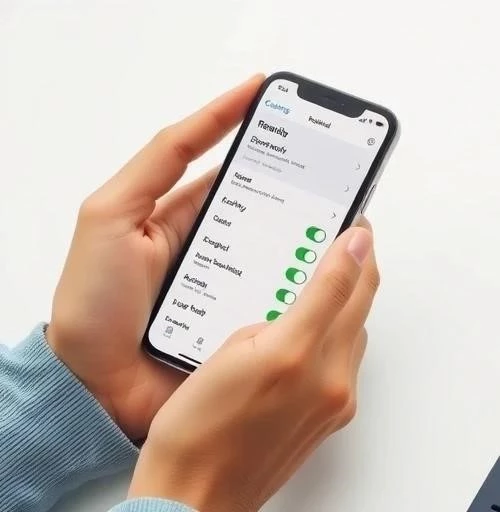
You can erase and unpair an Apple Watch through the Watch app on its paired iPhone. This is useful before selling, giving away, or troubleshooting the watch. Unpairing removes the connection between the devices and erases the watch’s content and settings. Before you begin, make sure you understand what will be removed and whether you need to keep a cellular plan.
Before you reset the watch
- Keep the devices nearby. Place the Apple Watch and iPhone close together, and make sure Bluetooth is enabled on the iPhone.
- Check the battery. Keep the watch charged, or place it on its charger during the process. The iPhone should also have enough power and a reliable connection.
- Consider your data. Unpairing normally creates a backup of the watch on the iPhone. Health and Activity information may also be synced with iCloud, depending on your settings. Allow syncing to finish, and make a separate backup of the iPhone if needed.
- Know your Apple Account password. You may be asked to enter it to turn off Activation Lock. This security feature helps prevent someone else from using a lost or erased watch.
- Decide what to do with cellular service. If the watch has a cellular plan, choose whether to keep it for your own use or remove it when transferring the watch to someone else. Removing the plan from the watch does not necessarily cancel the subscription; contact your carrier if you want to cancel it.
Unpair and erase Apple Watch using the iPhone
- Open the Watch app on the iPhone that is paired with the Apple Watch.
- Tap My Watch at the bottom of the screen, if that tab is not already selected.
- Tap All Watches near the top of the screen to see the watches connected to the iPhone.
- Find the watch you want to reset and tap the Info button (the ⓘ symbol) beside its name.
- Tap Unpair Apple Watch. If you have a watch with cellular, the iPhone may ask whether to keep or remove its cellular plan.
- Confirm that you want to unpair. If prompted, enter the password for the Apple Account associated with the watch. This allows the process to disable Activation Lock.
- Keep the watch and iPhone close while they finish unpairing. Do not close the Watch app or restart either device unless the process has clearly stopped.
When unpairing is complete, the watch is erased and returns to its initial setup screen. The iPhone may save a current watch backup as part of the process. You can use an available backup when pairing the watch again, although some settings or data may require syncing from the iPhone or iCloud.
What “unpair” does and why it matters
Unpairing is generally the best option when you have access to the paired iPhone. It erases personal information and settings from the watch, disconnects the devices, and removes Activation Lock when the correct Apple Account credentials are provided. This is especially important before selling or giving away the watch: simply deleting information manually or removing the watch from view is not a substitute for completing unpairing.
If you are keeping the watch, unpairing can also provide a clean starting point for setup or help resolve some connection problems. Afterward, open the Watch app and follow the pairing instructions. When offered, select a backup to restore settings and supported information.
If the watch is not listed or the iPhone is unavailable
Check that you opened the Watch app on the iPhone currently paired with the watch and that both devices are powered on and nearby. If the watch does not appear, restart the iPhone and watch, then check the app again. Menu names can differ slightly by iOS or watchOS version; look for the watch list and its information button.
If you no longer have the paired iPhone, you cannot use the iPhone-based unpairing steps. You can erase the watch directly from its settings, but erasing it this way does not by itself remove Activation Lock. The Apple Account previously associated with the watch may still be required during setup. If the watch is being transferred to another person, remove it from your account using Apple’s account or Find My tools as appropriate, and make sure the new owner can activate it.
Common questions
Will unpairing delete the backup on my iPhone?
Unpairing normally creates a watch backup on the paired iPhone; it does not mean that existing iPhone content is erased. Backups may be replaced or managed automatically, so do not treat them as a permanent archive. If the information is important, confirm that the iPhone itself is backed up.
Should I keep the cellular plan?
Keep it if you are unpairing temporarily and intend to use the same watch and plan again. If you are giving away or selling the watch, choose to remove the plan from the device. Ask your carrier about cancellation or transfer of billing.
Does this reset fix every problem?
No. Unpairing and setting up again can address some software or pairing issues, but it cannot fix hardware damage, a carrier account issue, or every iPhone problem. If the Watch app cannot complete the process, the watch remains locked to an account you cannot access, or an error persists, consult Apple Support or your carrier before trying repeated erasures.
Final checklist
- Use the paired iPhone’s Watch app and select the correct watch.
- Complete Unpair Apple Watch rather than only removing it from a list.
- Choose the cellular-plan option that matches your next use of the watch.
- Enter the associated Apple Account password if requested, and verify that the watch reaches its setup screen.
These steps erase the watch, so check that you have the information and credentials needed before confirming. If you are preparing it for another person, complete the transfer only after unpairing has finished and Activation Lock has been removed.

4 Comments. Оставить новый
The instructions are organized into preparation and unpairing steps, making the process easy to follow.
The article clearly outlines the main considerations to address before unpairing an Apple Watch, including backups, Activation Lock, and cellular service.
The distinction between removing a cellular plan from the watch and canceling the subscription is useful for readers preparing to transfer a device.
The article notes relevant security and data considerations, though the supplied text ends before the full unpairing instructions are shown.