
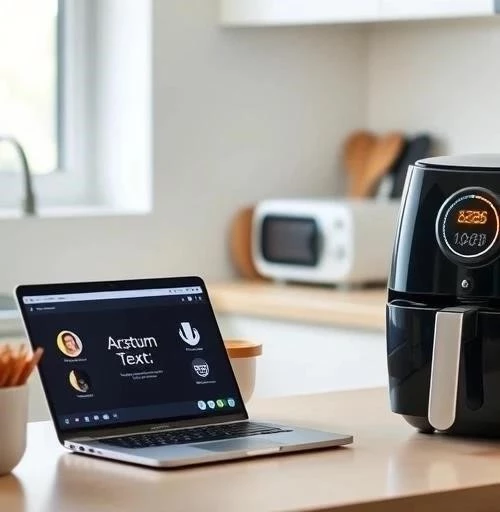
“Reflashing” an air fryer usually means reinstalling or updating its firmware. Unlike a Xiaomi phone, an air fryer is not normally updated with a downloadable ROM, a computer, or Fastboot commands. Firmware and update methods vary by exact model and region, and an incorrect file or interrupted update can make the appliance unusable; For most owners, the safe approach is to check for an official update in the Xiaomi Home app and follow the instructions shown there.
Before you begin
- Identify the exact appliance. Check the model number on its rating label, packaging, manual, or device information page in Xiaomi Home. Similar-looking models may use different firmware.
- Check the region and app. The account region, appliance version, and app region may affect whether the fryer can be added or updated. Do not change regions at random to obtain a firmware package.
- Use a stable power supply. Keep the fryer plugged into a reliable wall outlet throughout an update. Do not unplug it, switch off the outlet, or remove a basket while the app reports that installation is in progress.
- Use the official app and documentation. Install Xiaomi Home from an official app store, sign in to the account used for the appliance, and consult the manual or Xiaomi support for the specific model.
Check for an official firmware update
- Place the fryer near your Wi-Fi router and confirm that the router has internet access. Connect your phone to the network used to set up the appliance, if the model requires it.
- Open Xiaomi Home and select the correct home and air fryer. If it is offline, first resolve the connection problem rather than attempting a firmware installation.
- Open the appliance’s settings. Look for a firmware, device update, or version option; wording and menu location can differ between app versions and models.
- If an update is offered, read the on-screen notes and start it only when you can leave the appliance powered and undisturbed until the app confirms completion.
- After the update, wait for the device to reconnect. Check its reported version and test normal controls with the empty appliance, following the owner’s manual.
An update option may not appear when the fryer already has the current version, the update is not available for that model or region, or the device is temporarily offline. Absence of an update button does not mean that you should install a file intended for another Xiaomi product.
If the fryer is offline or the update fails
Start with low-risk checks. Make sure the fryer is powered, the phone has internet access, and the appliance is within range of the router. Restart the app and phone, then power-cycle the fryer only if its manual permits it and no update is running. Check that the Wi-Fi name and password have not changed. Some appliances support only particular Wi-Fi bands or security settings; verify the requirement in the model’s manual instead of guessing.
If the app still cannot connect, use its device-removal or reset procedure only as described for your model, then add the fryer again. A reset may erase pairing and network settings, but it does not necessarily reinstall firmware. Do not repeatedly reset or interrupt the appliance during an update. Note any error message, the model number, app version, and firmware version before contacting Xiaomi support.
Can you install firmware manually with USB or a computer?
Do not assume that a phone flashing guide applies to an air fryer. A USB port, service connector, or downloadable file does not by itself establish a safe consumer update method. Unless Xiaomi provides a verified package and explicit instructions for your exact model and region, do not use unofficial firmware, phone flashing tools, recovery images, or files found in forums. A mismatched image can damage the controller, disable safety functions, or make the appliance impossible to recover.
A manual service procedure may exist for technicians, but it can require specialized equipment and model-specific files. Opening the housing or probing internal connections also exposes mains-voltage components and can cause electric shock, fire, injury, or loss of warranty coverage. Never attempt board-level flashing as a home repair.
When to contact support
Contact Xiaomi support or an authorized service provider if the update repeatedly fails, the fryer stays offline after the documented setup steps, the app reports an error, or the appliance no longer starts or responds normally. Give support the exact model, region, serial number if requested, app and firmware versions, and a concise description of what happened. If there is a burning smell, unusual heat, damaged cable, or other electrical concern, unplug the fryer when safe and stop using it.
In short
For an owner, “reflashing” a Xiaomi air fryer should normally mean installing an update offered by Xiaomi Home, not loading a phone-style ROM. Confirm the model, follow the app and manual, keep power stable, and avoid unofficial files or hardware methods. If no official update is offered or the device remains faulty, ask Xiaomi or an authorized technician to verify the correct recovery procedure.

5 Comments. Оставить новый
This is a clear and sensible guide. The reminder to check the exact model before updating is especially useful.
The troubleshooting tips about Wi-Fi, region settings, and keeping the fryer powered make this practical for owners.
I appreciate the caution against using unofficial firmware files. Following the Xiaomi Home app and model-specific instructions is the safest advice.
Well organized and easy to follow. Checking for an official update through the app is a good first step before trying anything more complicated.
A helpful explanation of why reflashing an air fryer is different from updating a phone. The safety warnings are clear and relevant.