Apple Watch can make contactless payments at participating shops, restaurants, transit systems and other locations․ After a supported payment card has been added to Apple Wallet, you can usually pay by double-clicking the side button and holding the watch near a contactless reader․ The exact options depend on your country or region, bank, card and the merchant’s payment terminal․
What you need
- A compatible Apple Watch with a passcode set․
- A supported debit, credit or prepaid card from a participating bank or card issuer․
- Apple Pay availability in your region and a merchant terminal that accepts contactless payments․
- An iPhone paired with the watch for the initial card setup in most cases․
Check Apple’s current country and bank availability information if you are unsure whether your card can be added․ A card that works with Apple Pay on an iPhone is not necessarily supported for every account or region on Apple Watch․
Add a payment card
- On the paired iPhone, open the Apple Watch app․
- Tap My Watch, then choose Wallet & Apple Pay․
- Tap Add Card and follow the on-screen instructions․ You may be asked to scan the card, enter its details, or confirm information with your bank․
- Complete any verification requested by the card issuer, such as a text message, banking-app confirmation or phone call․
The card is provisioned for the watch separately from the card on your iPhone․ It may take a short time for verification to finish․ If the issuer declines the request or the card does not appear, contact the bank or check its instructions for Apple Pay․
Pay in a shop
- Look for the contactless payment symbol or Apple Pay mark at the checkout, and confirm that the merchant accepts your card network․
- Double-click the side button on your Apple Watch․ The Wallet screen appears with your default card․
- To use a different card, swipe through the cards on screen and select the one you want․
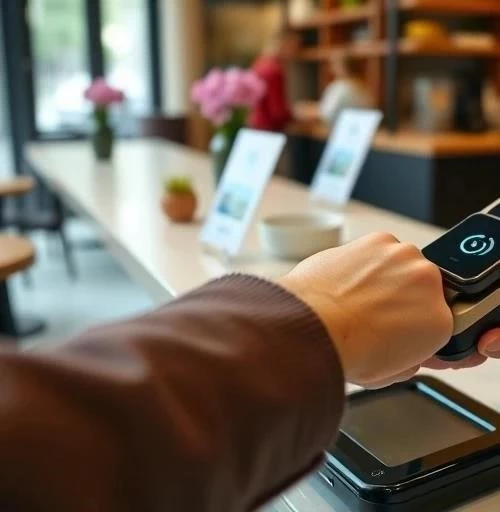
- Hold the watch display close to the contactless reader․ Keep it there until you feel a gentle tap or hear a tone and the screen confirms the payment․
You do not usually need to open the Wallet app first or have your iPhone with you for an in-store payment․ Keep the watch near the reader for a moment; moving it away too quickly may interrupt the transaction․ Follow any instructions on the terminal, such as entering a PIN or choosing a debit or credit option․ A merchant may also ask for a signature or other verification, depending on local rules and the purchase․
Choose or change the default card
The first card added to Wallet may become the default payment card․ To change it, open the Apple Watch app on your iPhone, go to My Watch > Wallet & Apple Pay > Default Card, and select another card․ You can also choose a different card at the checkout by double-clicking the side button and selecting it before holding the watch to the reader․ Check the card shown on screen before you tap, especially if you keep personal and work cards in Wallet․
Pay for apps and online purchases
Some apps and websites offer an Apple Pay button at checkout․ Select it, review the payment and delivery information shown, and confirm using the on-screen instructions․ When the purchase is offered directly on Apple Watch, double-click the side button when prompted․ The steps can differ by app, website and device; if checkout asks you to continue on an iPhone, follow that prompt․ Review the amount and merchant before confirming․
Public transport
In supported locations, Apple Pay can be used at transit gates or on buses that accept contactless payment․ Some systems let you select a payment card in Wallet; others support an eligible transit card or an Express Transit setting, which can allow a tap without first double-clicking the side button․ Availability and setup vary by city․ Check local transit instructions and use the same card or travel credential consistently where the system requires it, especially when tapping in and out․
Security and privacy
Apple Watch requires a passcode for Apple Pay․ If you remove the watch from your wrist, Wrist Detection normally locks it; enter the passcode to unlock it again․ Payment card numbers are not displayed to the merchant in the same way as a physical card number, and Apple Pay uses a device-specific account number and transaction security features․ Do not share your passcode, and do not approve a payment unless the merchant and amount are correct․
If the watch is lost, mark it as lost or remove its payment cards using Find My or your Apple Account options, and contact your bank if you suspect unauthorized activity․ Removing a card from the watch does not necessarily remove it from your iPhone, because the devices manage their Wallet cards separately․
If a payment does not work
- Confirm the card is active, supported by the issuer and present in Wallet on the watch․
- Make sure the watch is unlocked and that you are double-clicking the side button, not the Digital Crown․
- Hold the display close to the contactless reader and wait for confirmation․ Try another reader or ask the merchant to check the terminal․
- Check whether the shop accepts contactless payments and your card’s network․ A terminal may be temporarily offline or require another payment method․
- Restart the watch and iPhone, install available software updates, or remove and add the card again if the issuer permits it․
If the terminal reports that the card was declined, the bank may need to explain the reason․ Apple Support can help with device or Wallet setup, but only the card issuer can resolve many account, authorization and card-eligibility issues․