
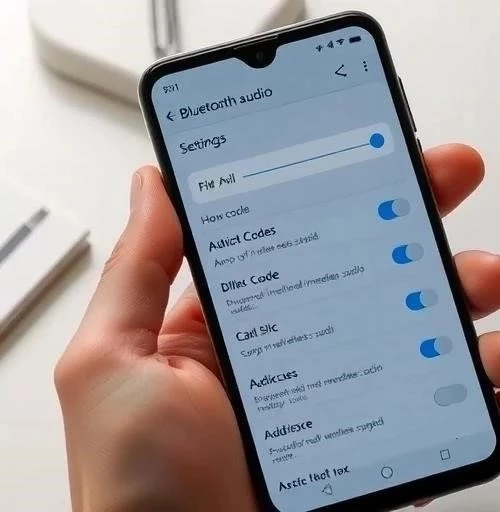
To use aptX audio on a Xiaomi phone, both the phone and the Bluetooth headphones or speaker must support the same aptX version. You can then select the codec in Android’s developer settings, but that selection is not a way to add aptX to unsupported hardware. Bluetooth devices negotiate a codec when they connect; if either side cannot use aptX, the connection falls back to another available option, often SBC or AAC. This is why checking compatibility first is more useful than installing a codec app.
Check that both devices support aptX
Look up the exact model of your Xiaomi phone and your audio device in their specifications or manuals. Support can differ between models in the same product line, and a device may support aptX but not aptX HD or aptX Adaptive. The codec name must match what both devices can use. Also check that your phone’s software is up to date: available Bluetooth features may depend on the Android version, Xiaomi’s MIUI or HyperOS release, and regional firmware.
Do not assume that a Qualcomm processor guarantees aptX support. The chipset is only one part of the picture; implementation, licensing, firmware, and the particular phone model matter too. If the specifications do not list aptX, developer settings are unlikely to make it available.
Pair and connect your headphones
- Charge your headphones or speaker and put it into pairing mode.
- On the Xiaomi phone, open Settings > Bluetooth (the menu may instead be called Bluetooth under Connected devices).
- Select the device and complete pairing. If it was already paired, tap its name to connect.
Keep the audio device connected while you check the codec. Android may show only codecs supported by the active connection, so the relevant controls can remain unavailable if the headphones are disconnected.
Open Developer options and choose aptX
- Go to Settings > About phone.
- Tap OS version or MIUI version repeatedly—usually seven times—until the phone confirms that developer options are enabled. If asked, enter your screen-lock PIN.
- Return to Settings and open Additional settings > Developer options. On some releases, search Settings for “Developer options.”
- Scroll to the Bluetooth section and tap Bluetooth Audio Codec.
- Choose Qualcomm aptX, aptX HD, or another aptX option only if it is listed and supported by both devices.
The codec selector may also be available through the connected device’s Bluetooth settings, sometimes under an option such as HD audio. Names and locations vary by Xiaomi model and software version. If you cannot find the selector, use Settings search and check for system updates before concluding that the phone lacks the feature.
Why aptX may not stay selected
A choice in Developer options is a preference, not a command that overrides device compatibility. Android can switch back to a codec that both devices support when the connection is made or renewed. Some Xiaomi software versions also reset developer selections after disconnecting, rebooting, or changing Bluetooth devices. Reconnect the headphones, reopen the codec menu, and check what is actually active. If aptX is not offered, the phone and headset may have no compatible aptX mode, or the current firmware may not expose it.
Try forgetting the headphones on the phone and removing the phone from the headphones’ saved-device list, then pair them again. Disconnect other Bluetooth audio devices, restart both devices, and test once more. If the headphones have a companion app, install updates and check whether a codec or sound-quality setting is available. Avoid changing unrelated developer options: they can affect system behavior without enabling additional codec support.
How to verify the connection
With the headphones connected and audio playing, reopen Bluetooth Audio Codec. The active codec may be displayed there, though some Xiaomi builds show the selected preference rather than a definitive connection status. If the menu reports aptX, that is a useful check; if playback still sounds different than expected, remember that codec choice alone does not determine sound quality. Headphone tuning, fit, the recording, wireless conditions, and app settings also matter.
Can an app or root unlock aptX?
Usually, no. A third-party app cannot supply missing hardware, firmware support, or required licensing. Root modifications may be unreliable, can reduce security, and may break after an update. The dependable solution is to use a phone and headphones whose specifications confirm a shared aptX codec. Otherwise, leave the connection on its working default: SBC or AAC can still provide perfectly usable wireless audio.
In short: pair a compatible headset, enable Developer options, and select the shared aptX codec in the Bluetooth audio settings. If aptX is absent or reverts, treat that as a compatibility or software limitation—not proof that a hidden switch has been missed.

4 Comments. Оставить новый
The article makes an important distinction: changing a setting cannot add aptX support to hardware that does not have it. Advising readers to check both devices’ specifications first helps prevent wasted effort.
The warning that a Qualcomm processor alone does not guarantee aptX support is especially helpful. It encourages readers to rely on the exact device specifications rather than making assumptions based on the chipset.
The explanation of codec negotiation is useful because it clarifies why a connection may fall back to SBC or AAC. Mentioning that support can vary by model and software version also adds valuable context.
The pairing instructions are straightforward, and the note to keep the headphones connected while checking Developer options is practical. It explains why codec choices may not appear when no audio device is active.