
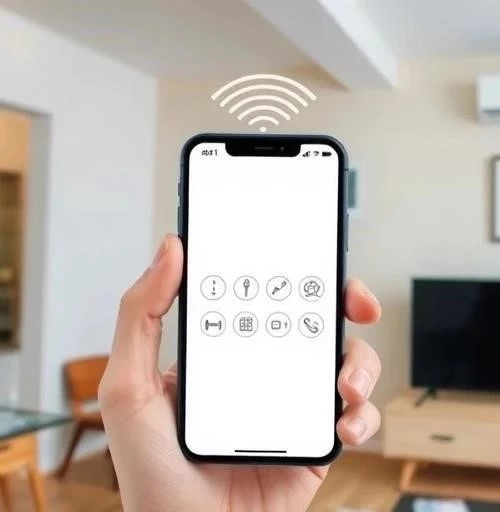
Imagine the television remote has vanished into the sofa’s mysterious interior. The air conditioner is across the room, and its remote has chosen the same moment to disappear. If your Xiaomi phone has an infrared blaster, Mi Remote may be able to step in. It is an app that can turn a compatible phone into a controller for certain home appliances.
The important detail is that Mi Remote is not magic, and it is not automatically available on every Xiaomi device. It usually works by sending infrared (IR) signals—the same kind of invisible light used by many traditional remotes. Your phone needs an IR transmitter, often a small dark window on its top edge. Without that hardware, the app generally cannot control ordinary IR-only appliances, however enthusiastically you tap the screen.
What can it control?
Depending on the phone, app version, region and appliance, Mi Remote may support televisions, air conditioners, set-top boxes, DVD players, projectors and other devices that use compatible infrared commands. The app presents on-screen buttons in place of the plastic remote: power, volume, channel, temperature or playback controls, for example.
Compatibility is not guaranteed just because a brand appears in a list. A manufacturer may use several remote-control codes across different models, and an older or unusual device may not respond to the first choice. The app’s setup process normally lets you test commands and select a working code set. Think of it as teaching your phone the right dialect of your television’s infrared language.
How to set it up
- Open Mi Remote or Remote on your Xiaomi phone. If you cannot find it, search the app drawer or check whether it is available for your device and region.
- Tap the option to add a remote, then choose the type of appliance you want to control.
- Select the manufacturer. Point the top of your phone toward the appliance and follow the on-screen test prompts.
- When a suggested button works, confirm it and save the remote. If it does not, try the next code or follow the app’s alternative setup steps.
- Give the remote a useful name or room label, such as “Living room TV,” especially if you plan to add several devices.
Exact menus can differ between MIUI, HyperOS, app releases and phone models. Some Xiaomi phones include Mi Remote out of the box; on others, the app may be missing or unavailable. The decisive question is not merely “Is this a Xiaomi?” but “Does this particular model have an IR blaster?” Check the device specifications or inspect its top edge. A tiny dark opening is a clue, not definitive proof.
Infrared is not Wi-Fi
Here is the distinction that prevents a lot of confusion: classic Mi Remote control through an IR blaster usually needs a reasonably clear line of sight. Aim the phone at the appliance, stay within its practical range, and avoid covering the transmitter with your hand. A wall, closed cabinet or dramatic cushion fort can stop the signal.
That is different from controlling a smart television or appliance over Wi-Fi. Network-based control depends on the device, its companion software, your home network and the features supported by the relevant app. Some Xiaomi phones also offer smart-home tools or integrations, but these are not the same thing as an IR blaster. If your phone lacks IR, a Wi-Fi-enabled TV may still have other control options, while a conventional IR-only television will not become smart merely because Mi Remote is installed.
When the remote does not work
- Nothing responds: Confirm that the phone has an IR transmitter, point it directly at the appliance, and move closer.
- Only some buttons work: The selected code may be a partial match. Return to setup and test another code set.
- The appliance is not listed: Check for another manufacturer name or a manual/alternate-code option, if offered. Support varies, and some devices simply will not be compatible.
- The app is missing: Look in the app drawer, system apps or the official app store for your region. Availability and preinstallation can vary; avoid random download sites;
- A case seems to block it: Remove the case temporarily and test again, particularly if it covers the phone’s IR window.
Is Mi Remote safe and useful?
Mi Remote is a convenience feature, not a way to unlock secret television powers or control every appliance nearby. Install it from a trusted source, review any permissions it requests, and keep the app updated through official channels. The infrared signal is directed toward a nearby device; using the app does not, by itself, give your phone control over someone else’s equipment through the internet.
Its best quality is its simplicity: one device you already carry can replace several remotes for compatible appliances. Its main limitation is equally simple: the phone needs the right hardware and the appliance needs to understand the signal. If both conditions are met, a vanished remote becomes less of a household mystery and more of a reason to reach for your phone.
The short answer
Mi Remote is Xiaomi’s remote-control app for compatible devices. On phones equipped with an IR blaster, it can send infrared commands to supported appliances such as TVs and air conditioners. Find the app, add the appliance, test the suggested codes and aim the phone at the device. If your Xiaomi has no IR hardware, Mi Remote cannot imitate a traditional infrared remote; use the appliance’s official Wi-Fi app or another supported control method instead.

7 Comments. Оставить новый
I like that this does not promise your phone can control everything. The tiny IR window is the unsung hero here—small hardware detail, big difference.
A remote-control app explained as a pocket-sized experiment: point, test, listen for the television to obey. The setup steps make that experiment approachable.
A compact map through the maze of IR hardware, app availability, and model-specific codes. It leaves readers with realistic expectations—and perhaps one less lost remote.
This article rescued me from blaming the app when my phone simply lacked an infrared blaster. Clear, practical, and refreshingly honest about compatibility.
The “right dialect” image makes setup feel less like troubleshooting and more like teaching two stubborn machines to speak. A useful guide with a playful spark.
Helpful distinction between a brand being listed and a particular model actually responding. That little caution could save readers a lot of hopeful tapping.
The sofa has swallowed many remotes, but this guide remembers the most important twist: a phone without IR cannot summon the old-fashioned invisible beam.