
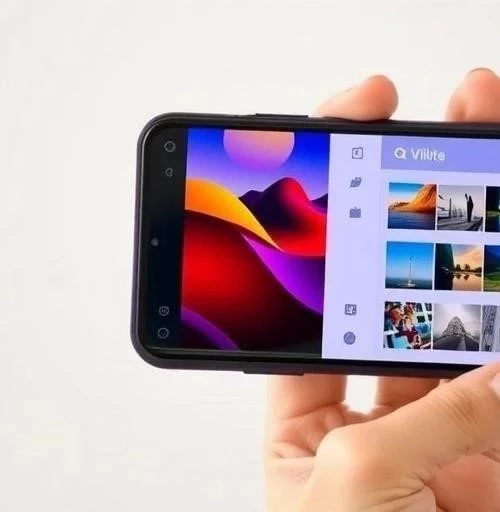
Split screen lets you view two apps at once—for example, a video above a messaging app, or a web page alongside Notes․ On the Redmi 9A, however, the option may not be available․ Its availability depends on the MIUI version and software configuration, and some Redmi 9A builds do not include split-screen mode․ So first check the phone itself rather than assuming that a hidden gesture will enable it․
Try the standard MIUI method
- Open the first app․ Choose an app you want to use in split screen․ Some apps do not support resizing or multitasking, so test with common apps such as Settings, Chrome, or YouTube․
- Open Recent apps․ Tap the square navigation button․ If you use gesture navigation, swipe up from the bottom and pause briefly in the middle of the screen․
- Look for the split-screen control․ Depending on your MIUI version, you may see a “Split screen” button near the top of the screen, or you may need to press and hold the app’s preview or its icon․ If a split-screen symbol or menu item appears, tap it․
- Choose the second app․ Tap another app in the Recent apps list, or return to the Home screen and open an available app if the interface offers that choice․ The display should divide into two areas․
If the feature starts, drag the divider between the two apps to adjust how much space each gets․ To leave split screen, drag the divider all the way to the top or bottom, or use the exit control if one appears․ The exact controls vary with the software version․
If “Split screen” is missing
If you cannot find a split-screen button or menu item in Recent apps, this usually means the installed Redmi 9A software does not offer the feature․ It is not necessarily a problem with your touchscreen or a setting you overlooked․ Xiaomi changes multitasking features between MIUI releases and device models; an option shown in instructions for another Redmi phone may not exist on your 9A․
- Restart the phone and check Recent apps again․ This can rule out a temporary launcher or interface glitch․
- Open Settings > About phone and note your MIUI version․ Menu names and available features can differ by region and update․
- Check Settings > System app updater or Settings > About phone > MIUI version for an official update․ Install updates only through the phone’s built-in updater, and check that the battery is charged and your important data is backed up․
- After an update, test the Recent apps screen again․ An update does not guarantee split screen will be added; if the control is still absent, your software build likely does not support it․
Do not rely on instructions that say to enable the feature through a particular developer setting unless that setting is actually present on your phone․ Developer options do not reliably unlock a feature omitted from the system interface․ Avoid unofficial firmware, “enable split screen” apps, and downloads from unknown sites: they can cause instability, expose personal data, or fail to provide genuine split-screen support․
What about floating windows?
Floating windows are not the same as split screen․ A supported MIUI version may let an app appear in a small movable window, but the Redmi 9A may not provide that feature either․ You can check Recent apps for a floating-window control or look under Settings > Special features; the menu varies by release․ If neither option is shown, installing a third-party launcher will not necessarily add system-level multitasking․
Practical alternatives
If the phone does not support two apps side by side, try switching between them with Recent apps․ You can also use picture-in-picture for compatible video or navigation apps: start playback or navigation, then press Home and see whether the app shrinks to a small window․ This works only when both the app and its settings allow it․ Another simple option is to use a website in the browser while keeping notes in a separate app, switching between them when needed․
Keep expectations realistic: the Redmi 9A has a compact display and entry-level hardware, so running two demanding apps together may feel slow even when multitasking is available․ Close apps you are not using and avoid streaming video while launching heavy games or downloads․
Bottom line
To split the screen, open Recent apps and look for the Split screen command on an app card or in the multitasking controls․ If it appears, select a second app and adjust the divider․ If it is absent after checking the phone’s software version and official updates, split-screen mode is not available in that Redmi 9A build․ In that case, use app switching or picture-in-picture where supported rather than risking unofficial modifications․
4 Comments. Оставить новый
The explanation is appropriately cautious about differences between MIUI versions and Redmi models. That matters here: instructions for another Xiaomi phone may not apply to the Redmi 9A, so checking the available controls on the device is more reliable than expecting a universal method.
I appreciate that the instructions account for both button and gesture navigation. The reminder that some apps do not support split-screen use is also helpful, since it gives readers a straightforward way to test the feature without assuming the phone is faulty.
The article makes a useful distinction between a missing feature and a setting that is simply hard to find. Checking the Recent apps screen first is a practical way to avoid wasting time on gestures that may not work on this particular MIUI build.
This is a clear troubleshooting approach because it explains what to do if split screen is available and what the absence of the option may mean. It could also help readers avoid installing questionable third-party tools just to reproduce a feature their software may not support.