
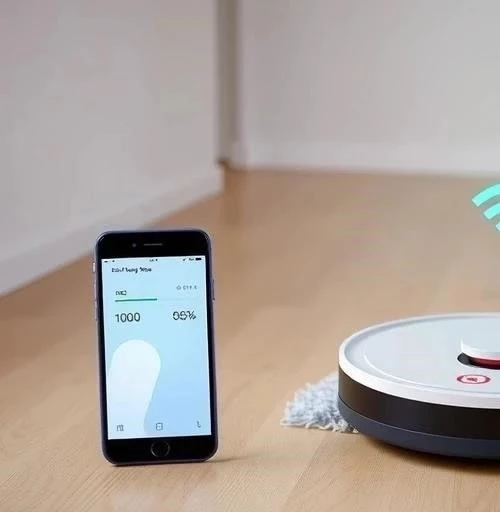
“Flashing” can mean installing an official firmware update or replacing the robot’s software with a modified build. These are not the same. For most owners, the safest option is the official update in the Xiaomi Home app. Custom firmware can disable features, compromise security, or permanently damage the robot if it is intended for a different model.
Identify the exact model first
“Vacuum-Mop 2” is part of a family that includes models such as the Mop 2, Mop 2 Pro, Mop 2 Lite, and Mop 2 Ultra. Their hardware and firmware are not necessarily interchangeable. Check the product label on the robot or its charging dock, the model shown in Xiaomi Home, and the manual. Record the complete model number and your device’s region. Do not choose firmware based on appearance or on the words “Mop 2” alone.
Also note the current firmware version and take screenshots of important settings. If the robot is second-hand, confirm that it is removed from the previous owner’s account before attempting setup or recovery.
Install an official firmware update
- Place the robot on its charging dock and make sure it has a good charge. Keep the dock connected to power.
- Connect your phone to a stable Wi-Fi network and open Xiaomi Home (also called Mi Home). Sign in to the account linked to the robot.
- Select the correct home and robot. Open the device settings and look for Firmware update or Check for updates. Menu names can vary by app version and region;
- If an update is offered, read the on-screen notes and start it from the app. Keep the phone nearby, do not switch off the robot or dock, and do not reset or unpair the device while the update is running.
- Wait for the app to confirm completion. The robot may restart or speak a status message. Check the firmware version and test basic functions afterward.
If there is no update button or no new version is offered, the robot may already have the latest firmware for its region. Do not install a file from another region to force an update. Regional software, app servers, and hardware revisions can differ.
If the update fails
First, leave the robot on its dock and allow time for it to finish or restart. If the app reports an error, note the exact message. Restart the app and phone, check the internet connection, and make sure the robot is online in Xiaomi Home. A 2.4 GHz Wi-Fi network is commonly required for setup; follow the requirements shown in the app for your model.
If the robot appears offline, use the model-specific instructions in the manual to reset its Wi-Fi connection, then add it again through Xiaomi Home. A Wi-Fi reset is not the same as a firmware flash and may require setting up schedules or map features again. Avoid repeatedly interrupting an update. If the device will not boot or the update remains stuck, contact Xiaomi support or an authorized service center and provide the model number, region, app version, firmware version, and error details.
About custom firmware
There is no single safe custom-firmware procedure for every Xiaomi Vacuum-Mop 2. Community methods may depend on a specific hardware revision, bootloader state, firmware release, or region. Instructions for another Mop 2 variant can make the robot unusable. Modified software may also remove cloud features, affect maps or voice packs, expose account or network data, or prevent future official updates.
Before considering a community project, verify that it explicitly supports the complete model number and hardware revision. Read its current documentation and recovery instructions, check whether the project is maintained, and understand how to restore the original software. Obtain files only from the project’s verified source; do not use random archives, “one-click flash” tools, or files shared without a trustworthy origin. Never enter your Xiaomi password, Wi-Fi password, or account token into an unknown utility.
Do not start a custom flash if you cannot confirm compatibility or recover the device. Do not disconnect power during any installation. If the project’s instructions do not clearly identify your exact model and a recovery path, stop and use official support instead. Opening the robot, shorting board contacts, or attaching a serial adapter can cause electrical or battery damage and should be left to a qualified technician.
After updating
Confirm that the robot charges, connects to the app, starts and stops cleaning, and returns to its dock. Check maps, schedules, language, and other settings, since some may need to be restored after a reset. Keep the robot and phone on stable power and save the model and firmware details for future troubleshooting.
Bottom line
For a normal owner, “flashing” should mean updating through Xiaomi Home. Use only the firmware offered for the exact device and region. Custom firmware is an advanced, model-specific modification—not a universal fix for connection problems—and should be attempted only when compatibility, risks, and recovery steps are clearly documented.
3 Comments. Оставить новый
The distinction between an official update and custom firmware is important, especially for owners who may assume all “Mop 2” models use the same software. The model-checking advice is clear and practical.
This is a helpful, cautious guide. I especially appreciate the reminders to keep the robot on its dock and avoid interrupting the update, since those simple steps can prevent trouble.
Useful information for anyone troubleshooting an update. The note that regional firmware may differ is easy to overlook, and the article appropriately discourages installing files intended for another region.