
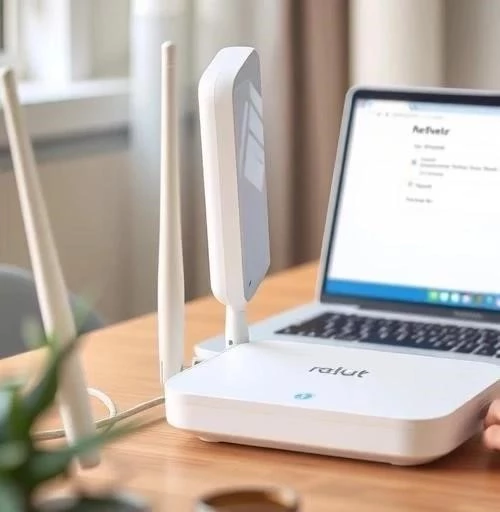
The Huawei HG8245H is commonly supplied as a fiber-optic terminal‚ also called an ONT or optical modem․ It connects a home network to an internet service provider (ISP) and may also provide Wi-Fi‚ Ethernet‚ telephone‚ and television connections․ The exact interface‚ available features‚ login details‚ and connection settings can vary by provider and firmware version․ In many installations‚ the ISP provisions the device remotely‚ so some settings may be unavailable to the user․
This guide explains how to access the administration page‚ check the basic connection‚ configure Wi-Fi where permitted‚ and diagnose common problems․ Use the instructions as general guidance rather than as a substitute for settings supplied by the ISP․ In particular‚ do not guess fiber‚ WAN‚ VLAN‚ telephone‚ or IPTV parameters․
Identify the device and prepare
Check the label on the underside or rear of the unit․ It may show the exact model suffix‚ default management address‚ serial number‚ and factory Wi-Fi name and password․ The HG8245H name covers devices supplied with different firmware and configurations‚ so the label and ISP documentation take precedence over generic instructions․
- Keep the modem powered on and connected to the fiber cable during ordinary configuration․
- Use a computer connected to one of the modem’s Ethernet ports if possible․ A wired connection is usually more reliable than Wi-Fi while changing settings․
- Have the ISP’s account details or installation paperwork available․ The provider may need to supply a PPPoE username and password‚ VLAN ID‚ or other service-specific values․
- Record existing Wi-Fi and network settings before changing them․ A screenshot or written note can make it easier to restore a working configuration․
Optical safety: Do not look into the end of a fiber cable or an optical port․ Invisible laser light may be present․ Avoid bending‚ pulling‚ or sharply twisting the fiber‚ and do not disconnect it unless the ISP instructs you to do so․
Connect to the modem
- Connect a computer to a LAN port on the HG8245H using an Ethernet cable‚ or join the Wi-Fi network printed on the device label․
- Open a web browser and enter the management address shown on the label or in the ISP’s instructions․ A commonly used address for Huawei optical terminals is http://192․168․100․1‚ but providers can change it․
- If that address does not open‚ check the computer’s network details for the default gateway․ On Windows‚ this information is available by running
ipconfigin Command Prompt․ On macOS‚ check the network connection details or the router field in the active network settings․ Enter the gateway address in the browser․ - Sign in with the credentials provided by the ISP or printed on the device‚ if present․ The administration password is not necessarily the same as the Wi-Fi password․
Some providers use a restricted account that permits only basic changes․ Others disable local administration or use a different address․ If the page is unavailable‚ confirm that the computer is connected to the Huawei device‚ turn off any VPN temporarily‚ and verify the gateway address․ Do not repeatedly try random passwords: an account can be locked or access may be managed by the provider․
Understand the status lights
The meanings of indicators can differ slightly by hardware revision․ Common labels include POWER‚ PON‚ LOS‚ LAN‚ WLAN‚ and TEL․
- POWER: normally indicates that the unit is receiving power․
- PON: usually indicates registration or a connection to the optical network when steadily lit․
- LOS: often signals loss of optical signal when lit or blinking․ The provider should investigate a persistent LOS warning․
- LAN: indicates a wired link or network activity on the corresponding Ethernet port․
- WLAN: indicates that wireless networking is enabled; activity may vary with the firmware․
- TEL: may indicate that a telephone service is registered‚ if the ISP has enabled voice service․
Use the labels on the actual unit or its manual if they differ from this description․ A PON light alone does not prove that internet access is fully configured: the optical connection‚ service profile‚ and WAN connection must all be working․
Configure the internet connection
For many fiber installations‚ the ISP configures the WAN connection before or during installation․ The device may receive its service profile automatically‚ or the provider may manage it remotely․ If the internet already works‚ avoid changing WAN settings without a specific reason․
In the web interface‚ connection settings may appear under a heading such as WAN‚ Internet‚ or Network․ The exact menu names vary․ If the ISP has authorized customer configuration‚ review the existing connection before editing it․ Important parameters can include:
- Connection type: for example‚ DHCP/IPoE or PPPoE․ Select only the type specified by the ISP․
- PPPoE credentials: enter the exact username and password supplied for the service․ These are not automatically the same as the modem’s administrator credentials․
- VLAN ID and priority: some providers require a VLAN tag for internet‚ IPTV‚ or voice․ The values are provider-specific․
- WAN mode and service binding: a connection may be associated with internet‚ television‚ or telephone services and with particular LAN ports or wireless networks․
- Addressing and DNS: these are often obtained automatically․ Use manual values only when the ISP has supplied them․
Save changes only after checking them against the provider’s instructions․ A wrong VLAN‚ connection type‚ or service binding can interrupt internet‚ TV‚ or telephone service․ If the interface asks whether to apply or reboot‚ follow the ISP’s guidance and wait for the device to reconnect․ Do not enter an optical serial number‚ LOID‚ or registration password unless the ISP specifically directs you; incorrect optical provisioning details can prevent service registration․
If the WAN page is read-only or missing‚ this is not necessarily a fault․ It may be controlled by the provider․ Contact the ISP and ask them to confirm the optical registration‚ WAN profile‚ and service status before attempting changes․
Set up or change Wi-Fi
Wireless settings are usually found under WLAN‚ Wi-Fi‚ or a similarly named menu․ Depending on the firmware‚ the interface may show separate pages for basic settings and security settings․ Some HG8245H variants and provider configurations support only 2․4 GHz‚ while other related versions may provide additional bands․ Configure only the bands actually shown in your interface․
- Open the wireless settings and select the relevant 2․4 GHz or other available network․
- Enable the wireless radio if it is currently disabled․
- Set an SSID‚ which is the name displayed in the device’s Wi-Fi list․ Choose a name that does not reveal personal information‚ an account number‚ or the full device password․
- Select a security mode․ WPA2-Personal with AES is a widely compatible option when available․ If the interface offers a newer secure mode and all your devices support it‚ it may also be suitable․ Avoid open networks and obsolete options such as WEP․
- Choose a strong Wi-Fi password that is different from the administration password․ A long‚ unique passphrase is generally easier to use and safer than a short‚ predictable password․
- Save or apply the settings․ The wireless connection may disconnect briefly; reconnect using the new network name and password․
If the router offers channel selection‚ automatic selection is a reasonable starting point․ In a crowded environment‚ a Wi-Fi analyzer can help identify less congested channels‚ but availability and permitted channel settings depend on the region and firmware․ For 2․4 GHz‚ wider channel settings can increase interference in busy areas; leave the provider’s default unless there is a clear reason to adjust it․
Changing the SSID does not alter the ISP’s fiber service․ However‚ all phones‚ computers‚ smart devices‚ and wireless printers that used the old network name or password will need to be connected again․ If the modem offers separate guest Wi-Fi‚ enable it only if needed and use a distinct password․ Guest-network isolation‚ if available‚ can prevent visitors from accessing devices on the main home network․
Change the administrator password
If the interface allows it‚ replace a default or shared administrator password with a unique one․ Look under System Tools‚ Account Management‚ Maintenance‚ or a similar menu․ Menu names vary by firmware․ Store the new password securely․ Do not use the Wi-Fi password‚ an email password‚ or a password used on other services․
Some ISPs set or manage administrator credentials remotely and do not permit the customer to change them․ In that case‚ do not try to bypass access controls․ Ask the provider what account is intended for customer use and which settings can be changed safely․
Save‚ restart‚ and verify
After making a permitted change‚ use the interface’s Apply or Save button and wait for the confirmation․ A restart may be required for some settings‚ but it is not necessary to reboot after every change․ If you restart the device‚ allow several minutes for the optical link and internet service to return․
Verify the result in a methodical order:
- Check that POWER is on and that there is no persistent LOS warning․
- Confirm that the computer has obtained a local IP address and default gateway․
- Check the modem’s status page for an active WAN connection‚ if the page is available․
- Test access to more than one website or online service․
- Reconnect wireless devices using the current SSID and password․
If one device cannot connect but others work‚ investigate that device’s saved network profile first․ If no device has internet access‚ check the modem’s optical and WAN status and contact the ISP if the fault appears to be upstream․
Common problems and solutions
The administration page will not open
- Check that the computer is connected to the Huawei modem rather than a different router or guest network․
- Try the gateway address shown in the computer’s network details instead of assuming a default address․
- Use another browser or a wired connection‚ and temporarily disable a VPN or proxy․
- Check whether the ISP has changed the management address or disabled local access․
- If the page still cannot be reached‚ ask the ISP for the correct access method․ Avoid resetting the modem just to find the login page․
The password is rejected
Confirm whether the page is asking for the administrator password or the Wi-Fi password․ They are different credentials․ Check the label and ISP paperwork‚ taking care to distinguish similar characters․ If the provider manages the account‚ request the proper credentials rather than trying repeated guesses․
Wi-Fi is visible but there is no internet
A visible wireless network only confirms that the Wi-Fi radio is broadcasting; it does not confirm that the WAN service is active․ Check whether the issue affects wired devices as well․ If both wired and wireless devices are offline‚ inspect the WAN status and indicator lights․ If only one device is affected‚ forget the Wi-Fi network on that device and reconnect․ Do not change VLAN or WAN parameters without ISP guidance․
Wi-Fi coverage is weak
Place the modem in an open‚ central location where practical‚ away from large metal objects‚ enclosed cabinets‚ and sources of interference․ Avoid placing it close to cordless-phone bases‚ microwave ovens‚ or other devices that may affect 2․4 GHz reception․ If coverage remains inadequate‚ ask the ISP whether the model supports the needed wireless features or whether a compatible access point or mesh system is appropriate․ When adding another router‚ check how to avoid competing DHCP servers or double NAT; the ISP can advise on the supported arrangement․
The PON or LOS indicator suggests an optical fault
Check that the fiber lead has not been visibly pulled or sharply bent‚ but do not open the optical connector or look into it․ A persistent LOS warning‚ an unregistered PON indicator‚ or a sudden loss of service may require action at the provider’s network․ Contact the ISP and report the light pattern and when the problem began․
Changes appear not to save
The account may not have permission to modify that setting‚ the provider may overwrite local changes‚ or the interface may require a separate confirmation step․ Check for an on-screen success message and revisit the setting after applying it․ If it reverts‚ ask the ISP whether the feature is managed remotely․
Rebooting and factory reset
A normal reboot and a factory reset are different actions․ A reboot restarts the device while generally preserving its configuration․ A factory reset erases local settings and may remove wireless names‚ passwords‚ WAN parameters‚ port bindings‚ and provider-specific service data․
To perform an ordinary restart‚ use the interface’s reboot control if available‚ or follow the ISP’s instructions for power cycling․ Do not repeatedly disconnect the fiber cable․ If power cycling is recommended‚ use the power supply or switch and wait for the device to start fully․
Use the physical reset button only when the ISP recommends a factory reset and confirms that the device can be reprovisioned afterward․ On an ISP-managed optical terminal‚ a reset may remove settings required for internet‚ IPTV‚ or voice service․ The modem may not reconnect automatically‚ and remote provisioning may be required․ Never factory-reset the unit merely because the administrator password is unknown unless the provider has confirmed the consequences and recovery procedure․
IPTV‚ telephone‚ and port settings
If the HG8245H provides IPTV or telephone services‚ their settings may be tied to ISP-specific VLANs‚ ports‚ or service profiles․ A television set-top box may need to connect to a designated LAN port‚ while a telephone may need to be connected to a TEL socket and provisioned by the provider․ These arrangements differ between networks․
Do not move service bindings‚ disable an unfamiliar WAN connection‚ or change multicast settings unless the ISP has supplied instructions․ If internet access works but television or telephone does not‚ report which service is affected and which indicators are lit․ This helps the provider distinguish a local cable problem from a provisioning issue․
Recommended configuration checklist
- Use the management address and login details supplied for this particular device․
- Keep WAN‚ optical registration‚ VLAN‚ IPTV‚ and voice settings unchanged unless instructed by the ISP․
- Use a unique Wi-Fi name and a strong WPA2 or newer supported security setting․
- Use separate‚ strong passwords for Wi-Fi and administration where the interface permits․
- Save a record of working settings and changes‚ without storing passwords in an unsecured location․
- Do not factory-reset or alter provider-managed values as a first troubleshooting step․
Configuring a Huawei HG8245H usually involves connecting to its local management page‚ checking the connection status‚ and setting Wi-Fi details where customer access is enabled․ The device’s exact interface and supported functions depend on its hardware version and the ISP’s firmware․ Basic wireless changes are often straightforward‚ but fiber registration‚ WAN‚ VLAN‚ IPTV‚ and telephone configuration should be handled using provider-specific instructions․ When a setting is locked‚ service stops after a change‚ or an optical warning appears‚ contact the ISP before attempting a reset or further network changes․


6 Comments. Оставить новый
The guidance to use a wired connection where possible is relevant for reducing interruptions during configuration.
The article is organized into clear sections and provides a helpful overview for readers preparing to configure their device.
The article clearly explains that HG8245H configurations can vary by provider and firmware, which helps set appropriate expectations.
The preparation steps are practical, especially the recommendation to record existing settings before making changes.
The distinction between general guidance and ISP-specific settings is useful and appropriately cautious.
The safety warning about fiber cables is important and easy to notice in the article.