
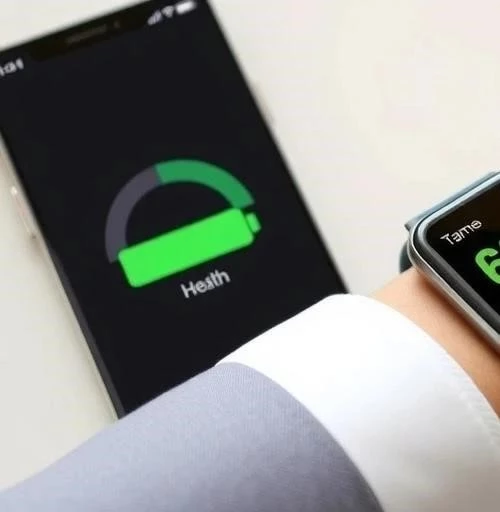
Your Apple Watch is a tiny traveler: it tracks workouts, measures your pulse, lights up at a tap, and quietly spends energy doing it all. To understand how its battery is really doing, look beyond the percentage on the screen. There are two useful clues: charge level, which tells you how much power remains today, and battery health, which estimates how much capacity the battery can hold compared with when it was new.
Check battery health on the watch
- Press the Digital Crown to open the app grid or list.
- Open Settings, then tap Battery.
- Choose Battery Health.
- Read Maximum Capacity. This percentage is an estimate of the battery’s present capacity relative to its original capacity.
For example, a maximum capacity of 88% does not mean the watch is currently 88% charged. It means the battery may hold roughly 88% of the energy it could store when new. Your day-to-day charge is a different number, visible in the same Battery section.
See the charge at a glance
Swipe up from the bottom of the watch face to open Control Center, then look for the battery percentage. On newer watchOS versions, you can also tap the battery percentage to open more battery details. Add a Battery complication to a watch face if you want this little fuel gauge always in view. On your paired iPhone, the Batteries widget can show the watch’s charge when the devices are connected.
What does “Maximum Capacity” really tell you?
A rechargeable battery is not a glass jar that suddenly breaks; it is more like a small reservoir that gradually becomes less spacious. Maximum Capacity is an estimate, and it can change over time. A lower figure alone does not prove that something is wrong. The more practical question is whether the watch still lasts through your ordinary routine and whether its performance feels dependable.
If Battery Health shows a service message, or the watch shuts down unexpectedly, drains unusually fast, or struggles to last through normal use, consider contacting Apple Support or an Apple Authorized Service Provider. They can assess the battery and explain available service options. Do not open the watch or try to replace its battery yourself: its compact, sealed construction is not a friendly place for improvised tools.
Battery habits: small changes, calmer days
- Check what changed. A new update, a newly installed app, frequent workouts, poor cellular reception, or prolonged screen use can affect daily battery life. If the drain began suddenly, notice what changed before assuming the battery is worn out.
- Use Low Power Mode when it suits you. It can help stretch a charge, though some features or background measurements may work differently. Treat it as a useful travel setting, not a battery-health repair.
- Keep charging sensible. Use compatible charging equipment and avoid extreme heat or cold. Heat, in particular, is a poor companion for rechargeable batteries.
- Let optimized charging do its job. Supported Apple Watch models and software may learn your routine and adjust charging to reduce the time spent fully charged. You can review charging-related options in Battery settings.
- Don’t chase zero. You do not need to drain the watch completely before charging it. Top it up when convenient and use it normally.
When a number seems confusing
First distinguish the two readings: charge level is today’s remaining power; Maximum Capacity is an estimate of long-term battery condition. Then check that the watch has finished updating and charging, restart it if the display seems stuck, and look again. Menu wording can vary slightly with watchOS, so install updates when practical and consult Apple’s current support instructions if a setting is missing.
A quick battery check-in
Open Settings → Battery to see the charge. Open Battery Health to see Maximum Capacity and any service recommendation; If the percentage looks healthy but the watch barely makes it through your day, investigate usage and settings; if health is low or a service alert appears, ask Apple for an assessment. One number is a snapshot, not a verdict.
Think of the battery page as a weather report for your wrist: it cannot promise exactly how long every day will last, but it can reveal the trend. Check occasionally, compare the reading with your real routine, and let the watch keep doing its useful, slightly magical work.


8 Comments. Оставить новый
This reads like a helpful friend pointing out the right menu and then explaining what the numbers actually mean. Concise guidance, with a memorable image at its center.
A tiny battery lesson with no unnecessary drama. The distinction between “charged” and “healthy” is simple once explained this way—and surprisingly easy to mix up before.
I enjoyed the gentle, practical tone. It gives readers a sensible way to judge their watch’s battery without making a single percentage sound like a prophecy.
Helpful directions, plus several ways to keep an eye on the daily charge. The Battery complication tip is a neat touch for people who prefer their information right on the dial.
A practical little compass for anyone poking around watch settings. I especially appreciate that it explains what 88% means instead of leaving the number to speak in riddles.
The article treats battery health like a trend, not a verdict. That’s a thoughtful way to help readers focus on real-world performance rather than panic over one estimate.
This guide draws an important line between how much charge is left today and how much the battery can hold over time. That distinction could save a lot of needless worry.
I like the “small reservoir” comparison—it turns battery health from a mysterious percentage into something you can picture. Clear, useful, and refreshingly calm.