
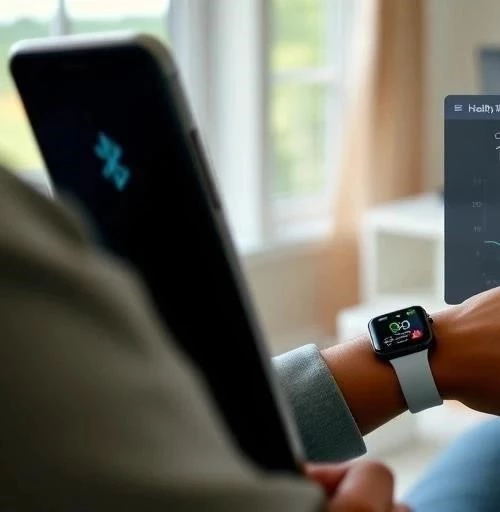
Huawei Health can stop opening, fail to connect to a wearable, or show outdated activity and health data․ These symptoms do not always mean that the phone or watch is faulty․ The cause may be a temporary network problem, an app setting, an outdated component, or a connection that needs to be restored․ The steps below help identify the issue without changing settings unnecessarily․
Check the internet connection and service status
If the app opens but cannot sign in, load a page, or synchronize information, first test the phone’s connection․ Switch between Wi-Fi and mobile data, then try opening another website or app․ A restricted network, VPN, proxy, or captive Wi-Fi login page can prevent Huawei Health from reaching online services․ Temporarily disconnecting a VPN can help determine whether it is involved․
Some functions depend on online services, so a temporary service interruption may affect several users at once․ If the problem began suddenly and persists on different networks, wait and try again later․ Check Huawei’s official consumer website or support channels for relevant notices․ The search information available for this article lists Huawei’s official consumer site, but does not confirm a current Huawei Health outage․
Update the app and its supporting components
An old version of Huawei Health may not work properly with a newer phone operating system, wearable firmware, or account service․ Check the app store or Huawei’s official distribution channel available in your country for an update․ Also install pending phone system updates, then restart the device․ Use trusted sources only; unofficial installation files can be unsafe or incompatible․
On some Android phones, Huawei Health relies on Huawei Mobile Services (HMS Core) or other system components․ If the app reports that a component is missing or outdated, follow the on-screen instructions and update it through an official source․ Availability and installation steps vary by phone, operating system, and region․ Do not assume that installing Google services will resolve a Huawei-specific component error․
Review Bluetooth, permissions, and background activity
If Huawei Health cannot find a watch or band, make sure Bluetooth is enabled and the wearable is charged and nearby․ Turn Bluetooth off and on, then reopen the app․ Check that Huawei Health has the permissions it requests, which may include Nearby devices or Bluetooth access․ Depending on the phone and software version, location permission may also be needed to scan for devices․
Battery-saving settings can stop the app from running in the background or interrupt synchronization when the screen is off․ Look in the phone’s battery or app-management settings and allow Huawei Health to run in the background if that option is available․ Menu names differ between manufacturers․ Avoid disabling security protections globally; change only the setting relevant to the app and test whether connection improves․
Restore a failed wearable connection
Confirm that the wearable is not still connected to another phone or account․ If it is, disconnect it there first․ In Huawei Health, open the device section and check whether the watch or band appears as connected․ Restart both devices and try pairing again while they are close together․ A low battery, radio interference, or an incomplete first pairing can also prevent detection․
If the wearable appears in the phone’s Bluetooth settings but not in Huawei Health, remove the old pairing and start the setup from within Huawei Health, following the device’s instructions․ Avoid repeatedly pairing through the system Bluetooth menu alone․ As a last resort, unpair the device in the app and pair it again․ Some reset options erase local settings or information, so read the confirmation carefully and make sure important data has synchronized first․
Fix missing or delayed data
Data may take time to upload, especially after reconnecting, changing phones, or restoring an account․ Keep the phone online, open Huawei Health, and allow synchronization to finish․ Check that the wearable and app are signed in to the account you normally use․ Different accounts, regional settings, or an interrupted sign-in can make information appear missing even when it remains on the original device․
Also check the phone’s date and time settings, storage space, and permissions for the relevant health or activity features․ If only one type of measurement is absent, confirm that the wearable supports that feature and that it is enabled in the device settings․ A watch cannot provide every measurement in every situation, and readings may be affected by fit, movement, or other usage conditions․
When the app crashes, freezes, or will not open
Close Huawei Health completely and reopen it, then restart the phone․ Check for app and system updates, and ensure that the phone has free storage․ On Android, clearing the app cache may help with temporary corrupted files; use the phone’s app settings and select the cache option, not the option to erase all app data․ The labels and available controls vary by device․
Reinstalling the app can be a later troubleshooting step, but first confirm that you can sign in again and that important information has synchronized to your account or wearable․ Removing app data or uninstalling may delete local settings or unsynchronized records․ If an error message appears, note its exact wording and when it occurs․ This makes it easier to distinguish a sign-in problem from a crash or connection failure․
Account, region, and compatibility issues
Huawei Health features and installation routes may differ by country, phone model, and operating-system version․ A change of region, account, or device can affect available services or previously paired equipment․ Check the app’s compatibility information and use the official Huawei support site for your location․ Do not create multiple accounts or change the account region simply as a first fix; those actions can complicate access to existing data․
If the app says that the device is unsupported, or a feature is not available, compare the phone and wearable requirements with official product information․ The supplied web results identify Huawei’s consumer website as a source for product and support information, but do not specify compatibility requirements for a particular phone or app version․
Suggested troubleshooting order
- Test the internet connection and temporarily disable any VPN․
- Restart the phone and wearable, then check Bluetooth and permissions․
- Update Huawei Health, relevant Huawei components, and device software․
- Review battery restrictions and confirm that both devices use the intended account․
- Re-pair only if necessary, and avoid resets until data is synchronized․
When to contact support
Contact Huawei support if the problem continues after these checks, especially if the wearable cannot pair with any compatible phone, the app repeatedly crashes, or account access fails․ Provide the phone and wearable models, operating-system and app versions, your region, the exact error text, and the steps already tried․ Do not share passwords, verification codes, or sensitive health records in a public forum․
In most cases, identifying the point of failure—opening the app, signing in, connecting a wearable, or synchronizing data—narrows the cause․ Start with reversible checks and use official update and support channels․ This approach is safer than repeatedly clearing data or resetting a device, and it helps preserve information that has not yet synchronized․


8 Comments. Оставить новый
Restarting the phone after installing updates is a straightforward step that fits well in the troubleshooting sequence.
The suggestions to test another network and check for a Wi-Fi login page are practical.
It is useful that the article distinguishes possible service interruptions from issues affecting an individual device.
The article appropriately notes that connection problems do not necessarily indicate a faulty phone or wearable.
The troubleshooting steps are presented in a clear order, beginning with simple checks before moving on to updates.
The article explains how a VPN or restricted network might affect synchronization without treating either as the definite cause.
The explanation of Huawei Mobile Services is relevant, while noting that availability and installation steps can differ by phone.
The reminder to use official sources for app and system updates adds a helpful safety consideration.