
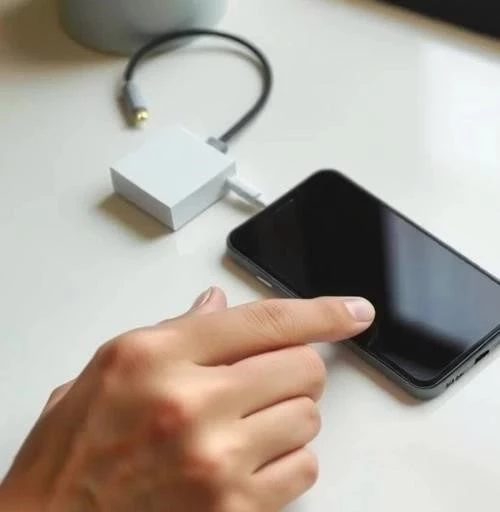
A Xiaomi phone that stays dark can be alarming‚ but it does not always mean the device is broken․ A drained battery‚ faulty charger‚ frozen software‚ damaged button‚ or hardware failure can all produce the same symptom․ Work through the checks below in order‚ starting with the safest and simplest․ If the phone is swollen‚ unusually hot‚ wet‚ or smells burnt‚ stop immediately and seek professional service․
The battery may be completely drained
If the battery has been empty for a while‚ the phone may not show a charging symbol as soon as it is plugged in․ Connect it to a known-working wall outlet using a compatible charger and cable․ Leave it undisturbed for at least 30 minutes‚ then press and hold the power button for several seconds․ Avoid repeatedly trying to start it every minute; a deeply discharged battery needs time to accept a charge․
Check the outlet by plugging in another device․ If possible‚ test a different reliable cable and adapter․ Look for breaks‚ bent connectors‚ or dirt in the phone’s charging port․ Do not insert metal objects or liquids into the port․ If you see compacted lint‚ have it cleaned carefully or ask a technician․
The charger‚ cable‚ or port may be faulty
A phone can appear completely dead when it is not receiving power․ Try a compatible charger that you know works‚ and allow time for the charging indicator to appear․ If the cable only works when held at an angle‚ or the connector feels loose‚ stop using it: a poor connection can worsen port damage․ Wireless charging is an option only on Xiaomi models that support it․
The system may be frozen
Sometimes the display or operating system stops responding even though the phone is powered on․ Hold the power button for about 10–20 seconds to force a restart․ On some models‚ a button combination may be required‚ so consult the instructions for your exact model rather than trying random key sequences․ A vibration‚ startup sound‚ or notification may indicate that the screen—not the whole phone—is the problem․
The screen may be black‚ not the phone
Call the phone from another device‚ listen for sounds‚ or check whether it vibrates when connected to a charger․ If it responds but shows no image‚ the display‚ its connection‚ or related circuitry may have failed․ Do not keep pressing the screen or attempt to open the phone․ A technician can test the display without risking further damage․
Recent damage or software changes may be involved
A drop‚ pressure‚ moisture‚ or exposure to heat can damage the battery‚ charging port‚ display‚ or internal board․ Even if the phone looks dry‚ moisture may remain inside; do not charge a wet device․ Power it off if possible and arrange an inspection․ If the problem began after an update‚ the software may be stuck during startup․ Give it time while connected to a reliable charger‚ then try a force restart․ Avoid factory resets or unofficial firmware tools unless you understand that they may erase data or make recovery harder․
When to seek repair
Contact an authorized Xiaomi service provider or a qualified repair shop if the phone remains unresponsive after charging with working equipment and trying a force restart․ Seek help sooner if it was dropped‚ got wet‚ becomes hot‚ or has a swollen battery․ Do not puncture‚ squeeze‚ heat‚ or attempt to replace a swollen battery yourself․ If your data matters‚ tell the technician before authorizing a reset or repair that could erase it․
How to reduce the chance of it happening again
- Use a sound‚ compatible charger and replace damaged cables․
- Keep the charging port clean and protect the phone from water‚ impact‚ and excessive heat․
- Avoid regularly letting the battery remain fully discharged for long periods․
- Install system updates only when the phone has enough charge and a stable connection․
- Back up important photos and files regularly‚ including to a trusted cloud service or computer․
In short: charge the phone patiently‚ test the power accessories‚ and try one force restart․ If there is still no sign of life—or there are signs of physical or liquid damage—professional diagnosis is safer than repeatedly forcing the device to start․

8 Comments. Оставить новый
I appreciate the clear safety warning about swelling, heat, and water damage. It helps readers know when to stop troubleshooting and get professional help.
A clear and practical guide that starts with simple checks and avoids promising that every issue can be fixed at home.
The explanation that a frozen system can look like a dead phone is useful. I also like that it recommends checking instructions for the exact model.
Good reminder not to poke around in the charging port with metal objects. The article keeps the troubleshooting advice sensible and cautious.
This is a helpful overview for anyone facing a black screen. The ordered checks make the process feel less overwhelming.
The advice about stopping if a cable only works at an angle is important. Continuing to use a loose connection could make the problem worse.
The suggestions to test the outlet, cable, and adapter are practical first checks. This could save someone an unnecessary repair visit.
The step-by-step approach is reassuring and easy to follow, especially the advice to let a deeply drained battery charge before trying to restart the phone.