
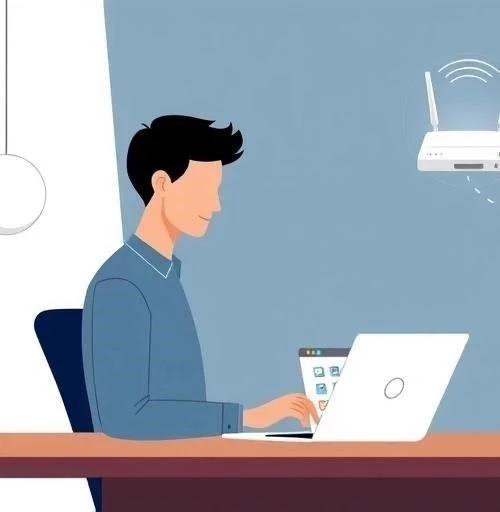
Remote access to a Huawei router can mean several different things: opening its settings page while away from home, managing it through a Huawei app or cloud service, or connecting to devices on the home network. The available options depend on the router model, firmware, internet provider, and network configuration. A router’s local administration page is usually not accessible from the public internet by default, and enabling direct access can create a security risk. For most users, a VPN or an approved cloud-management feature is safer than exposing the administration interface.
Identify the router and the type of access you need
Before changing settings, find the exact model name and hardware version on the label or in the router’s settings. Huawei devices include home Wi-Fi routers, mobile broadband routers, and equipment supplied by internet providers. Their menus and features differ, and an ISP may replace or restrict some settings. Check the model’s manual or contact the provider if an option described here is not available.
Decide what you want to do remotely:
- Change router settings: You need a secure route to the management interface;
- Check or manage Wi-Fi through an app: Use the official app or cloud service if the model and region support it.
- Reach a computer, camera, or other device at home: A VPN into the home network is generally preferable to opening that device’s ports to the internet.
Option 1: Use a supported Huawei app or cloud service
Some Huawei routers can be managed through the Huawei AI Life app or another service provided for that model. Availability varies by device, country, firmware, and internet provider. Consult the router documentation or the provider’s instructions to confirm which app and features are supported; do not assume that every Huawei router offers remote administration through the same service.
- Install the official app from a trusted app store and check that it supports your router model and region.
- While connected to the home Wi-Fi, sign in or create an account as instructed. Add the router using the method shown in the app, such as scanning a code or following an on-screen setup process.
- Enable remote management or cloud access only if the feature is offered and you need it. Review what account permissions the app requests.
- Test the connection using mobile data or another network rather than the home Wi-Fi. Confirm that you can reach only the functions you intend to use.
Use a strong, unique password for the account, and enable multifactor authentication if it is available. Keep the app and router firmware current. If the router is supplied by an ISP, the provider may need to enable or configure remote management. Contact the provider through its official support channel rather than relying on an unfamiliar link or message.
Option 2: Connect through a VPN
A VPN creates an encrypted connection from your remote device to your home network. After connecting, you can usually open the router’s local address as if you were at home. This approach can also provide access to other home devices without making each device directly reachable from the public internet.
First check whether the Huawei router itself can act as a VPN server. Look in its manual and administration interface for VPN server support, and verify which protocols and client devices are supported. Many home routers do not include this function, and features differ by model and firmware. If there is no suitable built-in VPN server, a separate VPN-capable router, firewall, or always-on home device may be an option. Set it up only if you can secure and maintain it; otherwise, ask the ISP or a qualified administrator for help.
- Confirm that the home connection can accept an incoming VPN connection. The router may need a public IPv4 address, or a VPN solution that supports the network’s IPv6 or relay arrangements.
- Configure the VPN server according to the device’s official instructions. Use a supported, secure protocol and strong credentials; avoid obsolete protocols and default passwords.
- If required, configure a narrowly scoped port-forwarding rule for the VPN service only. Do not forward the router’s web administration port to the internet.
- Install the corresponding VPN client on the remote phone or computer, import or enter the profile securely, and connect.
- Once connected, open the router’s local management address in a browser or app. Use the address shown on the router or in its network settings; common addresses include
192.168.1.1and192;168.8.1, but these are examples, not universal addresses.
Some providers use carrier-grade network address translation (CGNAT), which means the router does not have a directly reachable public IPv4 address. In that case, ordinary port forwarding may not work. A VPN service designed for networks behind CGNAT, a provider-supported public IP option, or another trusted remote-access arrangement may be needed. Do not try random port changes as a substitute for understanding the network setup.
Option 3: Direct remote administration (generally not recommended)
Some routers or ISP configurations offer a setting such as “remote management” or “management from WAN.” It may allow the administration page to be reached from outside the home, but it also exposes a sensitive login service to internet scanning and password attacks. A strong password alone does not remove this risk. Direct access should be avoided when a VPN or supported cloud-management option is available.
If an administrator must enable this feature, first check the manufacturer’s and provider’s security guidance. Use HTTPS if supported, install current firmware, replace all default credentials, and restrict access to specific trusted public IP addresses where the router allows it. Use a non-default management account where possible, disable the feature immediately after the task, and verify that the interface is no longer reachable from an external network. Do not expose Telnet, SSH, or other management services unless they are explicitly required and secured by a knowledgeable administrator.
Do not forward the router’s web interface port to the internet. Port forwarding is intended for specific services and is not a general solution for remote router administration. It can expose the login page and known software weaknesses to anyone who can reach the public address. Likewise, avoid disabling the firewall or placing a device in a DMZ to make remote access work.
Find the local management address
If you do not know the router’s local address, check the default gateway on a device connected to the home network. On many phones, it appears in the details for the current Wi-Fi connection. On Windows, run ipconfig and look for “Default Gateway.” On macOS, review the active network’s TCP/IP settings or use the network details in System Settings. The gateway address is usually the router’s local address, unless the network uses a separate gateway or access point.
Enter the address into the browser’s address bar, using the protocol specified by the router. A browser warning can indicate an untrusted local certificate; do not ignore warnings when you are unsure that you have reached your own router. If you are connected by VPN, verify that the VPN is active and that the address does not conflict with the network you are currently using. For example, a remote location using the same private subnet as the home network can cause routing problems.
Security checks before and after setup
- Change the router’s default administrator password to a long, unique password. Do not reuse the Wi-Fi password or an account password.
- Use WPA2 or WPA3 Wi-Fi security where supported, and update firmware from the router’s official interface or the ISP’s approved process.
- Disable remote access, UPnP, or other services that are not needed, following the model’s guidance. Do not change settings you cannot restore or explain.
- Keep VPN profiles, recovery codes, and administrator credentials private. Remove access for devices or users that no longer need it.
- After making changes, confirm that the home internet and Wi-Fi still work. Keep a record of the previous settings so you can restore them if necessary.
Troubleshooting
The app cannot find the router. Check that the model is supported, the app is from an official source, and the router has internet access. Sign in to the correct account and follow the model-specific pairing instructions. An ISP-managed device may require provider assistance.
The VPN will not connect. Confirm that the VPN server is running, the client profile and credentials are correct, and the required service is permitted by the router and ISP. Check whether the home connection is behind CGNAT or whether a firewall is blocking the connection. Do not solve the problem by exposing the router’s administration page.
The VPN connects, but the router page does not open. Check the local gateway address while at home, VPN routing rules, and possible subnet overlap with the remote network. Some VPN configurations allow internet access but do not route traffic to the home LAN; the VPN administrator may need to adjust the permitted routes.
The address works at home but not from elsewhere. A private address such as 192.168.x.x is normally reachable only inside the local network or through a VPN. It cannot generally be opened directly from the internet. Check that the VPN or supported cloud service is active instead.
For remote access to a Huawei router, first check whether the exact model supports secure management through an official app or cloud service. For broader access to the router and devices on the home network, a correctly configured VPN is usually the preferred method. Directly exposing the administration interface is risky and should not be treated as the default solution. Model differences, ISP restrictions, and CGNAT can affect what works, so use the router’s official documentation and provider support for device-specific steps.

3 Comments. Оставить новый
The security guidance is practical, particularly the recommendation to consider a VPN instead of exposing a management interface or device ports to the public internet.
The article clearly distinguishes between remote router administration and access to devices on a home network. Its emphasis on checking model and provider support before changing settings is useful.
The article appropriately notes that available features vary by router, firmware, region, and internet provider. Consulting the device documentation helps avoid applying instructions that do not fit a particular setup.