
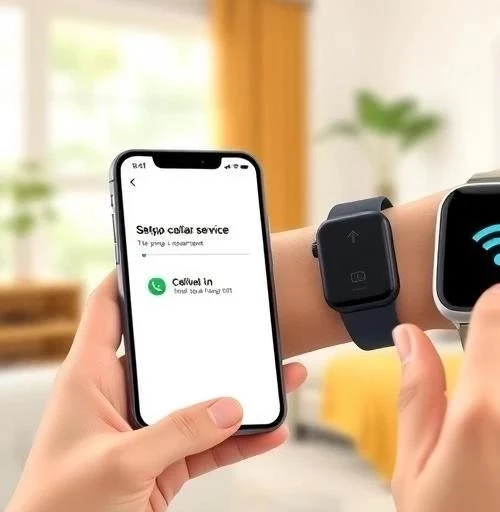
Your wrist can have its own connection. With a cellular Apple Watch, calls, messages, and selected online features can work even when your iPhone is elsewhere. The invisible key is an eSIM: a digital SIM profile built into the watch, activated through a supported carrier. There is no plastic card to insert—and usually no QR code to scan.
Before you begin: check the essentials
- Make sure your watch supports cellular. Apple sells GPS-only and GPS + Cellular models. Only the cellular version can connect to a mobile network independently. Check the model in the Watch app or on the watch’s packaging.
- Ask whether your carrier supports Apple Watch. Support varies by country and provider. Many carriers require an eligible iPhone plan and charge an extra monthly fee. A phone eSIM or travel data plan does not automatically include a watch plan.
- Pair an iPhone and update both devices. Keep the iPhone and watch nearby, connected to Wi-Fi or the internet, and signed in as usual. Install available software updates before activation.
- Check the plan details. Many setups share your iPhone number, but the watch is provisioned as a separate device. Confirm the price, coverage, and whether roaming is supported.
Set it up in the Watch app
- On your iPhone, open the Watch app.
- Tap My Watch, then Cellular or Mobile Data. The wording can differ by region or software version.
- Choose Set Up Cellular or Add a Plan. Your carrier’s sign-in or activation page should appear.
- Follow the on-screen steps. You may need to log in to your carrier account, verify your identity, select a watch add-on, and accept its terms.
- Wait while the carrier activates the plan. Keep the watch near the iPhone and avoid closing the setup screen if activation is still in progress.
That is the whole trick: the carrier sends an eSIM profile to the watch digitally. When setup finishes, the Cellular screen shows the plan or its status. Depending on your carrier, activation may be immediate or take a little while.
Try the connection
Leave your iPhone behind—or temporarily turn off its Bluetooth and Wi-Fi—and go somewhere with cellular coverage. Open Control Center on the watch and tap the cellular button to see connection status. A green indicator generally means the watch is connected to a mobile network; the exact icons can vary. Try a call or message. Some features and apps still need an internet connection, and battery use can rise when the watch relies on cellular.
If setup gets stuck
- No “Set Up Cellular” option? Check that your watch is a GPS + Cellular model, then ask your carrier whether your plan and region are supported.
- Activation fails or spins? Confirm internet access, restart both devices, install updates, and try again. If the carrier page reports an account error, contact the carrier; Apple cannot activate a plan on its behalf.
- Plan appears, but there is no signal? Test outdoors or in another coverage area. Check the carrier’s outage and roaming information, then toggle cellular off and on.
- Moving to a new iPhone or carrier? Follow the carrier’s instructions to transfer or remove the old watch plan before adding another one. Avoid deleting a plan unless you know how to reactivate it.
Travel, family, and the small print
Roaming is not guaranteed simply because an eSIM works at home. Ask your carrier whether your exact watch model and plan support roaming in the destination country, and check fees before you travel. A tourist eSIM installed on an iPhone usually cannot be copied to the watch as a substitute for a supported Apple Watch plan.
Setting up a watch for a family member can follow a different route, such as Family Setup, and carrier support may be more limited. Check compatibility before buying a plan. If you are giving away or selling the watch, remove the cellular plan as well as unpairing it, following Apple’s and the carrier’s instructions.
The quick version
Cellular-capable watch + supported carrier + Watch app → My Watch → Cellular → Set Up Cellular. Once the plan is active, your watch has its own digital passport to the network. Keep the iPhone plan eligible, know the fees, and remember: an eSIM is the technology; the carrier plan is the permission to use it.


2 Comments. Оставить новый
This makes watch activation feel less like summoning a signal from the clouds and more like following a sensible recipe. The practical checkpoints are helpful, and the shared-number explanation gives the setup a welcome bit of clarity.
A clear little map through the invisible machinery of eSIMs. I especially like the reminder that a phone’s travel plan isn’t automatically a passport for the watch—one tiny detail that can save a traveler a very long conversation with a support bot.