
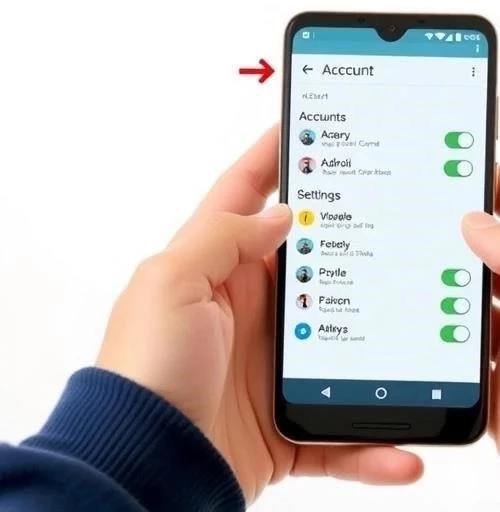
Adding a Google Account to a Xiaomi phone lets you use Gmail, Google Play, Contacts, Calendar, Drive, and other Google services. The exact menu names can differ slightly between MIUI and HyperOS versions, but the process is usually similar. Before starting, connect to Wi-Fi or mobile data and make sure you know your Google email address and password.
Before you begin
- Check that your phone has an internet connection and the date and time are set automatically.
- Have access to your Google password and, if enabled, your two-step verification method, such as a trusted phone or security key.
- If this is a new or recently reset phone, finish the initial setup screens first. You may be offered the option to sign in during setup.
Google services are not available in every region or on every Xiaomi model. If your phone was made for a market where Google Mobile Services are not supported, the Google sign-in option or Play Store may be missing. Installing apps or changing system settings cannot always resolve this limitation.
Method 1: Add the account in Settings
- Open Settings on your Xiaomi phone.
- Scroll to Accounts & sync, Passwords & accounts, or a similarly named menu. The wording depends on your system version.
- Tap Add account.
- Select Google. If prompted, confirm your screen lock, fingerprint, or other security check.
- Enter your Google email address or phone number and tap Next.
- Enter your password, review the sign-in details, and complete any verification Google requests.
- Read and accept the terms if you agree. The account should then appear in the account list on your phone.
On some versions, you can also open Settings, tap Google, and choose the option to add or manage an account. If the menu labels do not match these instructions, use the search field at the top of Settings and search for Add account or Accounts.
Method 2: Add an account through a Google app
You can start from Gmail, Google Play, or another Google app. Open the app, tap your profile picture or initial near the top of the screen, and choose Add another account. Select Google, then follow the sign-in steps. If you have not set up a Google account on the phone before, the app may send you to the same system sign-in screen used by Settings.
Choose what the phone syncs
After you add the account, open Settings > Accounts & sync (or the equivalent menu) and select the Google account. Depending on your software version, you can turn synchronization on or off for items such as Contacts, Calendar, Gmail, and Google Drive. To check or start syncing, open the account’s sync settings and tap Sync now, if available.
To keep contacts in Google Contacts, make sure new contacts are saved to your Google Account rather than only to the SIM card or phone storage. In the Contacts app, look for its account or default-save-location setting. Sync may take a little while, especially with a large address book or a slow connection.
If sign-in does not work
- Check the connection. Try another Wi-Fi network or switch briefly to mobile data. A captive network, VPN, or restrictive firewall can prevent sign-in.
- Check the password and verification. Sign in to your Google Account in a browser to confirm the credentials work. Follow Google’s recovery process if you cannot access the account.
- Set date and time automatically. Incorrect device time can cause secure sign-in or synchronization errors.
- Restart the phone. Then try adding the account again from Settings.
- Update the software and apps. Install available system updates and update Google Play services or Google apps through a trusted, official source where available.
- Check available storage. Very low storage can interfere with setup and syncing. Free some space, restart, and try again.
If Google Play is missing, or Settings does not offer Google as an account type, first check the phone’s model, region, and installed system software. Some China-market firmware does not include Google services by default. Avoid random installation packages, unofficial “Google installer” apps, or instructions that ask you to disable security protections: they can expose your data, fail to work, or destabilize the phone. For region-specific firmware questions, consult Xiaomi support or a reputable service center.
Removing or changing the account
To remove an account, go to the account list in Settings, select the Google Account, and tap Remove account. You may need to confirm your screen lock. This removes its synced data from the phone, but it does not delete the Google Account itself or erase data stored online. Make sure you know the account password before removing it, especially before resetting or selling the phone. For a used device, the previous owner should remove their account and turn off device protection before handing it over.
Frequently asked questions
Can I add more than one Google Account?
Yes. Repeat the steps and choose Add another account. You can switch accounts in many Google apps by tapping the profile picture.
Will adding an account erase anything?
No. Adding an account normally does not erase local files. It can make cloud data, such as contacts and calendar events, available on the phone. Review sync settings if you do not want particular data to appear.
In short: open Settings, find the account-management menu, choose Add account > Google, and complete sign-in and verification. Menu names vary across Xiaomi devices, but the account can usually be managed later from the same Settings area.

9 Comments. Оставить новый
A helpful, approachable guide. I like that it covers both adding an account in Settings and starting from a Google app.
Useful advice about two-step verification. Having a trusted device ready can save time during setup.
The suggestion to search Settings for “Add account” is practical when the menu labels differ.
I appreciate the reminder to check regional Google services availability before troubleshooting the phone.
Good overview of what to check before starting, including the internet connection and automatic date and time.
The note about phones made for markets without Google Mobile Services is important and helps set realistic expectations.
This guide explains the process without assuming every Xiaomi phone has the same software version.
The instructions are clear and easy to follow, especially the note that menu names can vary between MIUI and HyperOS.
The step-by-step Settings method makes adding an account feel straightforward, even for someone new to Xiaomi.