
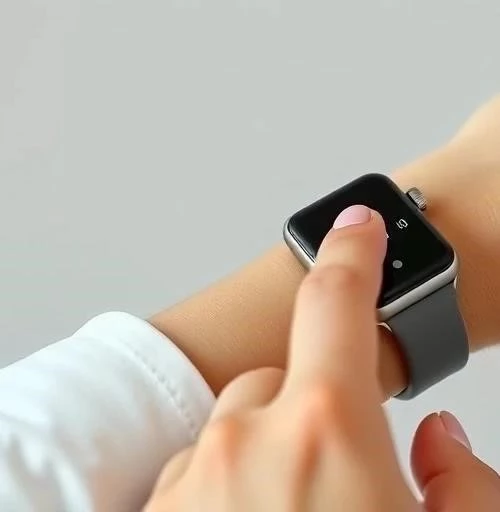
You can adjust your Apple Watch’s alert volume, silence incoming sounds, and change how the watch taps your wrist. The available controls may vary slightly by watchOS version, but most sound options are in Settings on the watch or in the Watch app on your iPhone.
Adjust alert volume
- On Apple Watch, open Settings.
- Tap Sounds & Haptics.
- Under Alert Volume, tap the lower or higher control, or turn the Digital Crown to set the level.
This setting affects audible alerts such as notifications and calls. If the sound seems too loud or quiet, return to this screen and adjust it. On some watchOS versions, you can also open the Watch app on your iPhone, tap My Watch, then Sounds & Haptics and change the alert volume there.
Turn Silent Mode on or off
Silent Mode turns off most alert sounds while allowing the watch to provide haptic taps, if haptics are enabled. To use it, open Control Center by pressing the side button in current watchOS versions. On older versions, swipe up from the watch face. Tap the bell icon to toggle Silent Mode. The icon indicates when the mode is active.
You can also open Settings > Sounds & Haptics and switch Silent Mode on or off. Silent Mode does not lower the alert-volume setting; it temporarily suppresses sounds. Turn it off when you want audible alerts again.
Change haptic alerts
If you want the watch to tap your wrist instead of relying on sound, go to Settings > Sounds & Haptics and turn on Haptic Alerts. Select Default or Prominent, if offered. Prominent haptics add an extra tap to some alerts, which may make them easier to notice. You can also adjust these settings in the Watch app on your iPhone.
To reduce interruptions, use Cover to Mute, if available: cover the display with your palm for a few seconds to silence an incoming alert. This does not change the saved volume level.
Check other sound controls
- Media playback: While music or other audio is playing, use the Digital Crown or the playback controls to change its volume. This is separate from alert volume.
- Focus and Theater Mode: These modes can affect when alerts are delivered or whether the display lights up. Check Control Center if notifications behave unexpectedly.
- Connected headphones: Audio routed to Bluetooth headphones has its own listening volume. Adjust it during playback, and check headphone settings on the connected device.
If the watch still makes no sound
Confirm that Silent Mode is off and alert volume is above zero. Check that the relevant app is allowed to send notifications: on iPhone, open the Watch app and review Notifications. Also check whether a Focus mode is active and whether the watch is connected to headphones. Restarting the watch can help if settings appear not to respond. Menu names can differ between watchOS releases, so install updates and consult Apple Support if the controls are missing.
Changing alert volume does not alter the sound file used for every alert; it changes how loudly supported sounds play. The simplest setup for quiet surroundings is a lower alert volume with haptics enabled. For a fully audible alert, turn Silent Mode off and choose a comfortable volume.

3 Comments. Оставить новый
The explanation that Silent Mode suppresses sounds without changing the saved volume is a useful clarification. The steps for adjusting haptic alerts are also straightforward.
The article clearly distinguishes alert volume, Silent Mode, and haptic settings, making it easier to understand which control to use for different situations.
The instructions are organized by task and note that menu locations can vary by watchOS version. This makes the guidance practical for a range of users.