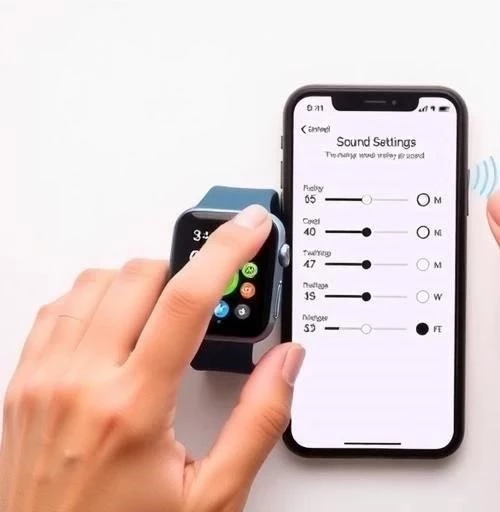
If you want your Apple Watch Series 9 to sound different when a call arrives‚ there is an important limitation to know first: watchOS does not generally let you install an arbitrary audio file or choose any song as the watch’s call ringtone. The Watch has its own built-in alert behavior‚ while many call and notification settings are controlled by your paired iPhone. You can still make alerts easier to hear or notice by adjusting sound and haptics.
Adjust sound and vibration on Apple Watch
- On your Series 9‚ press the Digital Crown to open the app screen.
- Open Settings‚ then tap Sounds & Haptics.
- Use Alert Volume to make alerts louder or quieter. You can also tap the volume controls on the screen.
- Turn Haptic Alerts on if you want the watch to tap your wrist when an alert arrives. Choose a stronger haptic option‚ if available‚ to make it more noticeable.
- Check Silent Mode. When it is on‚ the watch suppresses audible alerts but can still provide haptic notifications.
These controls change how alerts are delivered; they do not replace the ringtone with a custom recording. The exact labels can vary slightly with your watchOS version.
Change the iPhone ringtone
To change the ringtone heard on your iPhone‚ open Settings on the phone and go to Sounds & Haptics > Ringtone. Select one of the available tones and test it before leaving the screen. This changes the iPhone’s ringtone. It may not change the sound played by the Apple Watch‚ because the watch has its own alert controls and does not simply act as a speaker for every iPhone sound.
You can also open the Watch app on your iPhone and check My Watch > Sounds & Haptics for the alert and haptic options available to your software version. If your watch displays a ringtone choice in its own settings‚ select a built-in option there. If no ringtone menu appears‚ there is no supported setting on that version for choosing a different watch ringtone.
Make sure calls reach the watch
When the watch is locked‚ charging‚ disconnected‚ or affected by Focus settings‚ call alerts may behave differently. Keep the watch unlocked and on your wrist‚ confirm Bluetooth is enabled‚ and check that the iPhone and watch are connected. Also review Focus and Do Not Disturb on both devices; a Focus mode can silence or limit alerts. If you still hear no sound‚ turn Silent Mode off‚ raise Alert Volume‚ and restart both devices.
What you can—and cannot—customize
For a discreet alert‚ use haptics; for a louder alert‚ increase the watch’s alert volume. You can choose a different iPhone ringtone for calls on the phone‚ but that does not guarantee a different sound on the watch. Apple Watch Series 9 does not provide a general feature for assigning a song or downloaded audio file as its ringtone. Avoid instructions that promise this through an unofficial app or profile: they may be outdated‚ unreliable‚ or compromise your data.
In short: open Settings > Sounds & Haptics on the watch to adjust audible alerts and vibration. Use the iPhone’s ringtone menu for the phone itself‚ and use a watch ringtone selector only if your installed watchOS actually offers one.