
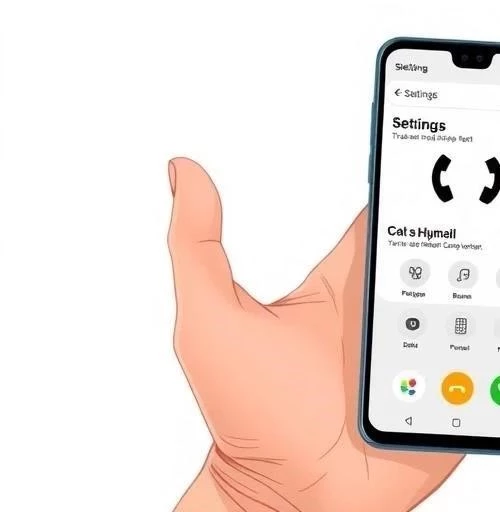
“Change the call button” can mean several things: changing which SIM is used when you tap it, replacing the Phone app, adding a shortcut to call someone, or changing how the button looks. Xiaomi’s options depend on the phone model, region, and whether it runs MIUI or HyperOS. In many versions, the main call button’s position and basic design cannot be changed in the system settings, but you can adjust what happens when you use it.
Choose which SIM the call button uses
If your Xiaomi has two SIM cards, you can choose a default SIM for outgoing calls or make the phone ask you each time. Menu names vary slightly, but try these steps:
- Open Settings.
- Tap SIM cards & mobile networks or Mobile networks.
- Find Default for calls, Calls, or a similar option.
- Select SIM 1, SIM 2, or Ask every time, if available.
On some versions, you can also open the Phone app and tap the SIM selector near the dial pad before placing a call. If the selector does not appear, check that both SIM cards are enabled in Settings. The exact labels and layout may differ by software version and carrier.
Change the default Phone app
Some Xiaomi phones let you install another calling app, while others rely on the Google Phone app or Xiaomi’s built-in dialer. If you have installed a compatible alternative, you may be able to make it the default:
- Open Settings and go to Apps.
- Tap Manage apps or Default apps.
- Choose Default apps, then Phone or Calling app.
- Select the app you want to use.
If the Phone option is missing, or the alternative app is not listed, it may not support call handling on your device. Installing a different dialer does not always replace the call screen: Xiaomi or Google system components may still handle incoming and ongoing calls. Avoid removing or disabling the original Phone app unless you know another app can take over, because this can make calling unreliable.
Add a button for a particular contact
If you mean a one-tap button to call a family member or another frequent contact, add a direct-dial shortcut to the Home screen; Open the Contacts app, select the person, tap the three-dot menu, and look for Add to Home screen or Create shortcut. The wording and availability vary between Contacts versions.
You can also press and hold an empty area of the Home screen, open Widgets, and look for a Contacts or direct-dial widget. Choose a contact and place the shortcut where you want it. Tapping it may call immediately, so position it where it will not be pressed accidentally. If no direct-call option is offered, add the contact shortcut instead; it opens the contact card, where you can tap the phone icon.
Can you move or redesign the main call button?
On most Xiaomi phones, the green call button inside the dial pad is part of the Phone app. MIUI and HyperOS generally do not provide a setting to move it, change its action, or replace it with a custom button. The same applies to the controls shown during a call: options such as mute, keypad, speaker, and end call are controlled by the dialer.
Themes may change some colors or icons, but they usually cannot change the call button’s function or layout. A theme that changes the appearance of the dialer may also be incompatible with your Phone app version. If you only want a different visual style, check the built-in Themes app and use a trusted theme made for your device and software version. Restore the default theme if the dialer becomes hard to read or stops displaying correctly.
If the setting is missing
- Check the software version under Settings > About phone; menu paths differ across MIUI and HyperOS releases.
- Update the Phone and Contacts apps from the official app store available on your device, then restart the phone.
- Search Settings for terms such as default calls, SIM, or default apps.
- Do not install unknown dialer APKs or use root modifications just to alter the button. They can affect privacy, call functions, or system stability.
In short: use the SIM settings to change which number the call button uses, the default-app settings to select a compatible dialer, or a contact shortcut for one-tap calling. If you want to move or completely redesign the built-in green button, that option is usually not available without unsupported modifications.
4 Comments. Оставить новый
This is a helpful overview for Xiaomi users, and it appropriately points out that settings vary by model and software version. The submitted text seems to end mid-sentence, though.
The distinctions between SIM settings, default calling apps, and contact shortcuts make the topic much less confusing. Adding screenshots for different MIUI and HyperOS versions could make it even more useful.
I appreciate the practical steps for choosing a default SIM and setting a different Phone app. The warning about disabling the original dialer is a useful safety note.
The guide clearly explains that changing the call button can mean several different things, which makes the advice easy to follow. The menu-name caveats are especially helpful.