
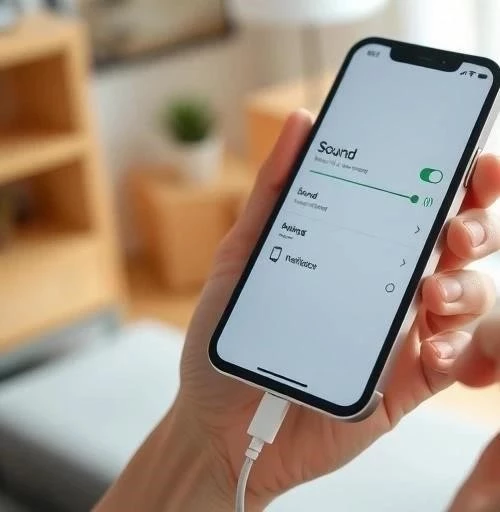
The short answer is that Huawei phones do not all offer a setting for choosing a custom sound when a charger is connected. On many models‚ you can turn the charging sound on or off‚ but the tone itself is built into the system. The available controls depend on your phone model‚ EMUI or HarmonyOS version‚ and sometimes your region. Use the steps below to check your settings and find the safest option for your device.
First‚ identify which sound you want to change
A phone may make more than one sound when you plug in a cable. A brief tone can indicate that charging has started; another sound may come from a notification‚ an accessory‚ or an app. If the phone repeatedly disconnects and reconnects‚ repeated charging tones can also indicate a loose cable‚ dirty port‚ or unstable power source rather than a sound-setting issue.
Connect the charger once and listen carefully. If the tone plays as soon as the phone detects the cable‚ it is likely a system charging sound. If it appears later‚ check notifications and apps. If there is no tone but the phone vibrates‚ vibration settings may be enabled while system sounds are muted.
Check Huawei’s sound settings
- Open Settings.
- Tap Sounds & vibration. On some versions‚ the menu may be called Sounds or Sound & vibration.
- Look for More settings‚ More sound settings‚ or a similarly named option.
- Check for System sounds‚ Charging sound‚ or a switch related to connection sounds.
- If you find a charging-sound switch‚ turn it off or on‚ then connect the charger again to test it.
Menu labels and locations vary between Huawei phones. If you do not see the option‚ use the search box at the top of Settings and try terms such as charging sound‚ system sounds‚ or connection sound. Search results depend on the installed software‚ so not finding a result usually means that your version does not expose a separate control.
Can you replace the tone with your own audio?
On many Huawei devices‚ there is no official setting to select an MP3 or other custom file as the charging tone. The sound is part of the system interface‚ and the phone may provide only an on/off switch—or no charging-specific switch at all. Changing the ringtone‚ notification tone‚ or alarm tone will not necessarily change the charging sound‚ because these are separate sound categories.
If your phone shows a sound picker specifically for charging or connection sounds‚ follow the options displayed there. Select a built-in tone or‚ if the picker allows it‚ choose an audio file from your storage. Do not assume that a ringtone picker controls charging: check the setting name and test the result after connecting the charger.
Check system-wide sound and vibration controls
When no dedicated charging option is visible‚ check whether system sounds are muted. Open Settings > Sounds & vibration and review the sound mode‚ volume sliders‚ and any system-sound controls. Silent mode‚ Do Not Disturb‚ or a very low system volume can affect some sounds‚ although behavior differs by model and software version. These controls may silence the tone without offering a way to replace it.
Also check whether vibration on connection is enabled. A vibration toggle may be listed beside system sounds or under a general vibration setting. Changing vibration does not usually change the sound file‚ but it can make charging feedback quieter or less noticeable. Test with the phone unlocked and the screen on‚ because some devices behave differently when locked.
Try Settings search and check for updates
Huawei changes menu organization across EMUI and HarmonyOS releases‚ and the same option may appear under a different heading. Search Settings rather than relying on a path intended for another model. You can also check your current version under Settings > About phone. If a software update is available‚ review its release information and install it only when convenient‚ preferably with sufficient battery and a stable connection. An update may change menus‚ but it is not guaranteed to add custom charging tones.
If you use a different language or region setting‚ labels can differ. A search for “charging‚” “system‚” or “sound” may be more useful than looking for an exact menu title from an online guide. Avoid installing unofficial firmware just to obtain a sound option.
What about Themes or customisation apps?
Huawei Themes can change supported visual and audio elements‚ but a theme does not necessarily include the charging sound. Read the theme details and test it before assuming that it changes connection audio. If the theme changes ringtones or notification sounds only‚ the charging tone may remain unchanged.
Some third-party automation or sound apps claim to play a chosen audio file when power is connected. They may work by detecting a charging event and playing a separate sound‚ rather than replacing Huawei’s built-in tone; Results can vary because of battery management‚ background-app restrictions‚ notification permissions‚ and differences between Android-based software versions.
If you try an app‚ install it from a trusted source‚ review its permissions‚ and check whether it needs to run in the background. Avoid granting access that is unrelated to the feature. You may hear both the system tone and the app’s sound; turn off the built-in tone first if your phone provides that option. Test the app with the screen locked as well as unlocked‚ and check whether it behaves consistently after a restart.
Why rooting or modifying system files is not recommended
Online instructions sometimes suggest rooting the phone or replacing system audio files. This is not a safe first-line solution. Rooting and manual system changes can weaken security‚ interfere with updates‚ cause instability‚ or prevent the device from starting correctly. They may also affect warranty or support options. System partitions and file locations vary‚ so instructions for another Huawei model can be harmful even when they appear similar.
Do not download unknown “charging sound changer” tools that request root access‚ device-administrator privileges‚ or broad file permissions without a clear reason. If changing the tone is important and your phone has no supported control‚ contact Huawei support or use a reputable automation app only after checking its compatibility and privacy practices.
If the sound keeps playing repeatedly
A charging sound that repeats every few seconds may mean the connection is unstable. Try a different compatible cable and power adapter‚ then test a different wall outlet. Inspect the charging port for visible lint or damage. Do not insert metal objects or liquids into the port; if debris is present or the connector feels loose‚ seek professional service.
Check whether the charging icon disappears and reappears at the same time as the sound. If it does‚ the issue is probably not a tone preference. Stop using damaged accessories‚ and avoid forcing the plug into the port. If the phone becomes unusually hot‚ charging stops unexpectedly‚ or you see a moisture or temperature warning‚ disconnect it and follow Huawei’s safety guidance.
Quick troubleshooting checklist
- Search Settings for charging sound and system sounds.
- Check Settings > Sounds & vibration and any More settings submenu.
- Confirm whether the option is an on/off switch or a genuine sound picker.
- Do not expect ringtone or notification changes to alter the charging tone.
- If using an automation app‚ review its permissions and background restrictions.
- If the tone repeats‚ test another cable and adapter and check for an unstable connection.
- Avoid rooting or replacing system files for a cosmetic change.
Bottom line
To change the Huawei charging connection sound‚ first look for a charging-specific control in Settings > Sounds & vibration or use Settings search. Some models let you disable the sound; fewer provide a way to select another tone. If there is no sound picker on your device‚ changing the charging tone directly may not be supported by its software. A trusted automation app may add a separate sound‚ but it is not the same as replacing the built-in system tone and may not work reliably on every model.
Because Huawei settings differ by phone and software version‚ treat menu paths found online as examples rather than guarantees. Use the labels available on your own device‚ test one change at a time‚ and choose the least invasive method that meets your needs.


4 Comments. Оставить новый
Helpful reminder to distinguish a normal charging tone from repeated sounds caused by a loose cable or an unstable connection.
This clearly explains why the charging tone may not be customizable on every Huawei phone. The Settings search tips are especially useful.
The instructions are easy to follow, and the note about differences between EMUI and HarmonyOS sets realistic expectations.
A practical guide for checking the available sound controls without assuming every Huawei model has the same options.