
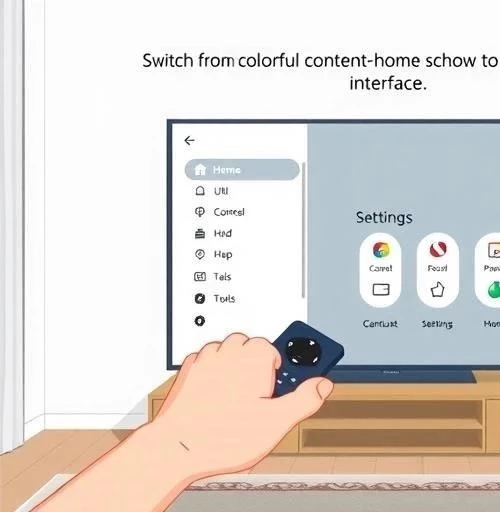
PatchWall is Xiaomi’s content-focused home screen. It displays recommendations and streaming services, and on some models it is the default interface. You can often switch to a standard Android TV or Google TV home screen, but the available options depend on your TV model, region and software version. In many cases, PatchWall cannot be completely removed.
Check the home-screen settings
- Press the Home button on the remote and open Settings (the gear icon).
- Look under Device Preferences, Home screen or System. Menu names vary between models.
- If you see Default launcher, Home screen or a choice between PatchWall and Android TV, select Android TV Home or the standard Google TV interface.
- Confirm the choice, then press Home to check which screen opens.
This is the best option when available: it changes the interface without removing system software. If there is no launcher selector, continue with the settings below.
Reduce PatchWall recommendations
Open PatchWall and enter its settings, usually through the profile, gear or menu icon. Turn off options such as Recommendations, Personalized content, Autoplay previews or Notifications, if shown. You can also disable recommendations in the settings for individual streaming apps. These changes may make PatchWall less prominent, but they do not necessarily replace the home screen.
Review the app controls
Go to Settings > Apps > See all apps and select PatchWall. Depending on the firmware, you may be able to clear its cache or data, force-stop it, or disable it. Start with Clear cache; clearing data resets the app’s preferences and may remove saved settings. Use Disable only if the TV offers it. If the button is unavailable, PatchWall is protected as a system component.
If the option is missing
Update the TV through Settings > About > System update, then check the menus again. Xiaomi’s interface differs by model and region, so a guide for another television may show options your set does not have. A factory reset is not a reliable way to remove PatchWall: it usually restores the original launcher and erases your settings.
Avoid uninstalling system packages with ADB unless you understand how to restore them. Removing a launcher component can leave the Home button unusable, break updates or require a reset. The safest conclusion is that you can switch away from PatchWall only when your firmware provides another launcher; otherwise, disable the available recommendations and keep the system app intact.

4 Comments. Оставить новый
The advice to start by checking the home-screen settings is sensible, since switching launchers is less disruptive than disabling a system app. It would also be helpful to include model-specific examples, but the article clearly explains why instructions may differ.
The step-by-step structure is easy to follow, and recommending Clear cache before more consequential app controls is a prudent approach. The article appropriately notes that disabling PatchWall may not be possible on every television.
This is a useful, cautious guide because it distinguishes changing the home-screen launcher from disabling PatchWall. The reminder that menus vary by model and region helps prevent readers from assuming every option will be available.
I appreciate the distinction between reducing recommendations and removing PatchWall. That clarification sets realistic expectations and makes the guidance less likely to lead readers into unnecessary changes.