
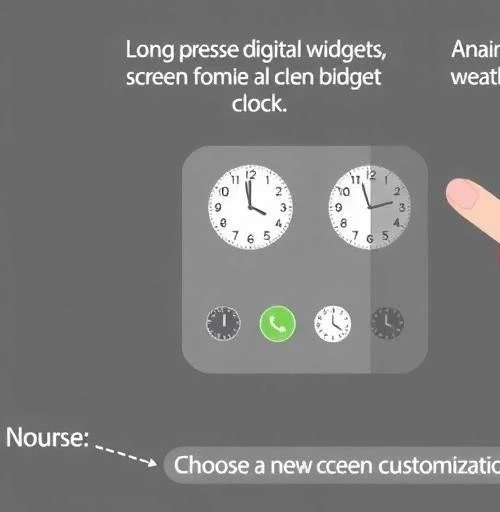
Your Xiaomi clock can be more than a tiny announcement that you are late․ It can become a clean digital dashboard, a retro bedside display, or a bold accent that makes the whole home screen feel newly designed․ The trick is knowing which clock you want to change: the one on the home screen or the one on the lock screen․ Xiaomi handles them differently, and menu names can vary between MIUI and HyperOS versions․
First, identify your clock
If you can see the clock after unlocking your phone, it is usually a home-screen widget․ You can often replace it without changing the rest of your theme․ The clock shown before you unlock is the lock-screen clock; its appearance is commonly controlled through Wallpaper & personalization or the Themes app․ A wallpaper may show a clock in its preview, but that does not necessarily mean it changes your home-screen widget․
Method 1: Pick a different home-screen clock widget
- Find an empty patch; On the home screen, press and hold an area without an icon or widget․ On many Xiaomi phones, this opens the home-screen editing view․ If nothing happens, pinch inward with two fingers, or look for a Widgets option in the launcher’s editing controls․
- Open the widget gallery․ Tap Widgets and browse the available categories․ Look for Clock, Time, or a clock section associated with Xiaomi’s launcher; Depending on your software version, you may see several designs and sizes: compact digital clocks, larger displays, or clocks combined with the date and weather․
- Choose the shape before the style․ Press and hold the clock you like, then drag it to a clear space on the screen․ Some launchers let you tap a widget to place it instead․ Leave enough room: a wide clock needs more grid squares than a small one, and crowded icons can make the new arrangement feel like a suitcase packed for a month-long trip․
- Arrange or resize it․ Once placed, press and hold the widget․ If adjustment handles appear, drag them to change its dimensions․ Tap elsewhere to finish․ Some clock widgets offer settings when tapped; others are deliberately simple and cannot be recolored or customized individually․
To remove the old clock, press and hold it and choose Remove or drag it to the remove area shown on screen․ This normally removes only that widget, not the Clock app or your alarms․ If the new design is not to your taste, open the widget gallery again and try another; switching widgets is reversible․
Method 2: Explore Xiaomi Themes
For a more dramatic makeover, open the Themes app and browse themes that include clock or lock-screen designs․ You can preview a theme before applying it․ Some themes change several elements at once—icons, wallpapers, fonts, notification styling, and the lock screen—so check what is included if you want to keep your current look elsewhere․
In Themes, look for a Profile, Customize theme, or similar section․ Depending on the phone and software version, you may be able to apply components separately, such as the lock style, icons, or status bar․ Choose the clock-related component if that option is available, then apply it and check the result․ Theme catalogs and customization controls vary by region, device, and system version․
Change the lock-screen clock
Try opening Settings and searching for “Lock screen,” “Wallpaper & personalization,” or “Clock style․” Xiaomi moves these controls between software releases, so the Settings search box is often faster than following a menu path from another model․ Open the lock-screen customization page, select a clock layout if offered, and preview it before saving․
If the setting is not there, open Themes and inspect lock-screen previews․ Apply a suitable lock-screen style, then lock the phone to see how it looks in real use․ Some styles include animations or extra information, while others favor large, easy-to-read numerals․ A clock that looks elegant in a preview may be less useful if its color disappears against your wallpaper․
When the clock refuses to change
- No Widgets button? Try pinching the home screen, or press and hold an empty area․ The launcher interface differs across MIUI, HyperOS, and device models․
- Only one clock appears? Your launcher may offer limited built-in widgets․ Check Themes for more options, or update system apps through Xiaomi’s app store if an update is available․
- The clock vanished? Return to the widget gallery and add it again․ Also check that the home screen has enough free space and that you are editing the home screen—not the lock screen․
- A theme changed too much? Open Themes or personalization settings and reapply the original components, or choose the default theme․ The exact reset label varies by software version․
A small design tip
Choose the clock for the job the screen does․ A large digital face is excellent for quick glances; a thin, minimal style leaves room for apps and photographs․ Keep contrast high, avoid placing the clock over busy wallpaper, and leave a little breathing space around it․ Your home screen is a miniature room: the clock is not merely furniture, but the window through which every hurried glance enters․
In short: use Widgets to replace or rearrange the home-screen clock; use Settings or Themes to explore lock-screen styles․ If the labels differ, search Settings for “clock” or “lock screen”—your Xiaomi’s software version is the map, and the widget gallery is the easiest place to begin․
5 Comments. Оставить новый
I like how this separates the home-screen clock from the lock-screen clock—two tiny displays, two entirely different backstage crews. The suitcase metaphor made widget spacing unexpectedly memorable.
The advice to choose the widget’s shape before its style is wonderfully practical. A wide clock can be a lovely centerpiece—or an unwanted tenant evicting all your icons.
A useful guide with the rare gift of preventing a settings-menu treasure hunt. The reminder that wallpaper previews may not change the home-screen widget is especially handy.
This makes customizing a Xiaomi clock feel less like technical maintenance and more like choosing the face of a tiny home-screen sundial. Clear steps, with room for personal style.
A welcoming walkthrough for anyone whose phone menus seem to rearrange themselves overnight. The MIUI and HyperOS caveat keeps the instructions grounded without dimming the design possibilities.