
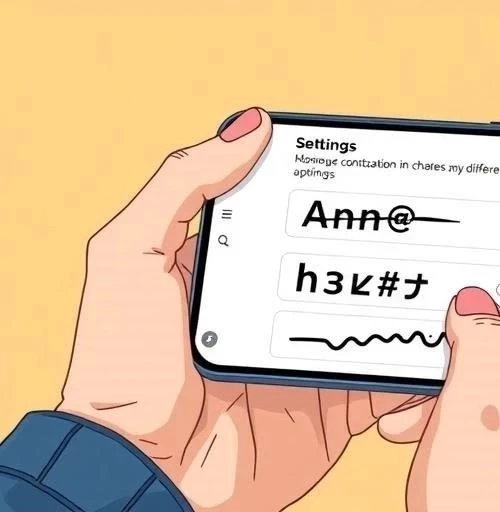
Your phone’s font is its quietest design choice. It appears in messages‚ menus‚ settings‚ and notifications‚ shaping the mood of the screen before you even open an app. On a Huawei phone‚ you may be able to change the typeface‚ make text larger‚ or both—but the exact route depends on your model‚ software version‚ region‚ and the themes available on your device.
Think of this guide as a small expedition through your phone’s wardrobe. We’ll start with the safest built-in options‚ explain what to try if the font menu is missing‚ and finish with practical checks for readability and troubleshooting. Menu names can vary slightly between EMUI and HarmonyOS releases‚ so look for the closest equivalent rather than expecting every label to match word for word.
First‚ know what you want to change
“Change the font” can mean three different things:
- Typeface: the design of the letters‚ such as a clean sans serif or a more decorative style.
- Text size: how large or small letters appear. This usually affects system menus and supported apps.
- Display size: the scale of interface elements‚ which may enlarge icons and controls as well as text.
These settings are not interchangeable. If a font looks right but is too small‚ adjust text size. If everything on the screen feels cramped‚ display size may help. If only one app ignores your new typeface‚ that app may use its own font settings.
Method 1: Choose a font in the Themes app
On many Huawei phones‚ the Themes app is the main dressing room for system appearance. Depending on your software and region‚ it may offer downloadable fonts‚ font previews‚ or complete themes that include a typeface.
- Connect to Wi-Fi or mobile data if you plan to download anything.
- Open Themes from the home screen or app drawer. You can also search for “Themes” using the phone’s search bar.
- Look for a section called Fonts. It may appear as a tab‚ a category‚ or an item under a profile or customization menu.
- Browse the available choices. Tap a font to open its details and‚ if offered‚ preview how it looks.
- Choose Download‚ Apply‚ or a similarly named button. Some phones download first and require a second tap to apply.
- Wait for the interface to update. If the change is not visible straight away‚ lock and unlock the phone‚ close and reopen Settings‚ or restart the device.
Not every font listing is free‚ and availability can change by country‚ account‚ or software version. Read the item’s details before confirming a purchase. A font bundled with a theme may require you to apply the theme—or select only its font component if your version provides separate options.
If the font is part of a theme
Open the theme’s page and check whether it includes a font; If the phone lets you customize theme components‚ you may be able to keep your current wallpaper and icons while applying only the new typeface. Look for wording such as Customize‚ Apply individually‚ or Lock screen / icons / font. The labels differ‚ and some themes are applied as a complete package.
Before applying a full theme‚ notice what else it changes: icons‚ lock screen‚ wallpaper‚ and sometimes colors. If you like the letters but not the rest of the outfit‚ check for component controls or return to your original theme after noting which font you selected.
Method 2: Look for a font setting in Settings
Some Huawei software versions expose appearance controls directly in Settings‚ while others route font selection through Themes. Try this path:
- Open Settings.
- Tap Display & brightness or a similarly named display section.
- Look for Text style‚ Font style‚ or Font.
- Select an available option and follow the on-screen instructions.
If there is no font-style option‚ that does not necessarily mean your phone cannot use a different font. The control may live in Themes‚ may be unavailable in your region‚ or may not be supported by your particular software build; Use Settings search: open Settings and type font or text style into the search field. Search can reveal a buried setting even when the menu has moved.
Make text larger or smaller
Changing the typeface changes the personality of letters; changing text size changes their footprint; To adjust size‚ open Settings and search for Text size or Font size. On many models‚ the control is under Display & brightness. Drag the slider a little at a time‚ then check a message‚ a settings page‚ and a web page. The sample preview is useful‚ but real screens show whether the size works for your eyes and your everyday apps.
If you want the whole interface to feel larger‚ search Settings for Display size. This can enlarge icons and other elements‚ not just letters. Increase it gradually: a very large setting may make some screens show less information or cause buttons and text to wrap differently.
Accessibility can help with readability
For extra legibility‚ explore Settings > Accessibility features or search for High contrast text‚ Bold text‚ or Magnification. The names and availability vary. These options do not necessarily install a new typeface; they make text or the screen easier to see. Try one change at a time so you can tell which setting made the biggest difference.
What if the Fonts category is missing?
There are several ordinary reasons. Huawei’s app layout changes across EMUI and HarmonyOS versions; the Themes catalogue can differ by region; and a particular device may not expose font downloads. Start with these checks:
- Update the phone’s software. Open Settings and check System & updates for available updates. The exact wording depends on the release.
- Update Themes; If the app has an update option in its settings or in the app marketplace available on your phone‚ install the official update.
- Search the entire Settings app. Try “font‚” “text style‚” and “text size.”
- Check your region and account. Catalogue items and features can vary. Do not change your region casually: it can affect services‚ content‚ and payment options.
- Restart the phone. A restart can refresh the interface after a theme or font has been applied.
If no built-in font option appears after these checks‚ your current software may not support system-wide font selection. You can still adjust text size and accessibility settings‚ or choose a theme that changes typography if one is officially available. Avoid assuming that every tutorial applies to every Huawei model: screenshots from another phone or an older release may show menus you do not have.
Will the new font change every app?
Usually‚ a system font affects many parts of Huawei’s interface‚ but it cannot force every app to follow along. Some apps use the system typeface; others bundle their own fonts or provide separate appearance controls. A game‚ reading app‚ or social platform may therefore look unchanged even when Settings and system menus have updated.
Check the app’s own settings for options such as Appearance‚ Display‚ Font‚ or Text size. In messaging and reading apps‚ there may be a separate slider. Web pages can also specify their own typefaces‚ so a system font change might not alter every heading or article you visit.
Using downloaded fonts: a sensible safety check
Prefer fonts and themes offered through Huawei’s built-in Themes app or another trusted‚ official source available on your device. Be cautious with websites that promise a “one-tap system font” through an unknown installer‚ configuration profile‚ or app requesting unusually broad permissions. A font file should not need access to your contacts‚ microphone‚ or messages simply to change how letters look.
Do not root the phone just to change its font unless you understand the consequences. Rooting or modifying system files can weaken security‚ interfere with updates‚ cause instability‚ and make some services stop working. It can also be difficult to undo if the device behaves unexpectedly. For most people‚ official themes and built-in accessibility controls are the better trade: less dramatic‚ far safer‚ and easier to reverse.
How to return to the original look
If your new font is hard to read—or you simply miss the old one—open Themes‚ find the default or previously used style‚ and apply it. If the phone separates theme components‚ select the original font without changing your wallpaper or icons. You can also revisit the font setting in Settings and choose the default option if it is listed.
If the interface looks odd after applying a theme‚ first reapply the default theme and restart. Do not delete system files or install another tool in a panic. If the font was downloaded through the official Themes app‚ use that app’s library or downloaded-items page to manage it. The exact controls depend on the version installed.
Quick fixes when the change does not appear
- Confirm it was applied: downloading a font and activating it may be separate steps.
- Refresh the screen: close the current app‚ lock and unlock the phone‚ or restart.
- Check the scope: a font may affect system menus but not an app with its own typography.
- Undo conflicting settings: restore the default theme‚ then try applying only the font again.
- Check storage and connection: a download may fail if the phone is low on space or the network is unstable.
- Read the preview carefully: decorative fonts can render punctuation‚ symbols‚ or non-Latin characters differently.
Choose a font your future self will thank you for
A typeface can make a phone feel calmer‚ more playful‚ or more like your own. Still‚ the best-looking letters are not always the easiest to read at midnight‚ outdoors‚ or on a crowded bus. Before settling on a style‚ scan a few familiar screens: a long message‚ a settings menu‚ and a page with numbers and punctuation. Check that similar-looking characters remain distinct and that the font handles the languages you use.
For a practical setup‚ start with a simple typeface‚ adjust text size until you can read comfortably‚ and only then experiment with decorative styles. If the phone is shared with someone else‚ ask before changing its appearance; a font that feels elegant to you may be tiring for another reader. Your display is a little stage‚ but clarity should still get the best seat.
Fast route recap
- Open Themes and search for a Fonts section.
- Download and apply a typeface‚ or inspect a theme that includes one.
- If there is no Fonts section‚ search Settings for font or text style.
- For larger letters‚ adjust Text size; for a larger overall interface‚ check Display size.
- Restart or reapply the default theme if the change does not display correctly.
The route may differ‚ but the principle is simple: use the official controls your Huawei model provides‚ make one change at a time‚ and test it in the places you read most. A new font should feel like a fresh voice for your phone—not a puzzle you have to solve every time you open it.


2 Comments. Оставить новый
The “small expedition through your phone’s wardrobe” is a delightful way to make settings feel less like a maze and more like a place to explore. I especially appreciate the distinction between typeface, text size, and display size: three look-alikes that often get sent on the same errand. The caveat about software versions and regions also gives the guide a useful map legend before readers set off.
This guide treats readability as more than decoration, which is a welcome change from the usual parade of pretty fonts. Its practical note that individual apps may ignore system typefaces is the sort of small truth that saves a reader from blaming the wrong setting. The Themes app becomes a kind of digital fitting room here—and the reminder that menus move between EMUI and HarmonyOS keeps the advice grounded.