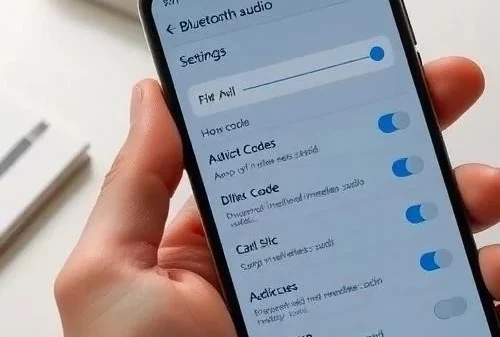
You can switch the language used by the Apple Watch onscreen keyboard without changing the watch’s menus or interface․ First, make sure the language you want is available as a keyboard on your paired iPhone; then select it while typing on the watch․
Add a keyboard on your iPhone
- Open Settings on the iPhone paired with your Apple Watch․
- Tap General, then Keyboard․
- Choose Keyboards and tap Add New Keyboard․
- Select the language you want․ Repeat these steps to add any other languages you use․
Adding a keyboard does not change the iPhone’s system language․ It makes that language available for typing, including on Apple Watch when the watch supports it․
Switch languages while typing on your watch
- Open an app that lets you enter text, such as Messages, and start a reply or a new message․
- Tap the text field to bring up the onscreen keyboard․
- Tap the globe key, usually at the bottom of the keyboard, to move to the next enabled language․
- Tap the globe again, if needed, until the keyboard you want appears, then type your message․
The globe key cycles through the keyboards available for that input method․ Depending on your watch model, region, and watchOS version, the full onscreen keyboard or particular languages may not be offered․ If you see no globe key, check that you have added at least two keyboards and that the selected language is supported on your watch․
Typing, Scribble, and dictation
Apple Watch offers different ways to enter text․ The onscreen keyboard is available on supported models and languages; Scribble lets you draw letters, while Dictation turns speech into text․ These methods may not present the same language-switching controls as the keyboard․ If a language is missing, try the keyboard method after adding it on iPhone, or use another supported input option․
If the language will not change
- Confirm the keyboard is listed under Settings > General > Keyboard > Keyboards on your iPhone․
- Close and reopen the text-entry screen, then tap the globe key again․
- Check that your Apple Watch and iPhone are paired and up to date; restart both if the new keyboard does not appear․
- Remember that an app may offer only certain ways to reply or enter text․
Keyboard language vs․ watch language
Changing the typing language is different from changing the language of watchOS․ To change interface language or regional settings, open the Watch app on iPhone and look under General > Language & Region (options can vary by software version)․ You do not need to change these settings just to type in another language․ Once the keyboard is added and supported, switch languages from the globe key whenever you compose text․