
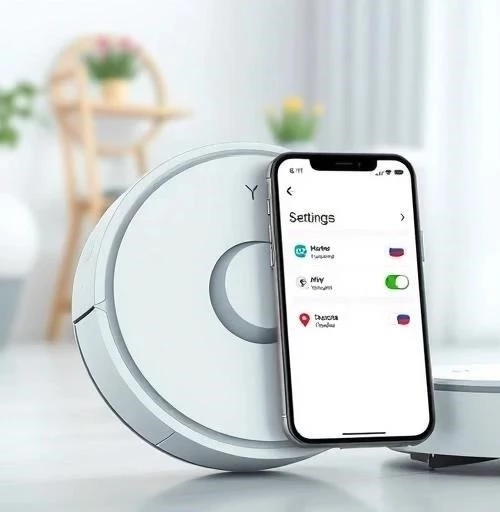
On many Xiaomi robot vacuums, “language” can mean either the voice prompts spoken by the robot or the language displayed in the Xiaomi Home (Mi Home) app. These settings are separate: changing the app language does not necessarily change the robot’s spoken voice. Menu names and available voice packs vary by model, app version, region and firmware.
Change the robot’s voice language in Xiaomi Home
- Connect your phone to the internet, open Xiaomi Home (Mi Home), and sign in to the account paired with the vacuum.
- Tap the robot vacuum on the home screen to open its control page. If you have more than one device, check the model name before changing settings.
- Open the device menu, usually shown as three dots in the upper-right corner; Look for Voice settings, Voice and volume, Voice pack or a similarly named option. Wording and location differ between app versions.
- Choose Russian or a Russian voice pack from the available list. If the pack has a download button, tap it and keep the app open until the download and installation finish.
- Return to the device page and test a voice prompt, if the app provides one. Otherwise, start or pause a cleaning task and listen for the robot’s announcement.
Some models display a list of downloadable voices; others offer only a small selection, or do not provide a language selector at all. If Russian is not listed, check that the app and the vacuum’s firmware are up to date, then reopen the voice settings. Do not install a pack intended for a different model or use unofficial firmware: incompatible files can cause errors or affect device operation.
If Russian is not available
First check the exact model number and the region selected for the device in Xiaomi Home. Voice-pack availability can depend on the model, firmware and region, so a pack shown in one setup may not appear in another. Region settings may affect other connected devices and services, however. Changing the region is not a guaranteed fix and may require setting up the vacuum again; note your current setting before making changes.
Restart the app and the vacuum, confirm that the robot is online, and check for updates in the device settings. If the option remains missing, consult the manual or Xiaomi support for your specific model. A language pack may not be supported even when the app interface itself is available in Russian.
Change the app interface to Russian
If you meant the language of the phone app rather than the robot’s voice, check the app’s language setting first. Depending on the app version, it may be under Profile, Settings or App settings. If there is no language option, Xiaomi Home may follow the phone’s system language. Set the phone language to Russian, then close and reopen the app. This changes menus and labels, not necessarily the vacuum’s spoken prompts.
Troubleshooting
- The download does not start: Check the internet connection, available phone storage and the robot’s online status. Try again after reconnecting the device.
- The voice remains unchanged: Confirm that the Russian pack finished installing and that you selected it, rather than only downloading it. Restart the vacuum and test again.
- Settings are missing: Verify the model in the device information page. Different Xiaomi and related-brand models can use different apps, menus and supported voice packs.
- The app shows a different menu: Update Xiaomi Home and look for equivalent voice or audio settings. Do not assume that every model has identical controls.
In short, open the vacuum’s page in Xiaomi Home and look for its voice or voice-pack settings. Select and download Russian if the model offers it. If Russian is absent, updating the app and firmware and checking model-specific support are the safest next steps.
7 Comments. Оставить новый
It is helpful that the article recommends checking the model before changing settings, especially for households with multiple vacuums.
The troubleshooting section appropriately notes that voice-pack availability can depend on the device, firmware and region.
The article gives a useful reminder that changing the region is not a guaranteed solution and may affect other connected services.
The step-by-step instructions are easy to follow, and the note that menu names can vary by model and app version is useful.
The explanation about downloading and installing a voice pack makes the process clearer for users who see a download option.
The caution against using unofficial or incompatible firmware is a practical safety point.
The article clearly distinguishes between the app’s display language and the vacuum’s spoken voice prompts, which helps explain why changing one may not change the other.