
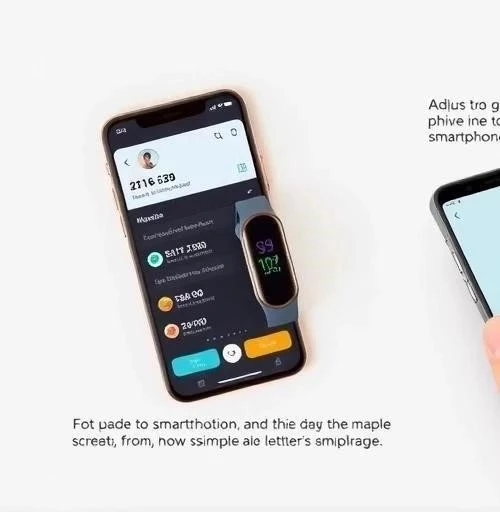
The Mi Band 4 does not have a setting for changing the time directly on the bracelet. It takes the time from the phone it is paired with, so the reliable solution is to correct the phone’s clock and synchronize the band. This also helps prevent errors in alarms, activity records and sleep tracking.
Change the time through your phone
- Check that your phone displays the correct time, date and time zone. On Android, open Settings, then look under Date & time or System. On an iPhone, go to Settings > General > Date & Time.
- Turn on automatic date, time and time-zone settings if they are available. If you need a different time zone, select it manually on the phone. The band follows the phone’s settings; changing its display format from 12 to 24 hours does not alter the actual time.
- Open the app paired with the band, usually Zepp Life (formerly Mi Fit), and make sure Bluetooth is enabled. Keep the band close to the phone, then wait for it to connect and synchronize. Open the app’s device page and pull down to refresh if syncing does not start by itself.
If the time does not update
First, confirm that the phone itself shows the intended time and time zone. Then check that the Mi Band 4 is connected in the app, rather than merely appearing in the phone’s Bluetooth list. Keep the app open briefly; a successful sync should make the band’s clock match the phone.
If it remains incorrect, toggle Bluetooth off and on, restart the phone, and reopen the companion app. Check that the app has permission to use Bluetooth and is not being stopped by battery-saving restrictions. Update the app if an update is available, then try syncing again. These steps are preferable to resetting the band, which can remove settings and should be a last resort.
Important notes
There is no separate manual clock adjustment on the Mi Band 4 itself. Changing the time on the phone and synchronizing is therefore the correct method, not a workaround. If the phone’s time is right but the band is still wrong, check the selected time zone, reconnect through the companion app, and allow synchronization to finish.
For a daylight-saving change or travel, update the phone’s time-zone settings and sync again. If the problem persists after reconnecting, unpairing and pairing the band again may help; use the app’s device settings and follow its prompts. Avoid a factory reset unless simpler fixes fail, and remember that menus can vary slightly between phone models and app versions.

9 Comments. Оставить новый
The troubleshooting advice is sensible because it starts with simple checks before suggesting more disruptive steps. Keeping a factory reset as a last resort is especially helpful.
This is a clear guide for readers who may expect to adjust the time directly on the bracelet. It explains both the correct method and why the phone’s settings matter.
I appreciate that the article recommends checking the phone’s time zone as well as its clock. A time-zone mismatch can cause confusion even when the displayed time seems close to correct.
The distinction between being listed in Bluetooth settings and actually being connected through the companion app is useful. That detail could save readers from repeatedly trying to sync an inactive connection.
Including instructions for both Android and iPhone makes the guidance broadly useful. The reminder to keep Bluetooth enabled and the band near the phone is practical.
The article appropriately points out that switching between 12-hour and 24-hour display formats does not change the actual time. That clarification addresses a common source of misunderstanding.
The explanation makes the key point clear: the Mi Band 4 gets its time from the paired phone, so changing the clock on the band itself is not an option. The synchronization steps are practical and easy to follow.
Overall, the steps are logically ordered and avoid unnecessary resets. A brief note that menu names can vary by phone model might make the instructions even easier to apply.
The suggestions about app permissions and battery restrictions add useful detail for cases where the phone’s clock is correct but synchronization still fails.