
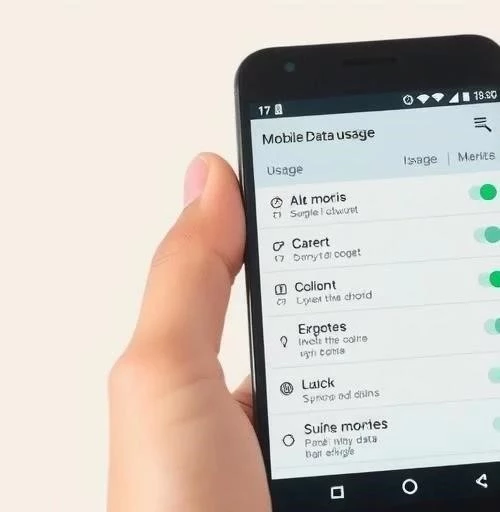
Xiaomi phones provide built-in tools for checking how much mobile data and Wi-Fi data has been used. Menu names and locations can vary between MIUI and HyperOS versions‚ and may also differ by region. If one route does not match your screen‚ use Settings search and enter “data usage” or “traffic usage.”
Check mobile data in the Security app
- Open the Security app. On some versions‚ it may be called Security Center.
- Tap Data usage or Data traffic. If the option is not visible‚ look in the app’s tools or settings.
- Review the total used for the current period. Where available‚ select a date range or billing cycle to see usage over time.
- Open the app-by-app list to identify which apps have used the most data. Some versions show sent and received data separately.
The Security app may also offer a mobile-data limit‚ a warning threshold‚ or options to restrict background data. Availability depends on the phone’s software version and the mobile operator settings.
Find usage in Settings
Open Settings and look for SIM cards & mobile networks‚ Mobile networks‚ or Data usage. Choose the SIM card you want to check if the phone has two SIMs. The screen may show current-period usage and a breakdown by app. On some devices‚ the relevant page is under Connection & sharing or another network submenu.
For a quick route‚ swipe down to open the notification shade and tap the Settings icon‚ then search for “data usage.” Search is often the easiest option when instructions for another MIUI or HyperOS release use different menu names.
Check Wi-Fi usage
Mobile data and Wi-Fi are not always combined in the same report. On some Xiaomi models‚ the data-usage screen has separate tabs or a network selector for Wi-Fi. Choose the relevant network or tab to view the available totals and app breakdown. If Wi-Fi history is not shown‚ that software version may not provide a detailed record there; a router’s administration page may offer a separate usage report.
Set the period and interpret the figures
Check that the start date of the usage cycle matches the date your carrier begins its billing period. In the Security app‚ open its data-usage settings and look for a plan‚ billing-cycle‚ or monthly reset option. Labels differ by release. If the cycle is incorrect‚ the phone’s total may not match the operator’s account‚ even though both are reporting data for different date ranges.
Phone figures are useful for comparing apps and spotting sudden increases‚ but they may not exactly match the carrier’s measurement. The carrier’s app or website is generally the best place to confirm remaining allowance and billed usage. Roaming‚ delayed reporting‚ and differences in calculation can also affect totals.
Reduce unexpected usage
- Set a warning near your plan’s limit; use an automatic cutoff only if the option is available and appropriate.
- Review high-usage apps and disable background mobile data for apps that do not need it.
- Turn on data-saving features where available‚ and download large updates over Wi-Fi.
- Check the operator’s app for the official remaining balance‚ especially when travelling or near the end of a billing cycle.
These built-in checks usually make it possible to monitor usage without installing an additional app. Menu paths vary‚ so confirm the labels on your own device.


9 Comments. Оставить новый
The guidance appropriately notes that available features and menu locations can depend on the software version and region.
The information about data limits and background restrictions adds useful context to the basic usage-checking steps.
The article also mentions app-by-app usage, helping readers identify which applications account for more data.
The article explains several ways to check mobile data usage on Xiaomi phones and notes that menu names can vary by software version.
The suggestion to use Settings search is practical for finding options when the menu layout differs.
Including both the Security app and Settings gives readers more than one route to check data consumption.
The article distinguishes between mobile-data and Wi-Fi usage, which helps clarify what users may see in their reports.
The article is organized around clear steps and offers a router as an alternative source for Wi-Fi usage information.
The note about selecting a SIM card is useful for people using a dual-SIM Xiaomi phone.