
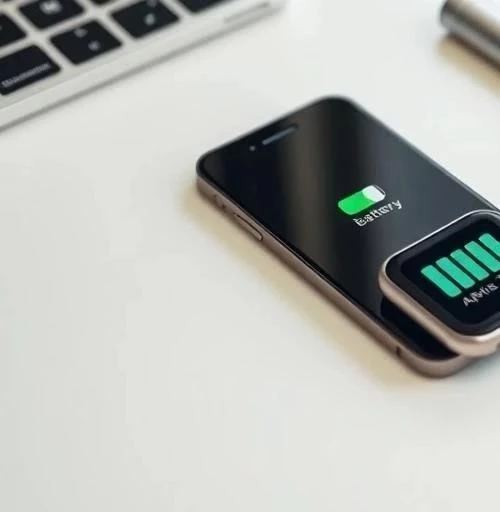
Your Apple Watch is a tiny traveling companion: it counts your steps, nudges you to stand, and quietly keeps time. Its battery, however, can feel like a disappearing act. The good news is that your iPhone can usually reveal the remaining charge in a glance—no watch-unbuckling ceremony required; The simplest tool is Apple’s Batteries widget.
Put the Batteries widget on your Home Screen
- Unlock your iPhone and touch and hold an empty area of the Home Screen until the app icons begin to jiggle.
- Tap Edit or the + button at the top of the screen, then choose Add Widget if that option appears.
- Search for Batteries and tap the widget in the results.
- Swipe through the available sizes. Choose a compact tile for a quick glance or a larger one if you want more room for connected-device details;
- Tap Add Widget, position it where you like, then tap Done.
Now check the widget while your Apple Watch is paired and nearby. When iPhone recognizes the watch as a connected device, its battery percentage should appear alongside the iPhone’s charge. The display may show several devices, so look for the Apple Watch entry or its familiar watch icon.
Find it in Today View instead
If you prefer a quieter Home Screen, swipe right from the first Home Screen page—or from the Lock Screen, depending on your iOS settings—to open Today View. Add the Batteries widget there using the same widget gallery. It stays tucked away until you ask for it, like a little dashboard behind a curtain.
What if the watch doesn’t appear?
- Bring the devices close together. The widget is most dependable when the watch is within Bluetooth range and connected to the iPhone.
- Check Bluetooth. Open Settings on the iPhone and make sure Bluetooth is on. Also check that the watch is powered on and unlocked if it has just restarted.
- Give the connection a moment. A newly paired or reconnected device may take a short while to show its status. Remove and re-add the Batteries widget if its display seems stuck.
- Confirm pairing. Open the Watch app on the iPhone. If it asks you to pair a watch, follow the setup prompts; a watch that is not paired cannot report its charge through this route.
- Restart if necessary. Restart both devices, then open the widget again. If the problem continues, check for available iOS and watchOS updates.
Connectivity matters: the widget is designed to show batteries for devices the iPhone can currently detect, not to act as a permanent remote meter for a watch left far away. If your watch is offline, out of range, or switched off, its reading may disappear or fail to refresh. Exact labels and menus can vary slightly between iOS versions.
A useful distinction: checking versus charging
The iPhone Batteries widget is a convenient way to check the watch’s charge; it does not charge the watch or make its battery last longer. To see more detail directly on the watch, open its Control Center and look for the battery percentage, or add a battery complication to a watch face. Those options are handy when the iPhone is elsewhere.
For an at-a-glance routine, place the widget near the apps you open each morning. Before leaving home, one glance can tell you whether your watch is ready for a full day of notifications, workouts, and wayfinding—or whether it would appreciate a few minutes on its magnetic charger. The tiny number is more than a percentage: it is a forecast for how much of the day your wrist-side co-pilot can accompany you.
Quick recap
Home Screen → touch and hold → Add Widget → Batteries → choose a size → Add Widget. Keep the paired watch nearby, and its charge should appear when the iPhone detects it. If it does not, check the connection, pairing, and software, then give both devices a fresh start. No scavenger hunt through menus; just a small battery gauge, ready when you are.
4 Comments. Оставить новый
I like how the troubleshooting advice follows the actual connection: bring the devices together, check Bluetooth, then give them a moment to introduce themselves.
The Today View tip is especially useful: it turns battery checking into a quiet, on-demand peek rather than another icon taking up permanent real estate.
A small feature, explained with the charm of a pocket-sized control room. Clear steps make it easy to set up before the next low-battery surprise.
A wonderfully practical little guide—your watch’s battery gets a backstage pass to the iPhone screen, without the awkward wrist-checking ritual.