
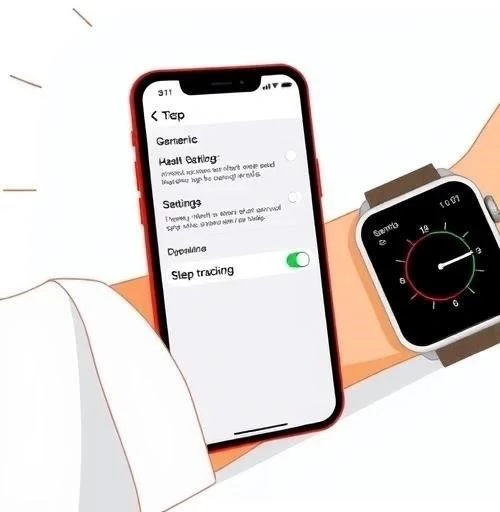
Your Apple Watch is a tiny walking librarian: it quietly files every step while you go about your day. The good news? You usually don’t need to switch on a separate step-counting feature. Step tracking is built in, and your watch records movement automatically when you wear it.
Check your steps on the watch
- Press the Digital Crown to open the app list.
- Open Activity (the familiar three-ring icon).
- Scroll down with the Digital Crown to find your step count, distance, and flights climbed.
On some software versions, the Activity app may show your rings first and place step details farther down. Keep scrolling—the number is there, even if it isn’t center stage. Your rings track movement goals, not steps specifically, so closing a ring doesn’t mean you’ve hit a particular step target.
See steps on your iPhone
For a roomier view, open Fitness on your paired iPhone and look through the Activity summary. You can also check Health: tap Browse → Activity → Steps. Health can show daily totals, trends, and data sources. Your watch and iPhone may both contribute readings; Apple combines available data to avoid simply treating each device as a separate walk.
Put a step count on your watch face
Apple’s built-in Activity complication focuses on rings rather than a live step number. If you want steps visible at a glance, install a step-counter app such as Pedometer++ or StepsApp from the App Store. Open it once, grant the requested Health access, then customize your face: touch and hold the face, tap Edit, swipe to Complications, choose a slot, and select the app’s step complication. Names and menus can vary by watchOS version and face.
If the number doesn’t appear, open the app on your watch first, check its Health permissions on iPhone, and confirm that the chosen face supports that complication. A complication is a window, not a new sensor: the watch still does the counting.
Make the count more dependable
- Wear the watch snugly, with the back in contact with your skin.
- In the iPhone’s Watch app, check Privacy → Motion & Fitness and make sure fitness tracking is enabled.
- Keep your personal details current in the Health app; they help improve activity estimates.
- For a walk you want logged as a workout, open Workout and choose an outdoor or indoor walk. Ordinary steps are still counted without starting one.
Small daily experiment: check your total at the same time each evening for a week. The pattern—not one perfect-looking number—can reveal how your routine really moves.


7 Comments. Оставить новый
The “tiny walking librarian” image is delightful—your watch quietly keeps the receipts while you’re busy living the day.
This makes the Apple Watch feel less like a fitness oracle and more like a careful record keeper—helpful, provided you know where to look.
I like the distinction between closing your rings and reaching a step goal. They may live on the same wrist, but they’re measuring different stories.
A useful guide that saves readers from hunting through menus. The reminder to keep scrolling feels like a small map for a very common detour.
I appreciate the practical troubleshooting without making step tracking sound mysterious. Sometimes the fix is simply opening the app and checking permissions.
Clear, friendly, and pleasantly grounded. The note that multiple devices can contribute to Health data is a welcome detail for anyone comparing totals.
The complication explanation is especially helpful. It’s easy to mistake a little number on the watch face for a separate tracking feature.