
“Clean a Huawei” can mean two different things: removing dirt from the phone’s exterior or freeing space and clearing unwanted data from its software․ These jobs need different methods․ A damp cloth can help with fingerprints, but it will not free storage; deleting files can free storage, but it will not make a screen hygienic․ The safest approach is to identify the problem first, then use the least destructive method that solves it․ The instructions below apply broadly to Huawei phones, although menu names vary between models and versions of EMUI or HarmonyOS․
Before you start
If you mean cleaning the phone physically, disconnect the charger and accessories, switch the device off, and remove its case․ If you mean cleaning its storage, first check what is taking up space and back up anything important․ In either case, avoid rushing: a port damaged by liquid or a file deleted without a backup can create a bigger problem than the one you intended to fix․
Clean the outside of a Huawei phone
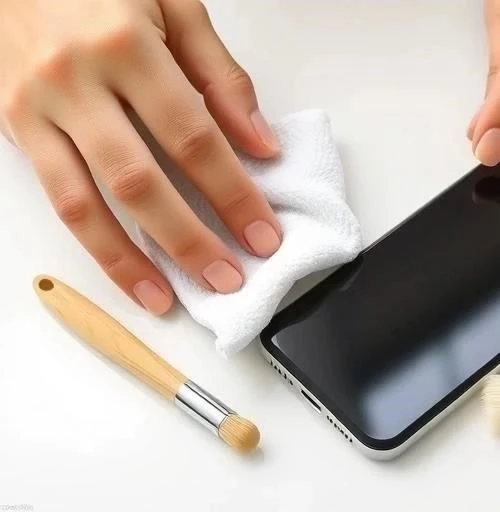
Screen and body
- Turn the phone off and unplug it․ Take off the case and any screen protector that is already lifting or trapping dirt․
- Use a clean, soft, lint-free microfiber cloth to wipe the screen and body․ For ordinary dust and fingerprints, a dry cloth is usually enough․
- For stubborn marks, lightly dampen a corner of the cloth with water․ The cloth should be damp, not wet․ Wipe gently, then use a dry part of the cloth to remove moisture․
- Let the phone dry completely before turning it on, charging it, or putting it back in its case․
Do not spray liquid directly onto the phone․ Do not pour water or cleaner into the earpiece, speakers, microphone, buttons, SIM tray, or charging port․ Avoid abrasive materials, paper towels that may scratch, household glass cleaner, bleach, solvents, and strong detergents․ These can damage coatings, seals, or components․ A phone’s water-resistance rating, if it has one, is not a guarantee against damage; seals can wear down, and liquid damage may not be covered by warranty․
Camera lenses, speakers, and ports
Wipe camera glass carefully with a dry microfiber cloth․ A smudge on the lens can reduce photo quality, so it is better to clean the surface gently than to press hard․ For loose dust around the speaker grille or charging port, hold the phone with the opening facing downward and brush the outside lightly with a clean, soft, dry brush․ Do not push objects into openings․ Pins, needles, toothpicks, cotton swabs, and metal tools can damage contacts or pack debris further inside․ Avoid compressed air, which may force dust or moisture into the device․
If the phone or port has been exposed to liquid, do not charge it while it is wet․ Switch it off, dry the exterior, and leave it in a dry, ventilated place․ Do not use a hair dryer, heater, oven, or rice: heat can damage components, and rice dust may enter openings․ If a moisture warning remains or the phone behaves unusually, contact an authorized service provider․
Case and accessories
Clean the case separately, following its manufacturer’s instructions․ Many silicone or plastic cases can be wiped with a slightly damp cloth and mild soap, but they must be completely dry before going back on the phone․ Remove dust from the case interior too; grit trapped between the case and phone can rub against the finish․ Do not assume that a case or screen protector is safe to clean with alcohol or disinfectant unless its maker says so․
Free storage without deleting important data
If your Huawei displays a “storage full” warning, runs out of room for updates, or struggles to save photos, begin with the built-in storage tools․ On many models, open Settings > Storage and review the categories shown․ Some versions also provide Optimizer or Phone Manager, where a storage-cleanup option may be available․ The exact path and wording depend on the phone and software version․
Review suggested items before confirming deletion․ A cleanup tool can identify temporary files, duplicate items, or app data, but the categories do not all mean the same thing․ Temporary files are often safe to remove; personal documents, downloads, messages, and media may not be․ Read the confirmation screen rather than tapping “Clean” automatically․
Start with large, replaceable files
- Move photos and videos you want to keep to a trusted computer or backup service, then verify that the copies open before deleting the originals․
- Review the Downloads folder for installers, documents, and media you no longer need․
- Remove offline maps, music, films, or other downloaded content from the app that created it․
- Uninstall apps you no longer use․ If you may need an app’s information later, check whether it stores data locally before removing it․
- Look for large files or duplicate media, but open each item before deleting it․ Similar filenames do not guarantee that files are identical․
Deleting files from a gallery or file manager may move them to a Recently Deleted or Trash folder rather than erase them immediately․ If you need the space back, check that folder and empty it only after confirming that you do not need its contents․ Cloud synchronization also matters: deleting a synced photo on the phone may delete it from other devices or from the cloud account, depending on the service and settings․
Clear an app’s cache carefully
An app’s cache consists of temporary files that can help it load content faster․ Clearing a cache may recover some space or help troubleshoot an app, but it is not a universal cure for a slow phone․ The app may recreate the files, and you may not notice a lasting difference․ More importantly, Clear cache is not the same as Clear data or Clear storage․
To try clearing a particular app’s cache, open Settings > Apps, select the app, then look under Storage for Clear cache․ Labels and steps vary by software version․ Read the screen carefully: clearing an app’s data may remove its settings, downloaded content, or locally stored information and may sign you out․ For messaging, banking, authenticator, or work apps, confirm that you can restore access before changing their data․
Do not install an unfamiliar “phone cleaner” simply because it promises to make the device faster․ Such apps may request broad access, show intrusive ads, or delete information you intended to keep․ Huawei’s built-in storage controls and the settings of the app itself are generally a more transparent starting point․
Improve performance without a factory reset
A phone that feels slow may not need to be wiped․ Restart it first, install available system and app updates from trusted sources, and make sure there is reasonable free storage․ Close or remove apps that consistently consume excessive battery or resources․ If one app is the problem, update it, clear its cache, or reinstall it only after checking how its data is backed up․
Also consider the cause․ Poor performance can result from a nearly full drive, a demanding app, a weak network connection, overheating, or an older battery․ A reset will not fix a weak signal or worn hardware, and restoring every app immediately after a reset can bring the original problem back․ Troubleshoot the specific symptom before taking a drastic step․
Factory-reset a Huawei only when necessary
A factory reset erases personal information and settings from the device․ It can be appropriate before selling or giving away a phone, or as a last-resort software troubleshooting step, but it is not ordinary “cleaning․” Back up photos, contacts, documents, messages, and app-specific information first․ Check the backup by opening it or confirming that it has completed; an unfinished backup is not protection․
Before resetting, make sure you know the passwords for the Huawei ID and any Google or other accounts associated with the phone․ After a reset, the device may ask for previously used account credentials as an anti-theft measure․ Keep the phone charged, and do not interrupt the reset once it starts․
On many models, the reset option is under Settings > System & updates > Reset, sometimes labeled Reset phone or Factory data reset․ Menu paths differ, so search Settings for “reset” if necessary and read the warning screen․ Confirm that the selected option is the factory-data reset, not a less destructive option such as resetting network settings․ The latter changes network configuration but does not usually erase personal files․
If you are preparing the phone for another owner, remove your accounts and SIM or memory card as appropriate, then perform the reset through Settings․ Do not hand over a device with personal accounts still signed in․ If the phone will not start, or Settings is inaccessible, use the model-specific recovery instructions from Huawei support rather than guessing at button combinations; recovery menus can contain options that erase data․
Common mistakes to avoid
- Using too much liquid: moisture can enter ports and damage internal components, even if the phone is advertised as water-resistant․
- Confusing cache with data: clearing data can remove settings and locally stored content, while cache removal is usually more limited․
- Deleting before backing up: a reset or emptied trash folder may make personal files difficult or impossible to recover․
- Using random cleaning apps: built-in tools are easier to assess and avoid granting unnecessary access․
- Expecting a reset to solve every issue: hardware faults, a failing battery, or network problems require different remedies․
Which method should you choose?
For fingerprints or dust, switch off the phone and use a soft microfiber cloth․ For a full storage warning, review Settings and remove only files you have checked or backed up․ For one misbehaving app, try its cache before considering deletion of its data․ For a device you are giving away, back up what you need, remove accounts as appropriate, and then perform a factory reset․ This order is deliberate: it begins with the least risky action and reserves irreversible steps for situations where they are genuinely needed․
Huawei menus can differ by model, region, and EMUI or HarmonyOS version, so treat the paths above as typical examples rather than universal instructions․ When a prompt is unclear, pause and check the phone’s built-in help or Huawei support for the exact model․ A careful clean protects both the device and the information stored on it․


5 Comments. Оставить новый
The advice to remove the case and inspect it for trapped dirt is a helpful detail that can easily be overlooked. Overall, this is a sensible introduction; guidance on cleaning dust from ports without inserting objects would be a useful addition.
This is a careful, safety-focused guide. Turning the phone off and unplugging it before wiping helps reduce risk, and the reminder that water resistance is not a guarantee against damage sets sensible expectations.
The distinction between cleaning the phone’s exterior and clearing its storage is useful because the two problems call for different solutions. The advice to use a lightly damp microfiber cloth, rather than spraying liquid directly onto the device, is especially practical.
The instructions are clear and easy to follow, particularly the advice to let the phone dry fully before charging it. Since the article notes that Huawei menus vary by model and software version, including model-specific storage steps would make the guide more complete.
I appreciate that the article warns against household cleaners and abrasive materials instead of suggesting products that might damage the screen coating. The short explanation of why physical cleaning and storage cleanup are different also helps readers choose the right approach.