
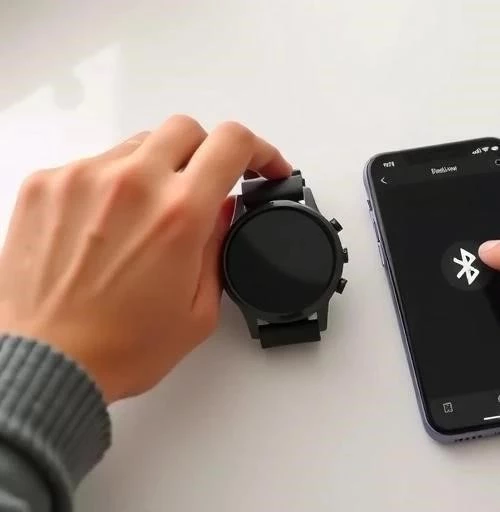
Connecting an X22 smartwatch usually involves charging the watch‚ installing the companion app specified for your device‚ and pairing it through the app. The exact app can vary between X22 versions‚ so check the quick-start guide‚ packaging‚ or QR code on the watch before downloading anything. Do not assume that an app with a similar name is the correct one.
Before you begin
- Charge the watch and make sure it has enough battery to complete setup.
- Turn on Bluetooth on your Android phone or iPhone. Keep the phone and watch close together.
- Connect the phone to the internet so you can download the app and complete any required updates.
- Check that the watch is not still connected to another phone. If it is‚ disconnect it there first.
If the watch displays a QR code‚ scan it with your phone camera and follow the link only if it leads to the app identified in the manual or by the manufacturer. Alternatively‚ search the official app store using the app name printed in the instructions. Review the developer and permissions before installing. Avoid unfamiliar download sites and apps that request unrelated access.
Pair the watch with the companion app
- Open the app and allow the permissions it needs to find and connect to nearby devices. Depending on the phone and app‚ Bluetooth‚ nearby-device‚ or location access may be requested. Location access can be needed for scanning on some Android versions; it does not necessarily mean the watch tracks your location.
- Create an account or sign in if the app requires it. Select the option to add‚ bind‚ or pair a device.
- Choose the X22 from the list of nearby devices. If several devices appear‚ compare the displayed name or identifier with the watch screen or manual.
- Confirm the pairing request on both the phone and watch‚ if prompted. Wait for the app to report that the connection is complete.
For initial setup‚ start the search from inside the companion app rather than selecting the watch in the phone’s Bluetooth settings. Some watches use a separate Bluetooth connection for call audio‚ so the app connection and the audio connection may appear as different entries. Follow the app’s instructions if it asks you to pair a second entry.
Set up notifications and other features
After pairing‚ use the app to choose which notifications the watch can display. Enable notification access in the phone settings if the app directs you there‚ then select calls‚ messages‚ or individual apps. On iPhone‚ notification behavior is controlled by iOS and may depend on the phone’s notification settings. On Android‚ battery-saving restrictions can stop the app from running in the background; allow background activity if syncing or alerts keep stopping.
To use call functions‚ enable the relevant call or audio option in the companion app and accept any additional Bluetooth pairing request. A watch may show incoming-call alerts without supporting phone conversations‚ so check the documentation for the exact X22 version. Health readings and activity records may also require profile details and permissions; treat them as general wellness information‚ not a medical diagnosis.
If the X22 does not connect
- Turn Bluetooth off and on‚ restart the phone and watch‚ and try pairing again with the devices close together.
- Make sure the watch is not connected to a previous phone. Remove its old pairing in that phone’s app or Bluetooth settings.
- If it appears in the phone’s Bluetooth list but the app cannot find it‚ remove or forget the device‚ then start a fresh search from the app.
- Check that the app has the requested permissions and is up to date. Restart it after changing permissions.
- If setup still fails‚ use the watch’s reset option only after checking the manual. A reset can erase settings and stored data.
Once connected‚ keep Bluetooth enabled and open the companion app occasionally to confirm that data is syncing. If the app name‚ menu labels‚ or pairing steps differ‚ use the instructions supplied with your particular X22 model; products sold under the same model name may use different software.


6 Comments. Оставить новый
The guide presents the setup steps in a clear order, from preparation through pairing.
The instructions are straightforward and include sensible cautions about unfamiliar download sites and app permissions.
The article explains why pairing through the companion app may be preferable to starting in the phone’s Bluetooth settings.
The reminder to verify the companion app against the manual is a useful precaution for devices with different versions.
The notes about permissions provide helpful context without suggesting that every app will request the same access.
The preparation checklist covers practical points such as battery charge, Bluetooth, and keeping the devices nearby.