
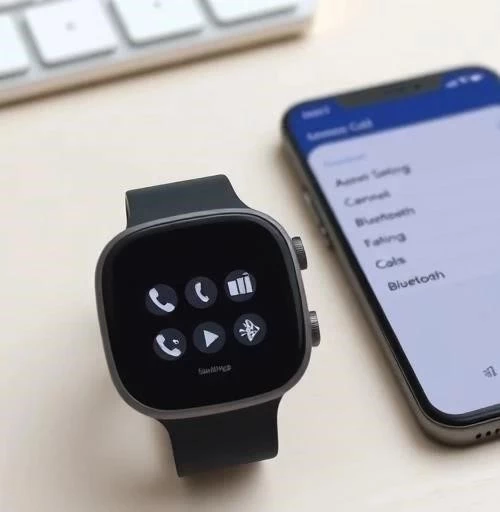
The X8 Max can usually make and answer calls when it is connected to a phone over Bluetooth. Many versions use two Bluetooth connections: one for synchronizing data with the companion app and another for call audio. Pairing only through the app may therefore not be enough. Menu names and features can vary between X8 Max versions, so use the labels shown on your watch and phone as a guide.
Before you begin
- Charge the watch and keep it close to your phone.
- Turn on Bluetooth on the phone. For initial setup, allow the companion app to use Bluetooth and nearby devices.
- Find the app recommended in the watch manual, packaging, or QR code. Different X8 Max batches may use different companion apps.
- Check that your phone has a working SIM or calling service if you plan to place calls through its mobile network.
Pair the watch with its companion app
- Install and open the recommended app on your phone. Sign in or create an account if the app requests it.
- Open the app’s device or “Add device” page, then choose the X8 Max from the list. If it does not appear, wake the watch, keep it nearby, and scan again.
- Accept the pairing request on both devices. Approve the requested Bluetooth, contacts, and notification permissions. These permissions may be needed for caller names, call alerts, or contact syncing.
For the first connection, pair from inside the app rather than selecting the watch in the phone’s Bluetooth settings. If you have already paired it directly and the app cannot find it, remove or forget that pairing on the phone, restart Bluetooth, and try again through the app.
Connect Bluetooth calling
- On the watch, open the phone, call, or Bluetooth menu. Enable a setting such as “Bluetooth calling,” “Call audio,” or “BT call” if available.
- On your phone, open Settings > Bluetooth. Look for a second device entry associated with the watch. It may be named “X8 Max,” “Watch Call,” or something similar.
- Tap that entry and confirm the pairing code on both screens if one appears. Allow access to contacts and call history if you want those features and are comfortable sharing that information with the watch.
- Check the phone’s Bluetooth device details and make sure calls or phone audio are enabled. Media audio may be a separate option; enable it only if you also want music through the watch.
Keep both connections active: the companion app connection supports synchronization, while the additional Bluetooth connection generally carries call audio. A watch that shows the time or syncs steps may still lack the second connection required for calls.
Test and use calls
Ask someone to call your phone, or make a short test call from the watch’s dial pad, if it has one. When a call arrives, tap the answer button on the watch and speak toward its microphone. Use the watch’s speaker or volume controls to adjust sound. To place a call, choose a contact or enter a number on the watch; some versions simply start the call on the phone and route audio to the watch. The phone must remain within Bluetooth range, and the calling method depends on your phone and watch firmware.
Android and iPhone settings
Android: If prompted, permit nearby-device access and contacts. Battery-saving settings can stop the companion app from maintaining its connection, so allow background activity for that app when necessary. Menu wording differs by Android version and manufacturer.
iPhone: Pair the call-audio device in Bluetooth settings and allow the app the permissions it requests. If caller information is missing, check the app’s Contacts permission in iPhone Settings. iOS may limit call controls or contact features compared with Android; not every X8 Max function is supported on every iPhone.
Troubleshooting
- No call sound: Confirm the watch’s call Bluetooth entry is connected and calls are enabled in its device details. Turn up the phone and watch volume, then disconnect and reconnect Bluetooth.
- Watch does not appear: Charge and restart both devices, keep them close, and scan again in the companion app. Remove stale X8 Max entries before pairing anew.
- Calls work but contacts do not: Grant contacts permission in the phone’s settings and in the app, then sync contacts again. Some versions show only names or numbers saved in the phone.
- Connection drops: Keep Bluetooth on, avoid force-closing the companion app, and review background or battery restrictions. Rebooting the phone and watch can also help.
- Still not working: Unpair the watch, restart both devices, and repeat setup in order: app pairing first, call-audio pairing second. Check the manual for your specific X8 Max version.
Only pair with a watch you trust, and review what contacts or call information the companion app can access. Once both Bluetooth connections are active, make a test call before relying on the watch for important conversations.


2 Comments. Оставить новый
The step-by-step pairing instructions are clear and helpful, especially the reminder that some versions need a separate Bluetooth connection for calls.
I appreciate the note that companion apps and menu labels can vary between X8 Max versions. That makes the troubleshooting advice practical and realistic.