
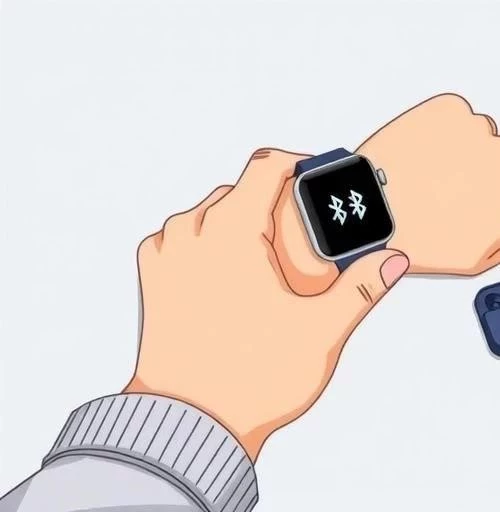
Your Galaxy Watch can be more than a tiny wrist-sized command center: pair it with Bluetooth headphones and it becomes a pocketless soundtrack for a run, a commute, or a quiet escape from the kitchen radio. The trick is to pair the headphones with the watch, not just with your phone. Here’s how to do it, what to check when pairing gets stubborn, and how to listen without carrying your phone.
Before you begin: put the headphones in pairing mode
Charge both devices, keep them close together, and make the headphones discoverable. The exact ritual depends on the model: you may need to open the earbuds’ case, hold a button on the case, or press and hold a touch control. Look for a flashing light or a pairing prompt in the headphones’ instructions. If they connect to your phone automatically, temporarily disconnect them there; earbuds already busy talking to another device may not appear on the watch.
For Galaxy Buds, opening the case near a compatible Samsung phone can trigger a pop-up, but that does not necessarily mean they are paired to the watch. The watch still needs its own Bluetooth connection.
Pair headphones directly from the watch
- Open Settings. On the watch, swipe up to the app screen and tap the Settings gear. On some versions, you can also swipe down from the watch face and tap the Bluetooth control.
- Find Bluetooth audio. Tap Connections, then Bluetooth. Depending on your Galaxy Watch model and software version, you may see Bluetooth audio or a list of available devices. Make sure Bluetooth is switched on.
- Start a search. Tap the option to scan for or connect a new device, if shown. Keep the headphones in pairing mode while the watch looks for them.
- Select your headphones. Tap their name when it appears. Confirm a pairing request if one pops up, then wait for the status to say Connected.
- Test the sound. Start music, a podcast, or another audio app on the watch. If sound still comes from the watch speaker or another device, open the audio app’s output selector and choose your headphones.
Menu labels shift slightly between watch generations and One UI Watch versions. If your screen looks different, search Settings for “Bluetooth,” or open the Bluetooth page and look for an option to add or connect an audio device. The destination is the same: the headphones should appear in the watch’s Bluetooth device list.
Connect through Galaxy Wearable
On a paired Samsung phone, open the Galaxy Wearable app and select your watch. Depending on the watch and app version, you may be able to open the watch’s Bluetooth settings from Watch settings and follow the on-screen prompts. If there is no headphone-pairing option in the app, use the watch itself; that route works across more menu layouts. Pairing earbuds with the phone in Galaxy Wearable is a separate process and does not automatically pair them to the watch.
Listen without your phone
Bluetooth pairing only creates the audio link; it does not put songs on your watch. For phone-free listening, add music to the watch using a compatible music app, or download playlists in that app before you leave. The precise steps depend on the service and watch model. Streaming may require Wi-Fi or an LTE connection, an active subscription, and enough battery. If you only want to listen while your phone is nearby, play audio on the phone and select the headphones as its output instead—the watch connection is useful when you want the watch to be the player.
If the headphones won’t connect
- They don’t appear: Put them back into pairing mode, move them closer, and check that they are not connected to a phone, tablet, or laptop. Turn Bluetooth off and on again on the watch, then scan once more.
- They appear but pairing fails: Disconnect them from other devices. Restart the watch and headphones, then try again. If the headphones were paired before, remove or forget them in the watch’s Bluetooth list and pair them as new.
- They say “connected,” but there’s no sound: Check the headphone volume and the audio app’s output choice. Pause and restart playback. Also check whether the sound is coming from a different Bluetooth speaker or headset.
- Audio cuts out: Keep the watch and headphones on the same side of your body when possible, reduce nearby wireless clutter, and make sure both devices have enough battery. A fresh reconnection can help after a brief dropout.
- One earbud is silent: Place both earbuds in the case, close it briefly, then take them out together. If the problem remains, check the earbuds’ own app or instructions for cleaning, balance, and reset options.
A smoother listening routine
Once paired, many headphones reconnect automatically when Bluetooth is on and they are available. If they don’t, open the watch’s Bluetooth list and tap their name. Remember that a pair of earbuds may be saved to both your phone and watch, but the devices can compete for the connection. Disconnecting from the phone is a quick way to give the watch the stage.
Finally, keep the volume comfortable, especially during exercise or near traffic. Your wrist can now cue the next track without asking your phone for permission—a small convenience, but a surprisingly liberating one.

5 Comments. Оставить новый
The best detail is that the watch needs its own connection, even when the headphones already know your phone by heart. A useful nudge for anyone hoping to leave the phone behind on a run.
This guide turns pairing into a small checklist rather than a Bluetooth séance: charge, make discoverable, search, connect, test. The headphones’ flashing light feels like the little lighthouse guiding the whole process.
Clear, practical, and refreshingly honest about how the steps can vary by model. I especially like the distinction between a Buds pop-up on a phone and an actual connection to the watch—two very different kinds of “hello.”
A compact guide with a nice troubleshooting instinct: if the headphones vanish, they may simply be busy chatting elsewhere. Bluetooth can be a crowded party, and this article tells you how to get the watch an invitation.
A tiny wristwatch becoming a phone-free jukebox is a lovely bit of everyday magic. The reminder to disconnect earbuds from the phone first may save more frustration than any secret button combination.